Your AWS, Azure and Google Cloud costs, security, servers, backups and keys in one application. Watchman finds the waste, puts idle servers to sleep, wakes them when someone needs them, and checks every rupee against your own bill. Read-only from the first minute. Connected in five.
Every year the largest surveys of cloud buyers find the same thing. Companies pay for far more cloud than they use, and cannot see it clearly enough to stop.
29%of cloud spend is wasted, by companies' own estimateUp from 27% a year earlier, as AI workloads and new services make bills harder to follow. Flexera, 2026 State of the Cloud
84%say managing cloud spend is their biggest cloud challengeAhead of security, skills and compliance. Flexera, 2025 State of the Cloud
73%of organisations run hybrid cloud, so the bill is spread across consolesEach cloud has its own billing page, its own security centre, its own idea of a tag. Flexera, 2026 State of the Cloud
99%of cloud security failures are the customer's own, not the provider'sSettings left open, keys never rotated, nobody watching. Gartner, "Is the Cloud Secure?"
Up to 70%off the bill of a server that is only needed during working hoursScheduling it from 168 hours a week down to 50. AWS, Instance Scheduler on AWS
Figures as each source published them. Follow the links for their methods and samples. They describe the market, not a promise for your account. Watchman shows your own figure from your own records.
One application instead of five consoles
The waste lasts because nobody sees all of it at once. Finance reads one cloud's billing page, IT another cloud's console, security a third tool, and nobody can say what you pay for that nobody uses. Watchman puts it on one screen, for every cloud and account you connect.
Cost
Every cloud's bill in one view, in rupees, down to a single resource or day
This month against last month on the same days, and where it is heading
Reservations and commitments counted once, never as a false spike
Servers
Every server on every cloud, what it is made of and what it costs an hour
Schedules, idle stops and a doorbell that wakes a server when someone knocks
Disk and memory warnings before something fills up
Security
A daily score, each finding with its fix, mapped to DPDP, SOC 2 and OWASP
Who can reach what, keys and certificates before they expire
Backups machine by machine, failures flagged the same day
Savings
What was saved, checked against the cloud's own bill
Priced at your enterprise rates when you upload them, not list prices
The money still open, biggest first, one action each
What you can expect
Teams that do this usually see results in three steps. Watchman makes each one a click, not a project:
Week one: see it. Connect read-only and the waste shows up by name: servers running all night for nobody, disks and addresses attached to nothing, old keys, open settings. Report mode shows what Watchman would stop and what it would save, before it touches anything.
Month one: stop paying for it. Development, test and UAT servers sleep outside working hours, which takes up to 70% off each. Watchman warns, then stops idle servers within the hour. You remove leftovers with one click.
From then on: keep it that way. A morning email, budget alerts before the month goes over, a security score every day, and a savings figure your finance team can check against the bill.
How much you save depends on how much of your estate runs outside working hours, how many leftovers you have and the rates you pay. The arithmetic below shows how the numbers work. Your Savings page shows your figure.
The arithmetic of a sleeping server
Worked from public cloud list prices, so you can check every line.
510 of 730hours in a month when nobody is at workA month is 730 hours; a 10-hour day on 22 working days is 220.
70%fewer hours billed for a server that runs only while people work220 hours instead of 730.
₹3,260kept every month on one t3.large in Mumbai, after the doorbell's cost₹5,429 always on, ₹1,636 awake when needed, ₹533 doorbell. 60% of its bill.
< 1 hourfrom last use to stopped, day or nightChecked every 15 minutes. Left on over a weekend, a server runs 61 hours from Friday 20:00 to Monday 09:00.
7 to 45 sto wake a sleeping server when someone connectsProduct tests: SSH on AWS 7 s, Remote Desktop 15 s, an Azure server 45 s.
5 minto connect an account, with no card for the 7-day trialAzure can take 15 more minutes on its side.
AWS on-demand list price for t3.large in Mumbai ($0.0896 an hour, Linux), at ₹83 to the dollar. Your rates, sizes and hours decide your figure. The Savings page shows it from your records and checks it against your bill.
What changes on day one
Your whole cloud bill on one page. AWS, Azure and Google Cloud, up to 20 accounts, one login. Down to a single resource or a single day in two clicks.
Every server's idle time, proven. Each stop keeps the 5-minute readings behind it, so nobody has to take Watchman's word for it.
Sleep without complaints. The doorbell and the wake link bring a server back in seconds, so you can also put to sleep servers people need now and then.
A security score every morning. Daily checks mapped to DPDP, SOC 2 and OWASP, with the fix for each finding.
Nothing breaks in production. A server tagged production, or with no Environment tag, is never stopped automatically.
What each person gets
Finance
The month against last month on the same days, and where it is heading
Budget emails at 80% and 100%, and before the month goes over
A spike day flagged the next morning
7 years of cost history, in Excel when you want it
IT and operations
Schedules by working day and holiday, to the quarter hour
Idle servers warned, then stopped within the hour
Backups machine by machine, failures flagged
A disk warning 5 days before it fills
Security
A daily scan and score, with the steps to fix
Keys and certificates flagged 30, 14 and 7 days before they expire
Who holds which role, in one grid
Every action and every vendor view in the audit log
Leadership
One morning email at 07:30 with yesterday's cost, what ran and what needs a decision
What Watchman saved, checked against the bill
The money still open, biggest first, with one action each
A worked example
An illustration, not a customer result: ten development servers, each a t3.large in Mumbai, used by a team on a 10-hour day, 22 days a month.
A month
A year
Always on (730 hours)
₹54,289
₹6,51,468
Awake only while people work (220 hours)
₹16,361
₹1,96,332
Doorbell for 10 servers (one large, or two small in two zones)
about ₹3,078
about ₹36,936
Kept
about ₹34,850
about ₹4,18,200
Compute only, at AWS list prices. Disks and fixed addresses are billed either way. Report mode shows the figure for your own servers before Watchman stops anything.
Why you can switch it on safely
Read-only first. Starting and stopping is a separate permission you add later, and it can do nothing else.
Report mode before act mode. See every stop Watchman would have made, and what it would have saved, before it makes one.
A warning before every idle stop, with Keep running one click away, and a last look at the server just before.
Your data stays yours. Kept in Mumbai, never your files or databases, and no name, id or address ever goes to the AI model.
No standing access for us. Our staff see your figures only with a time-limited key your company gives them, and every view is in your audit log.
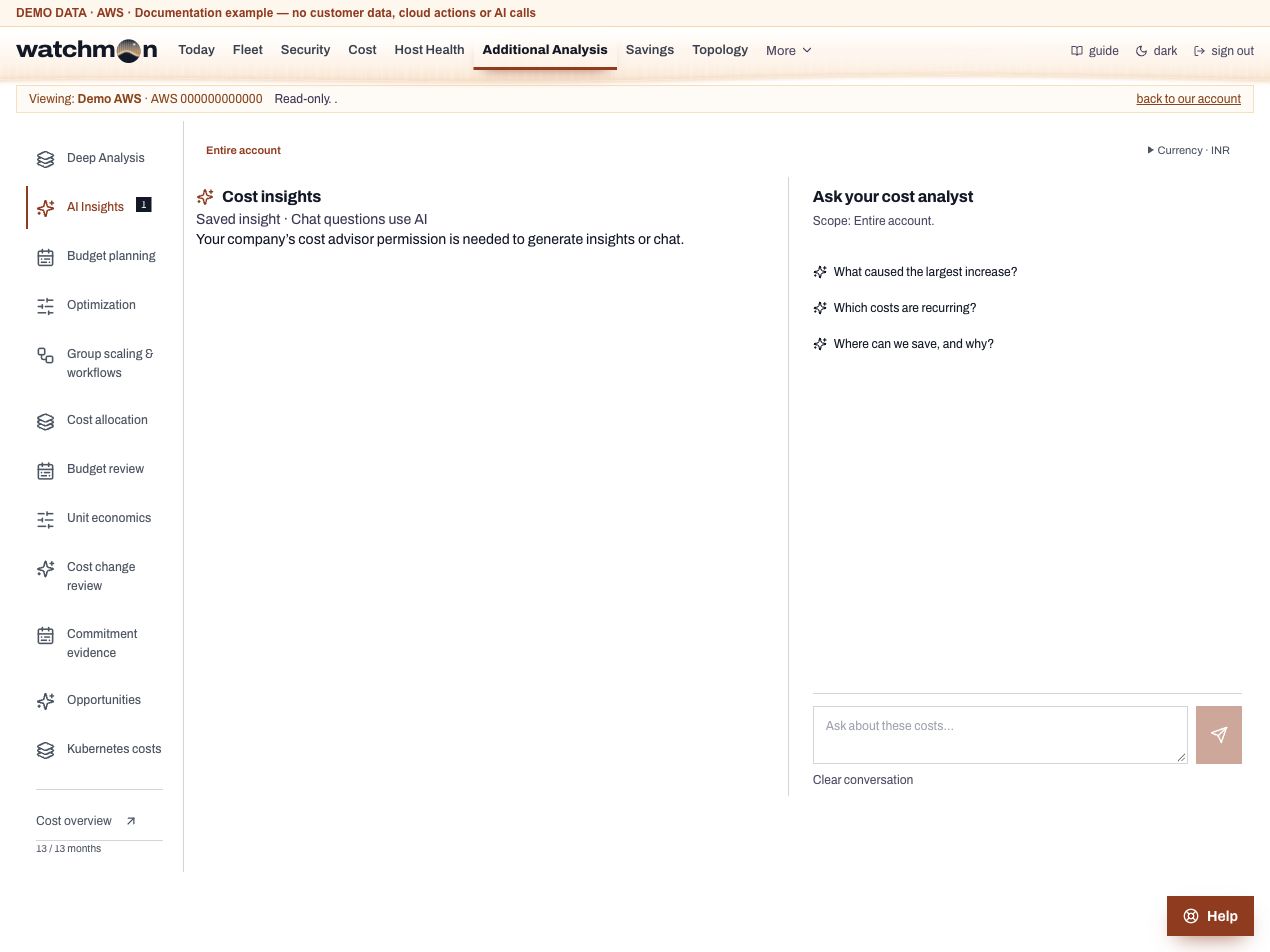
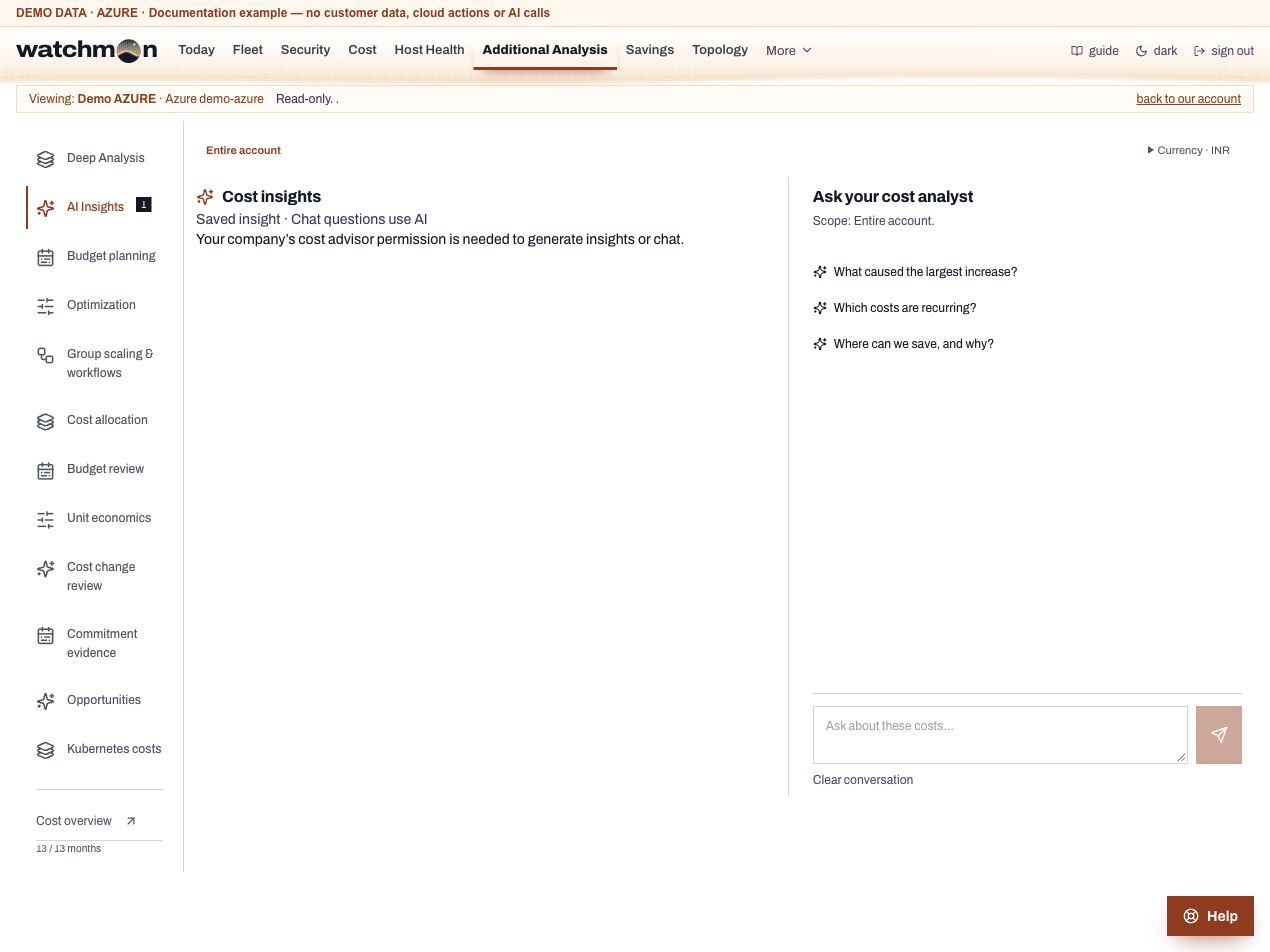
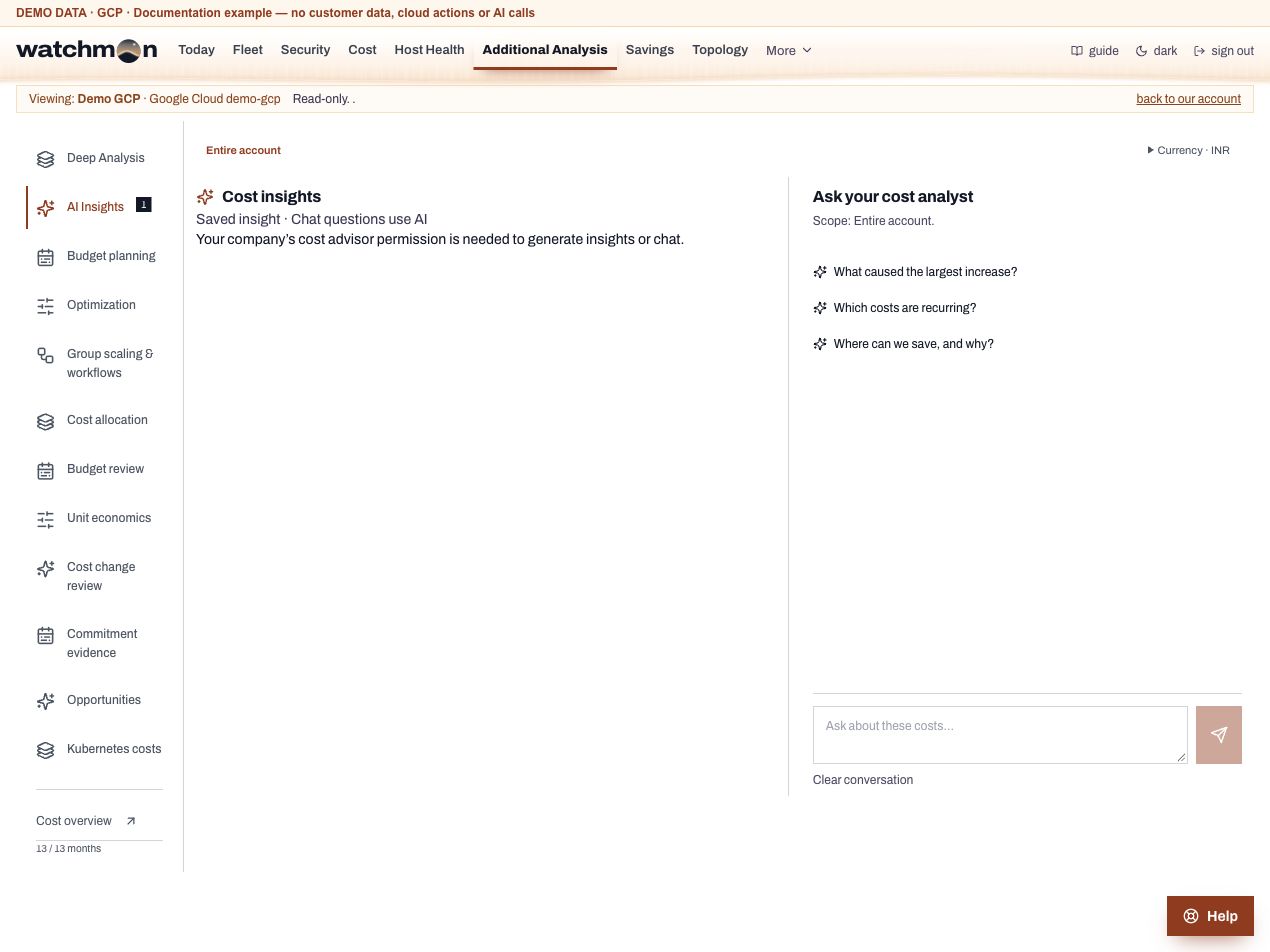
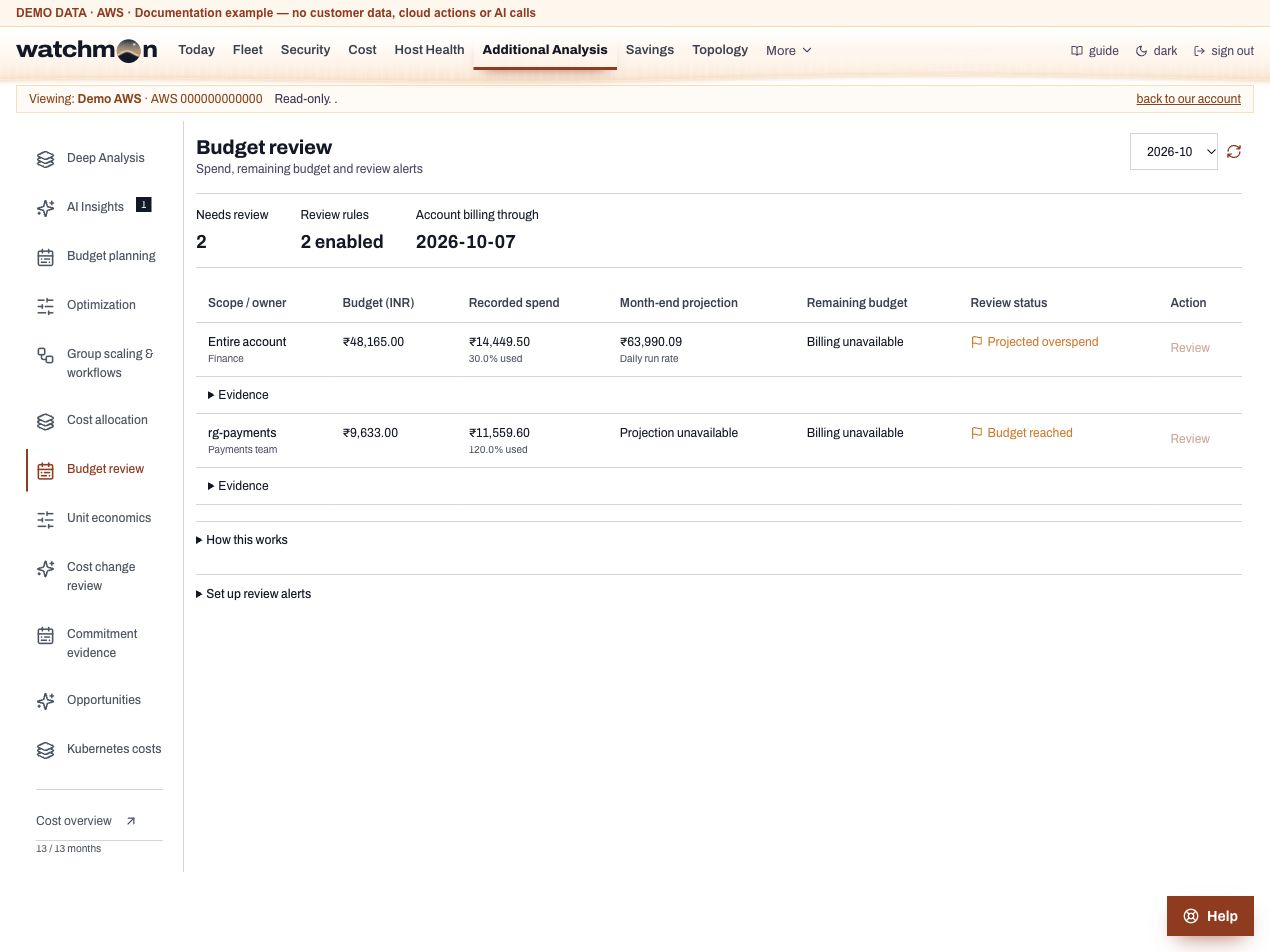
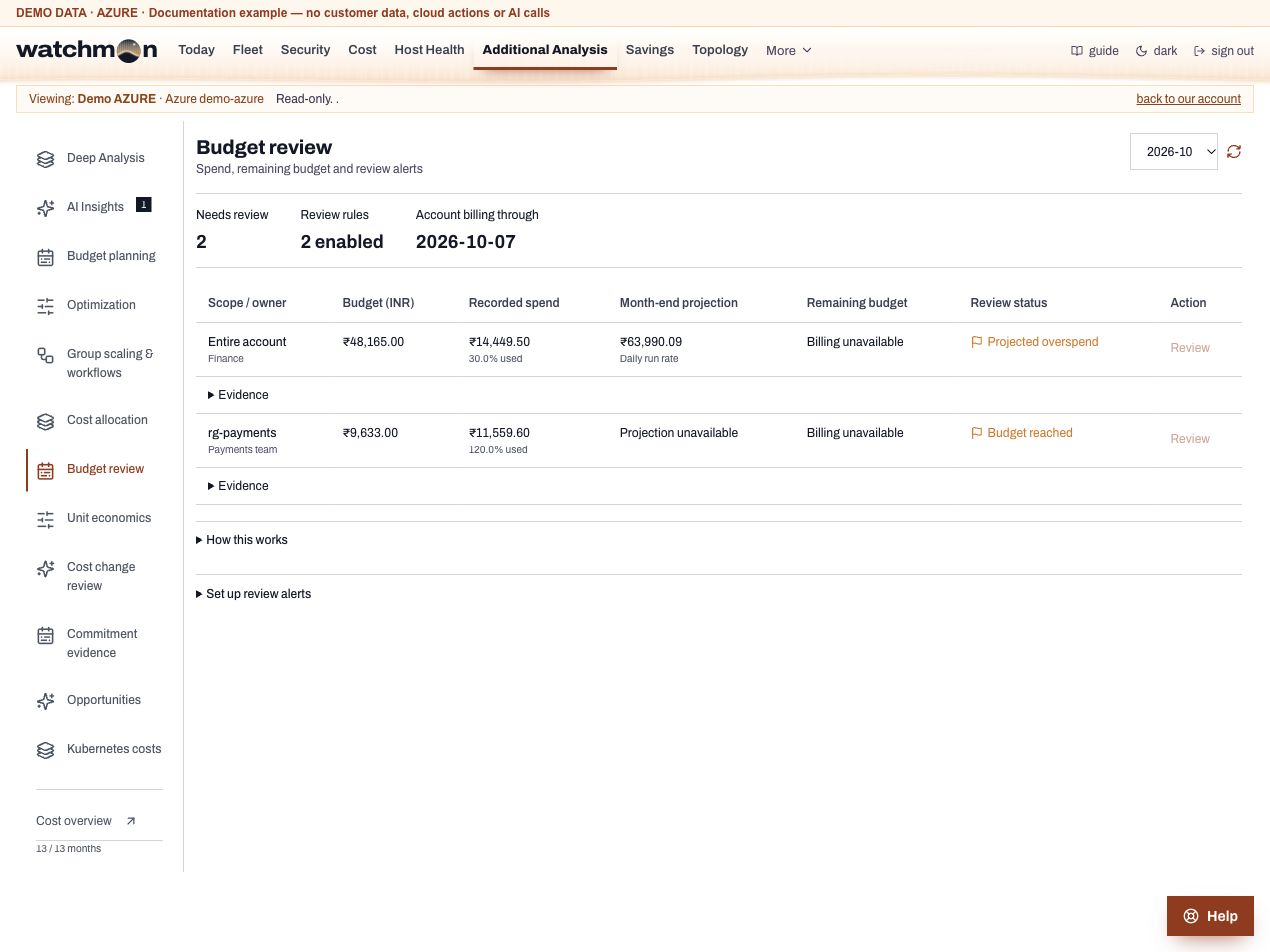
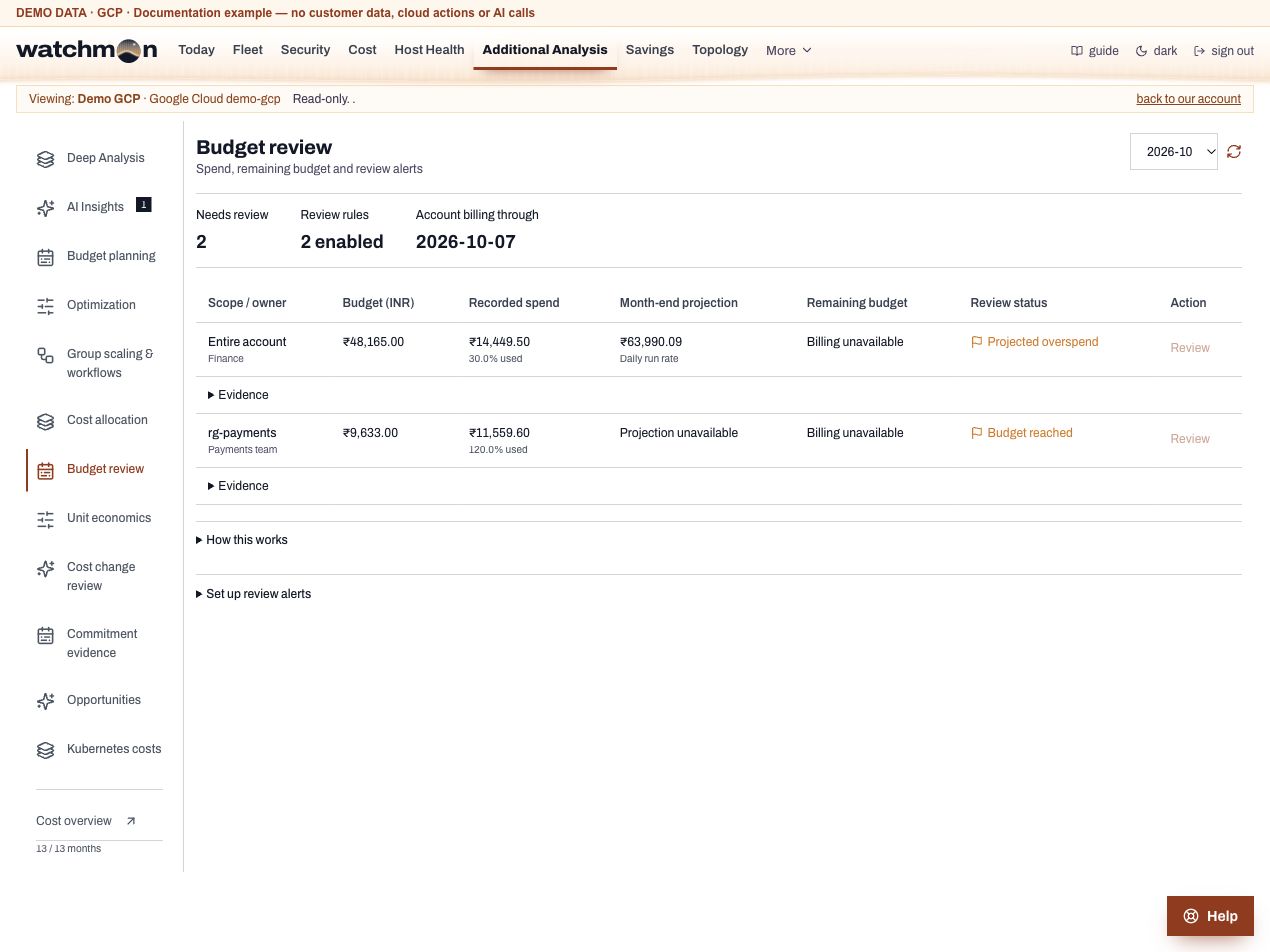
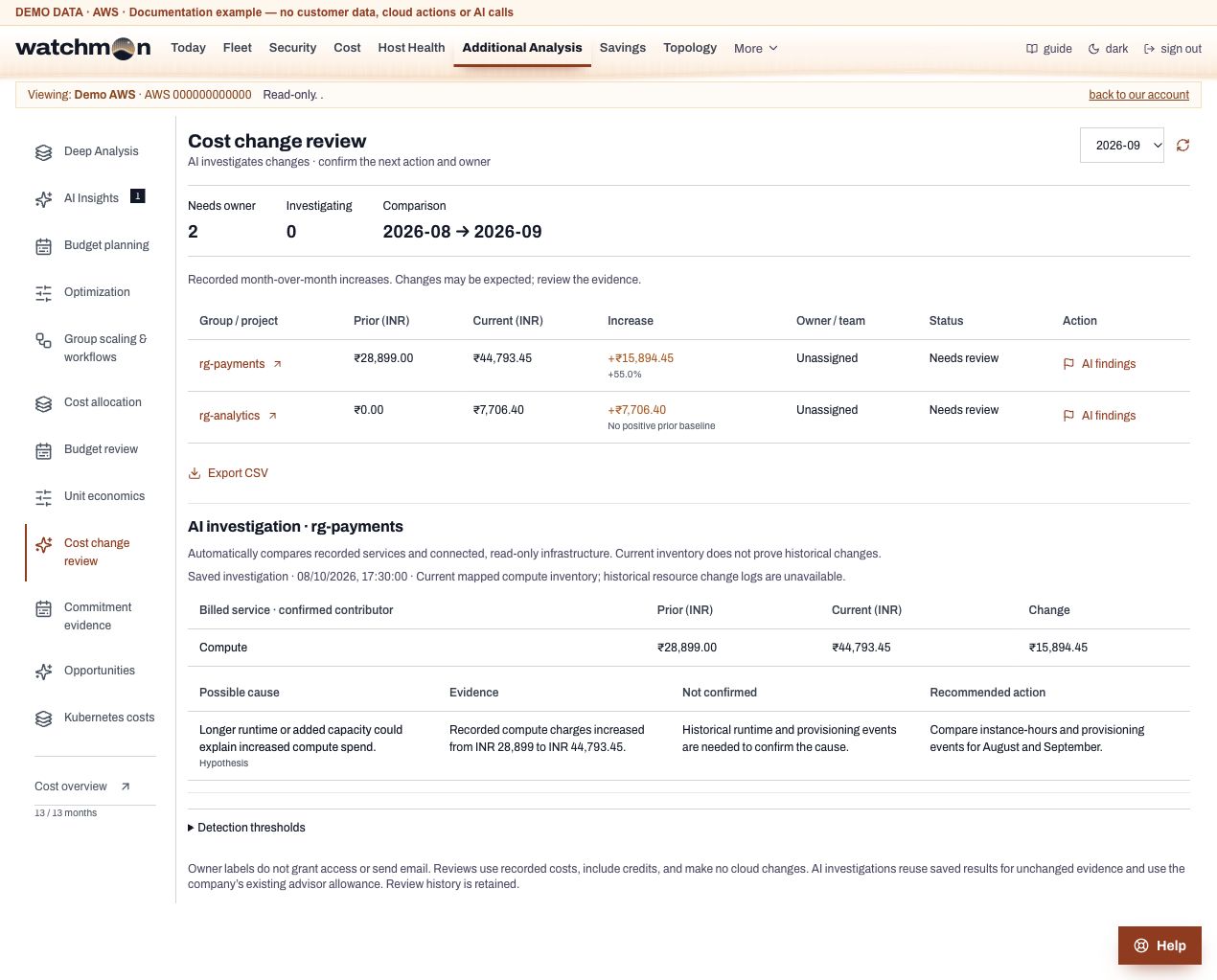
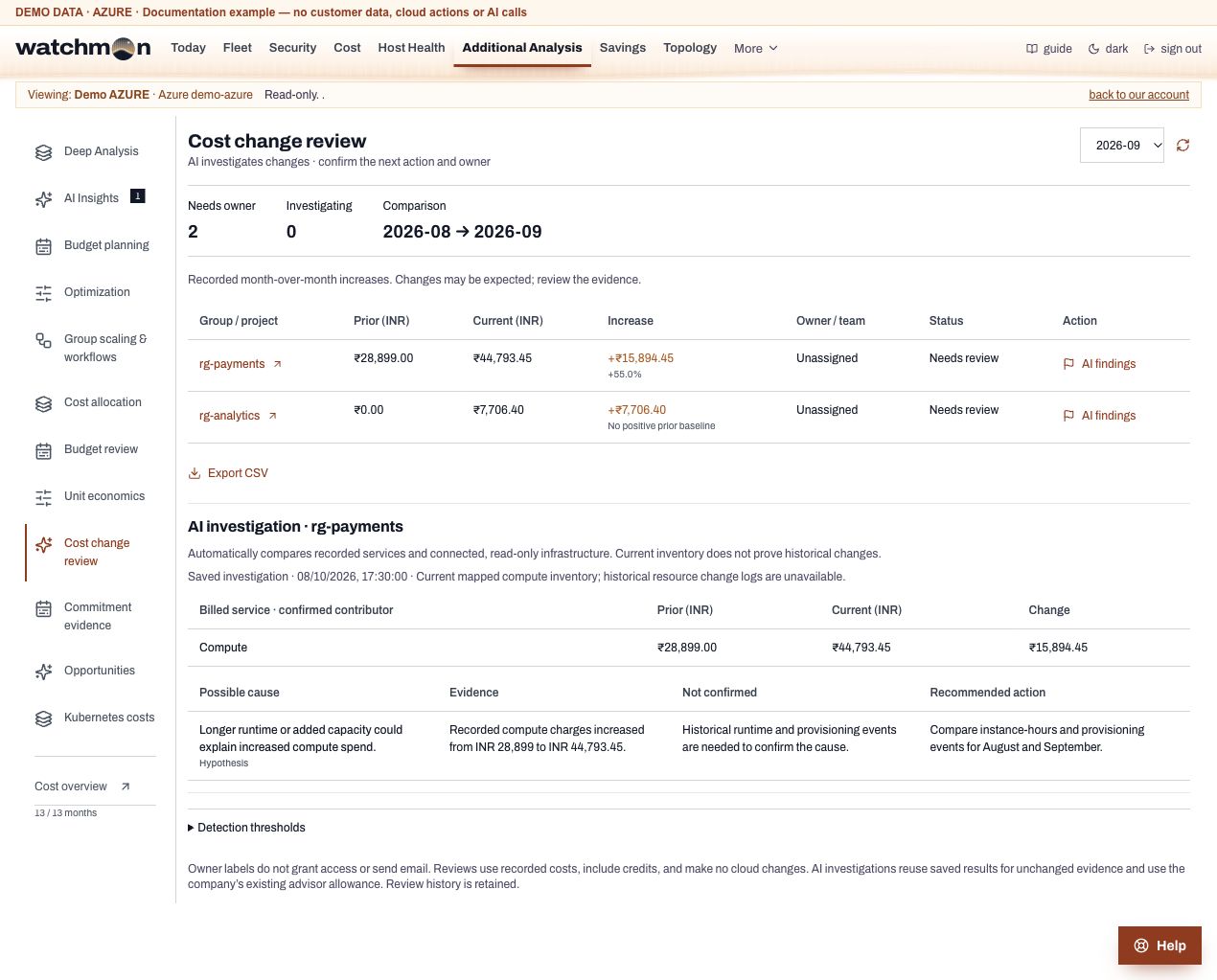
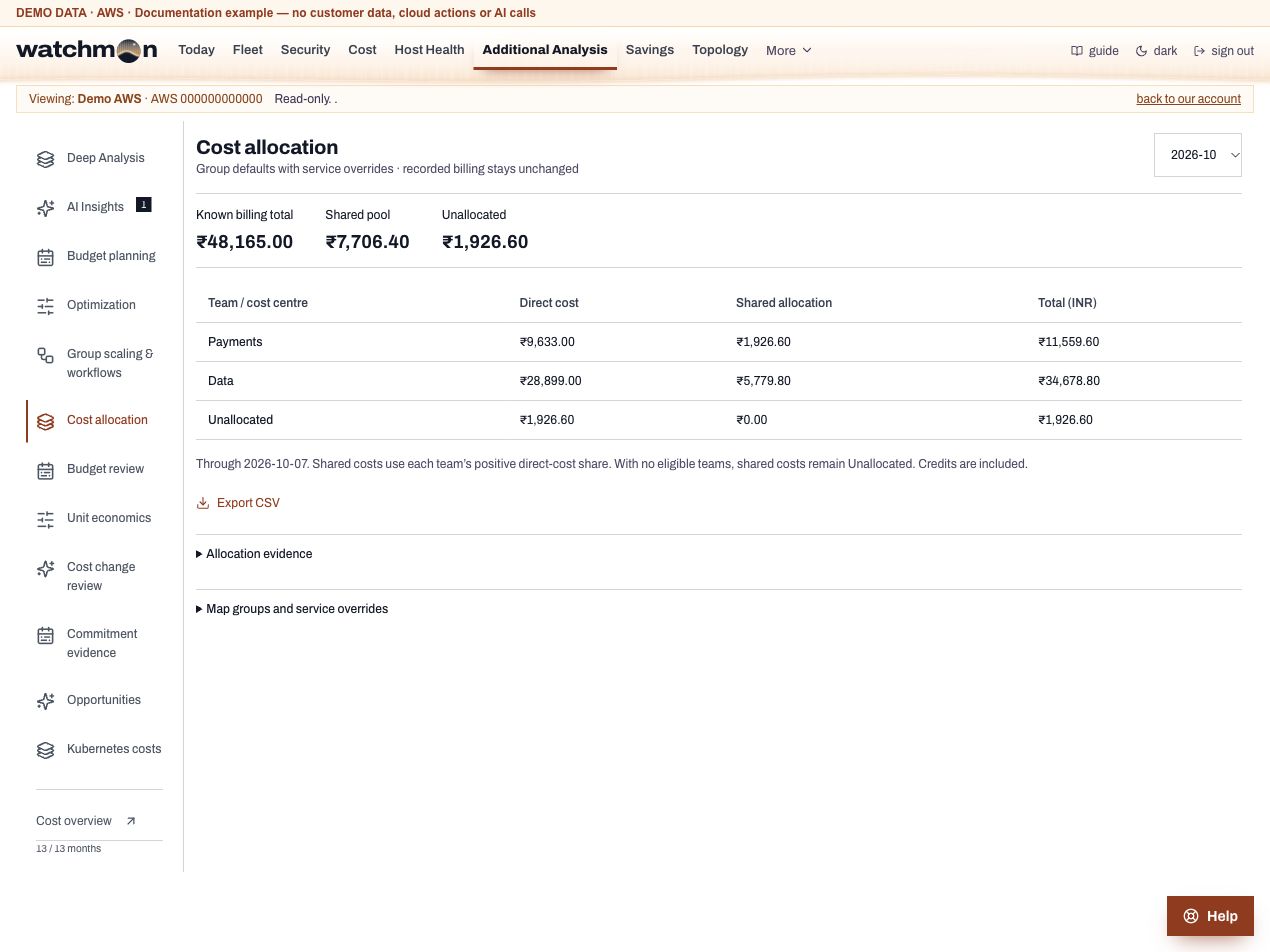
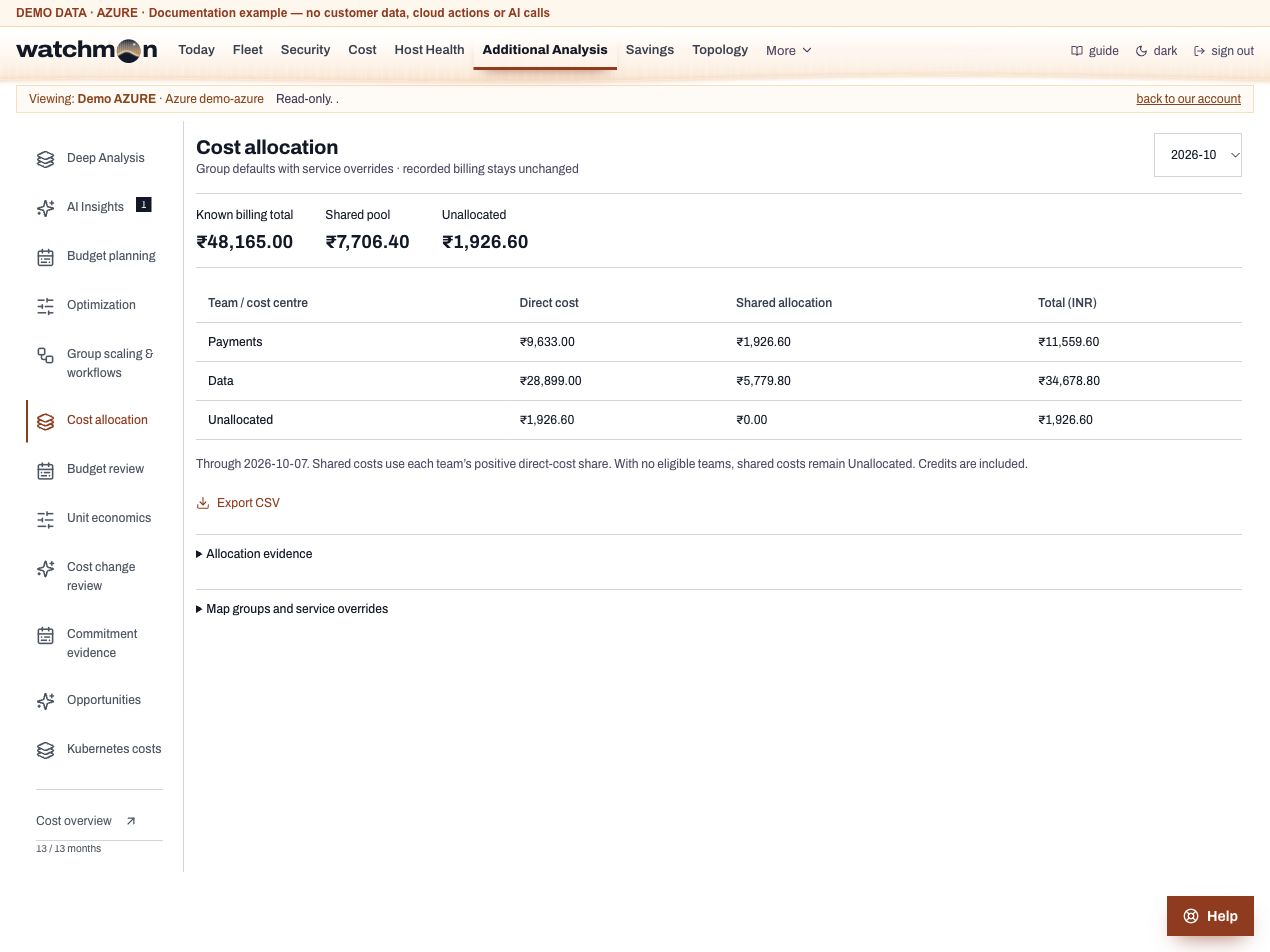
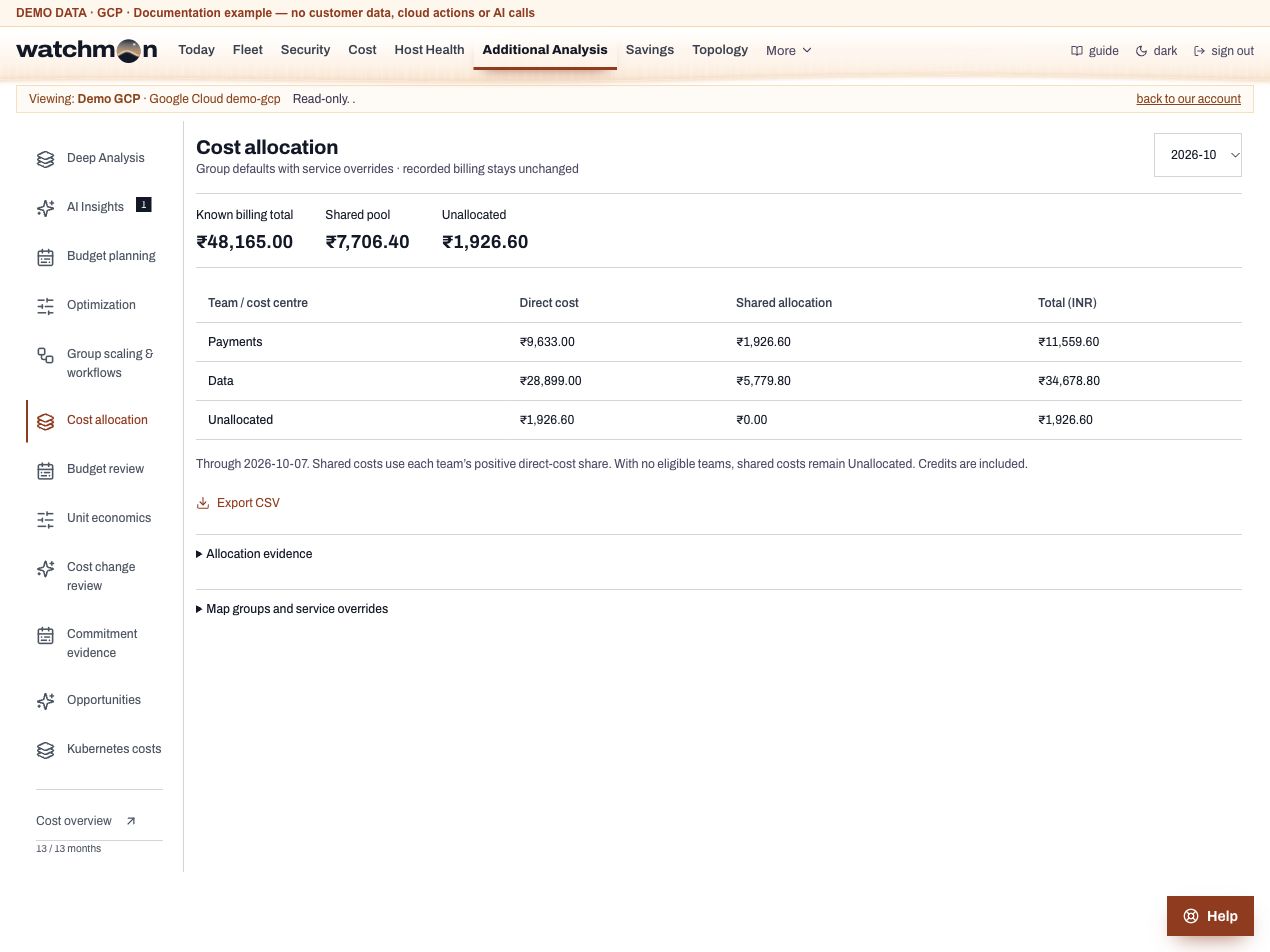
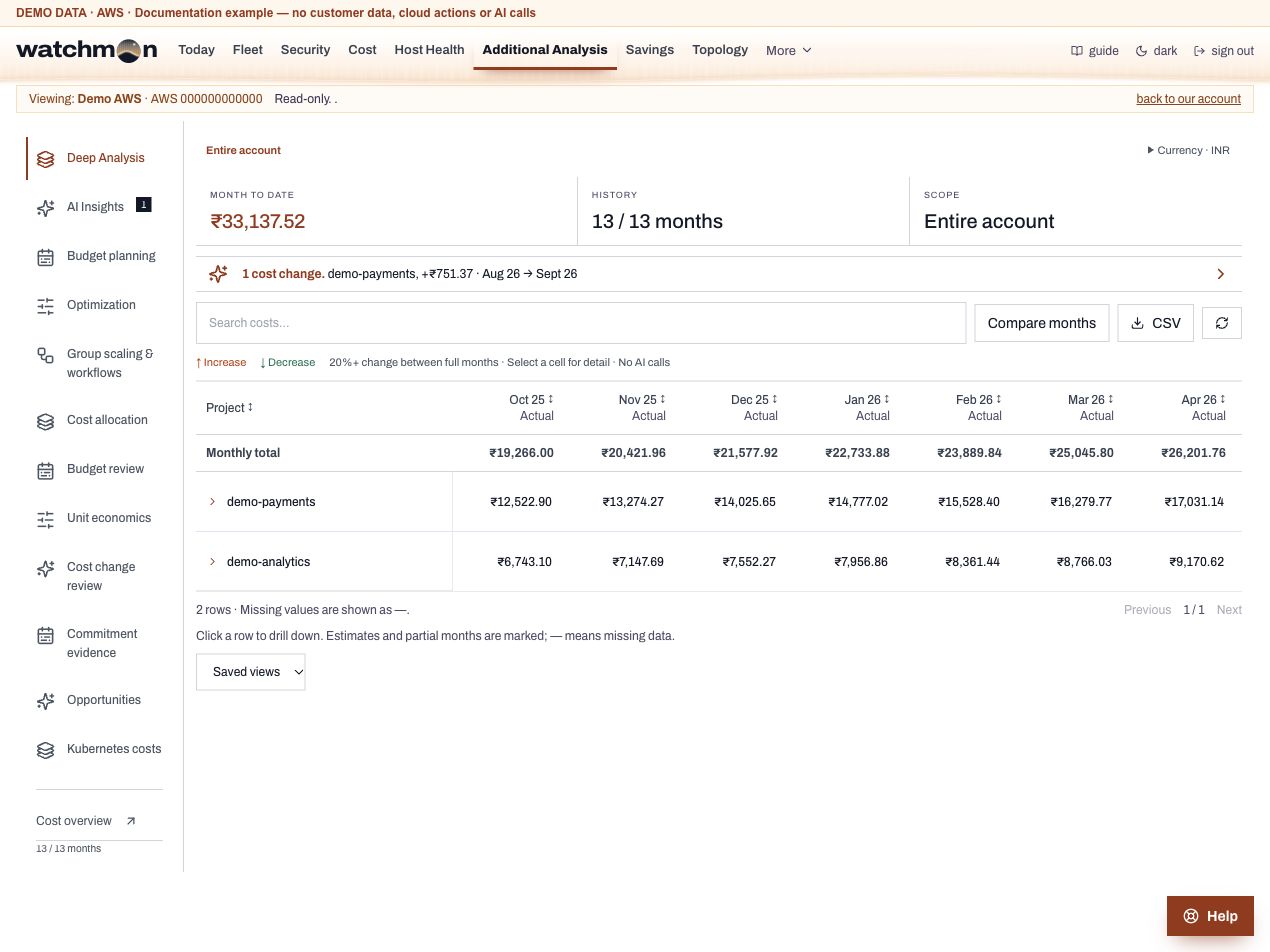
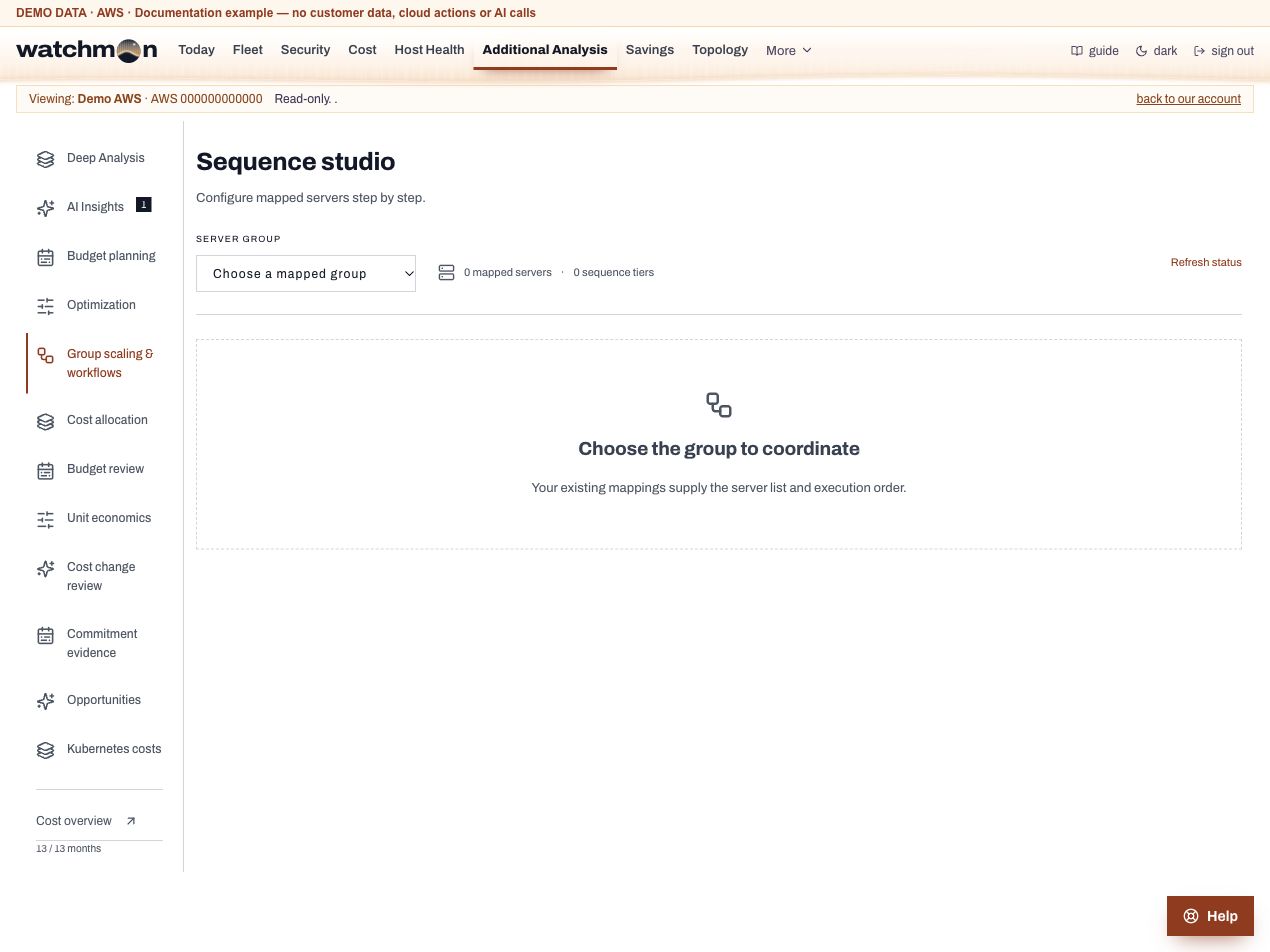
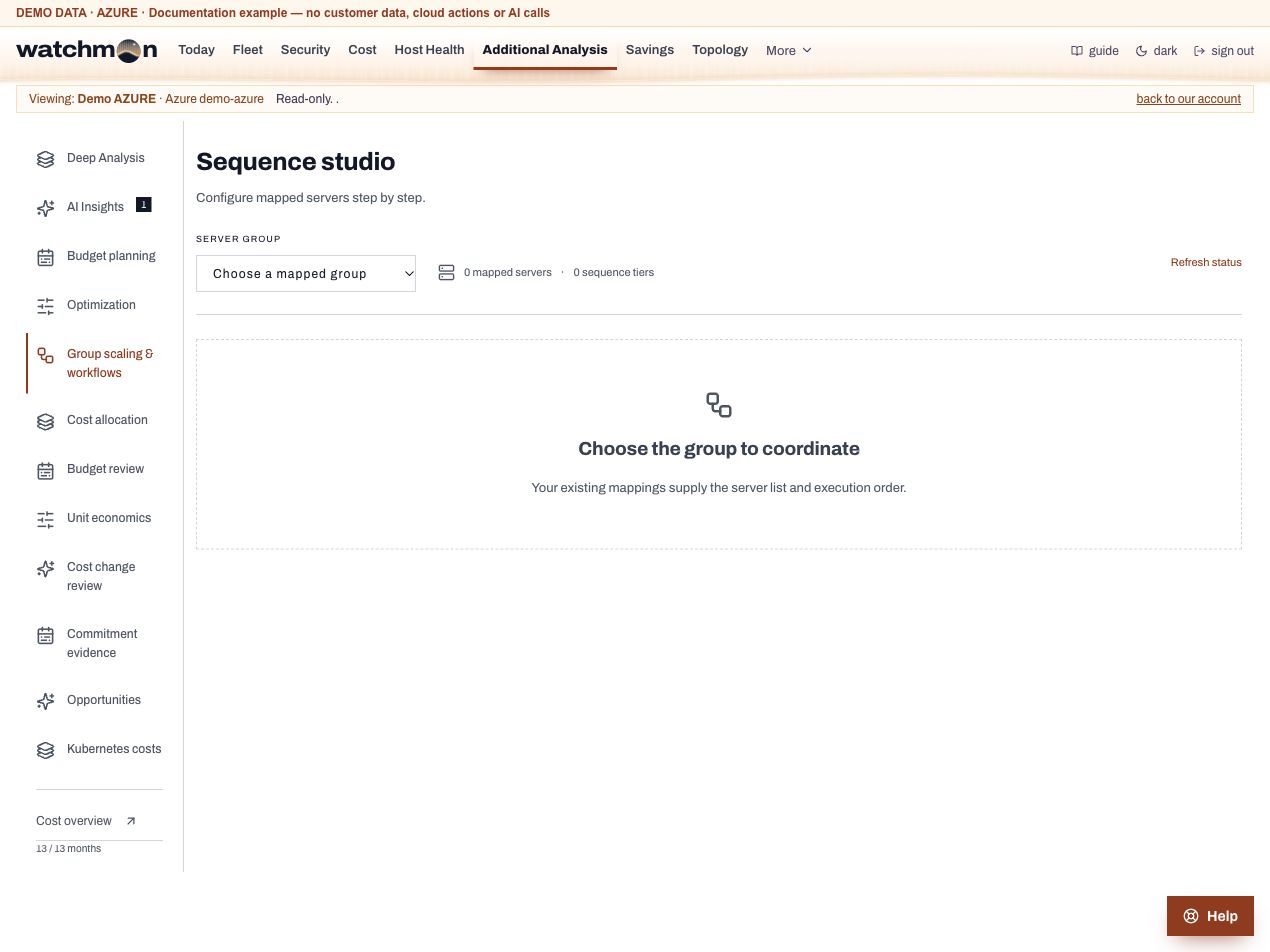
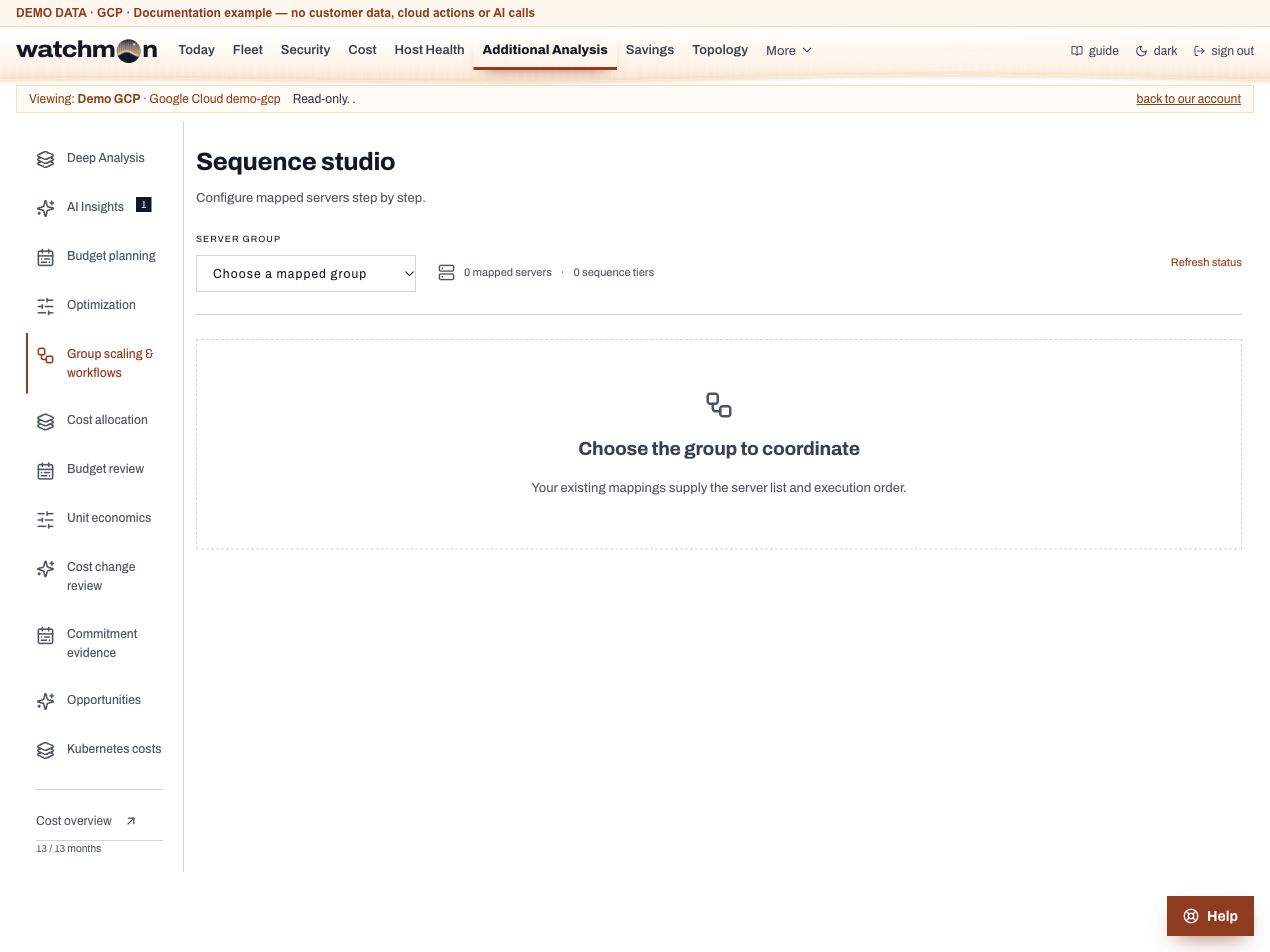
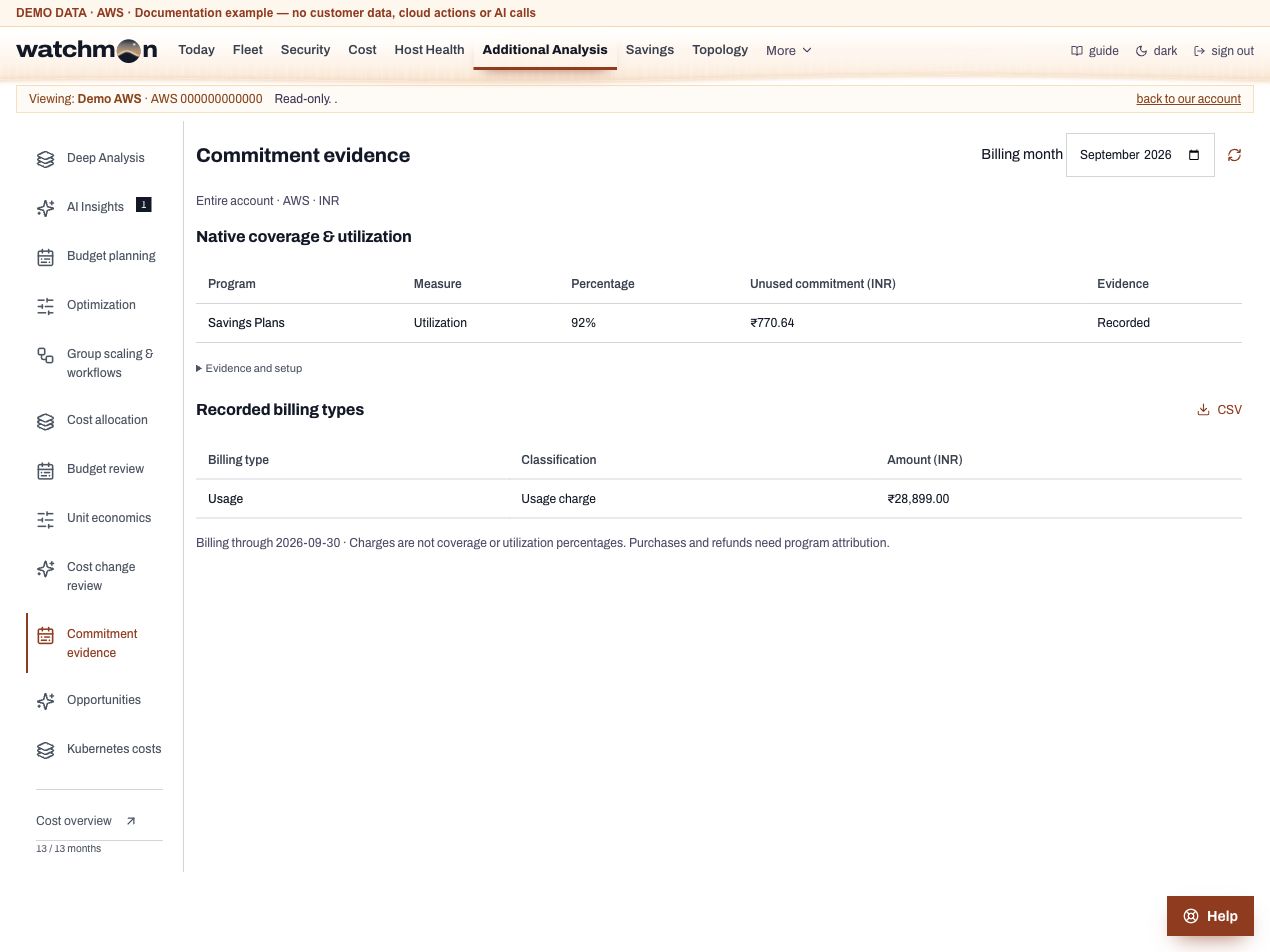
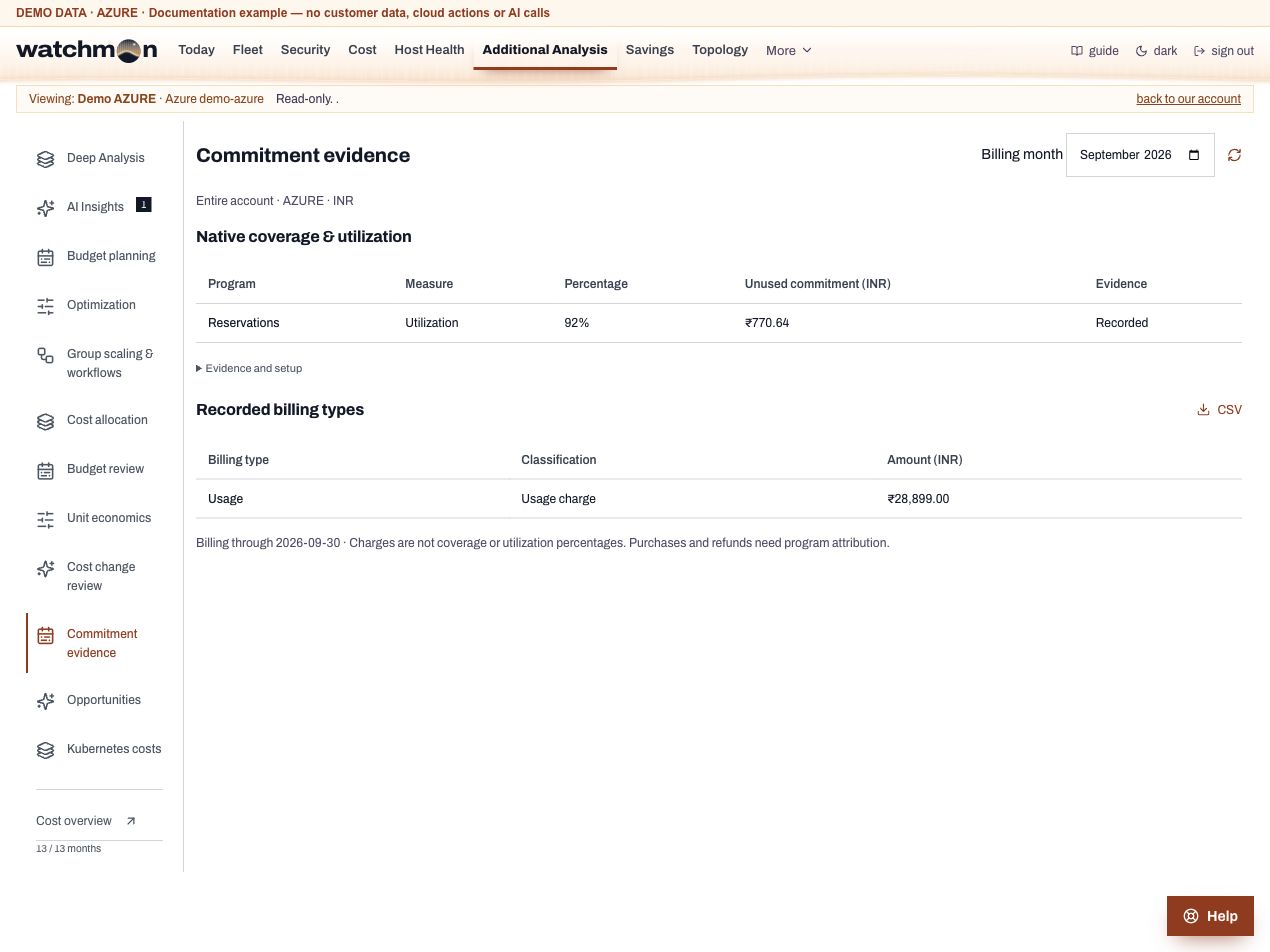
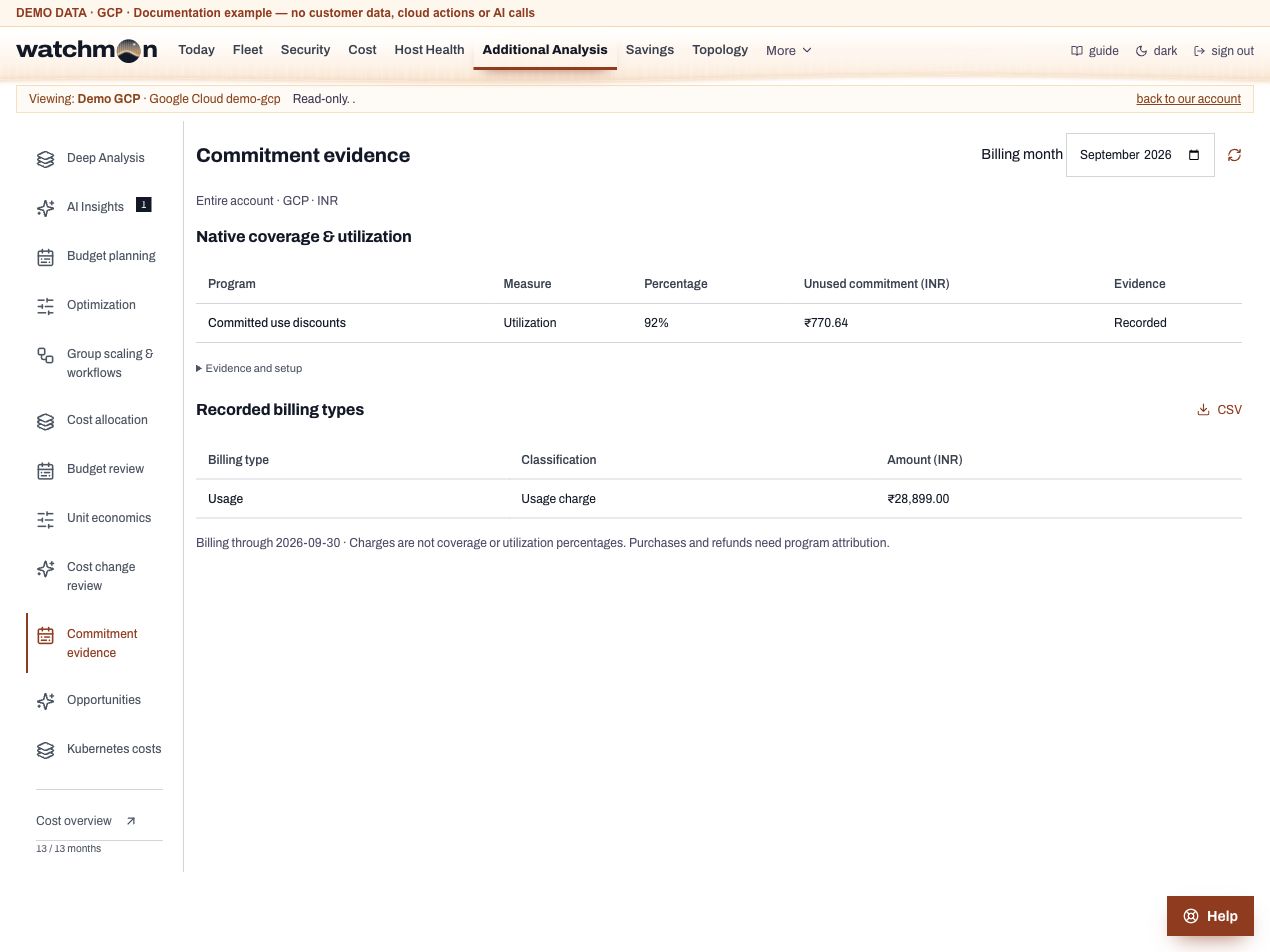
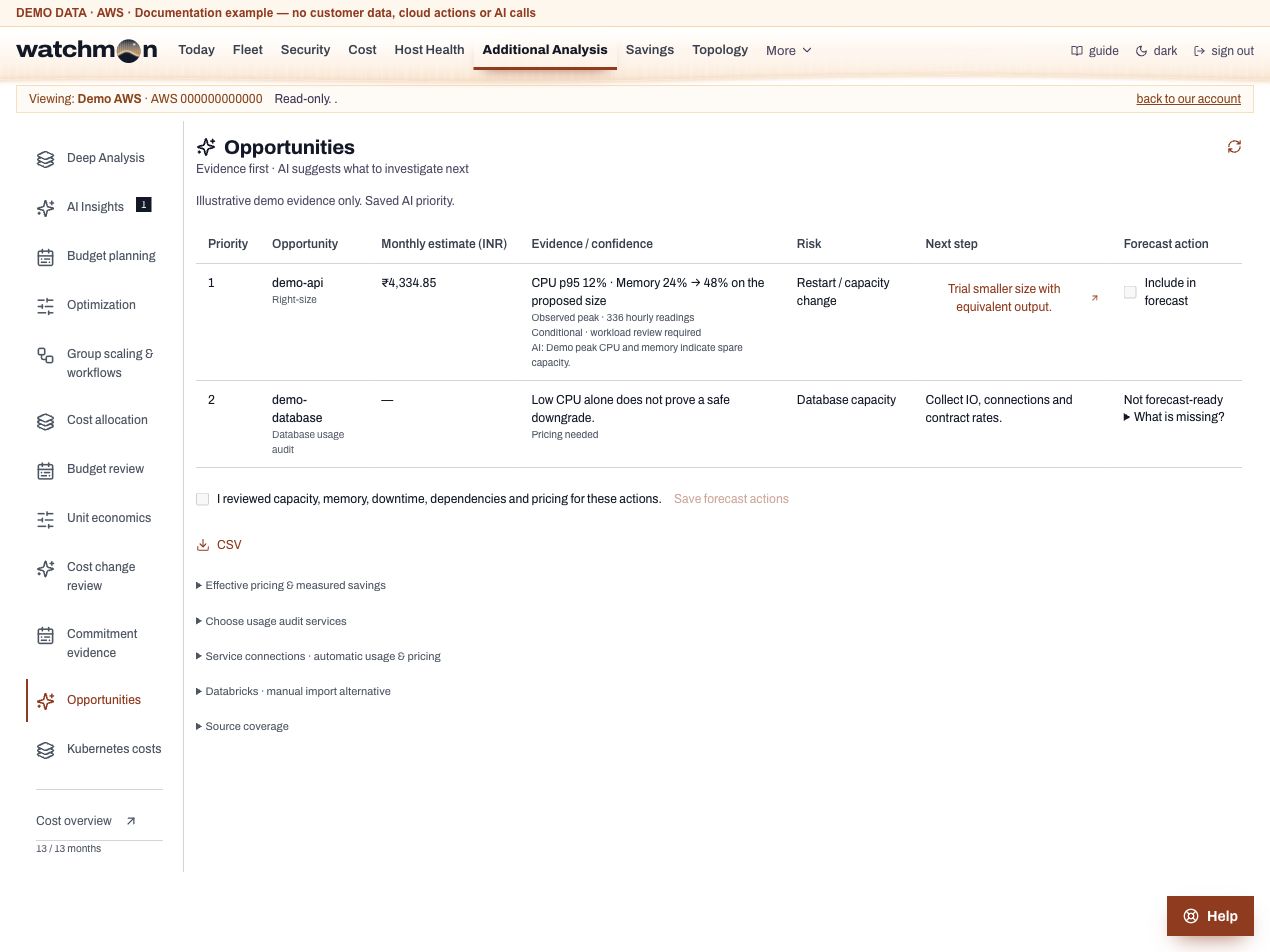
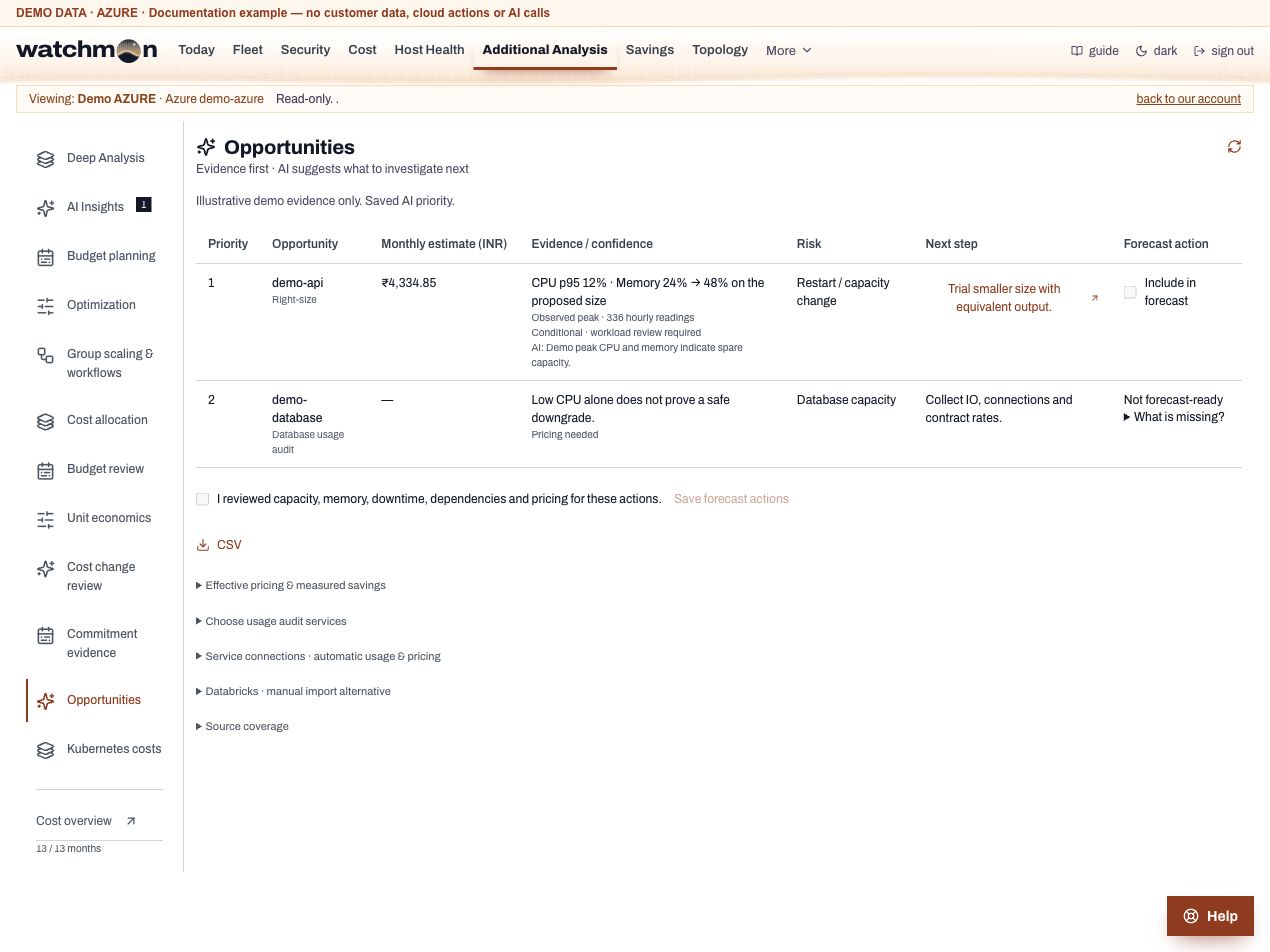
31 views × 3 clouds. Page captures and guided configuration screenshots with fictional demo data.
Choose a page for its steps and cloud selector, or open an image below. Demo amounts, identities, usage, AI answers and savings are examples, not customer results. Read-only examples show disabled controls; your available pages and actions depend on your tenant modules, role, connection and evidence.
Connect your cloud account, then verify billing and readings.
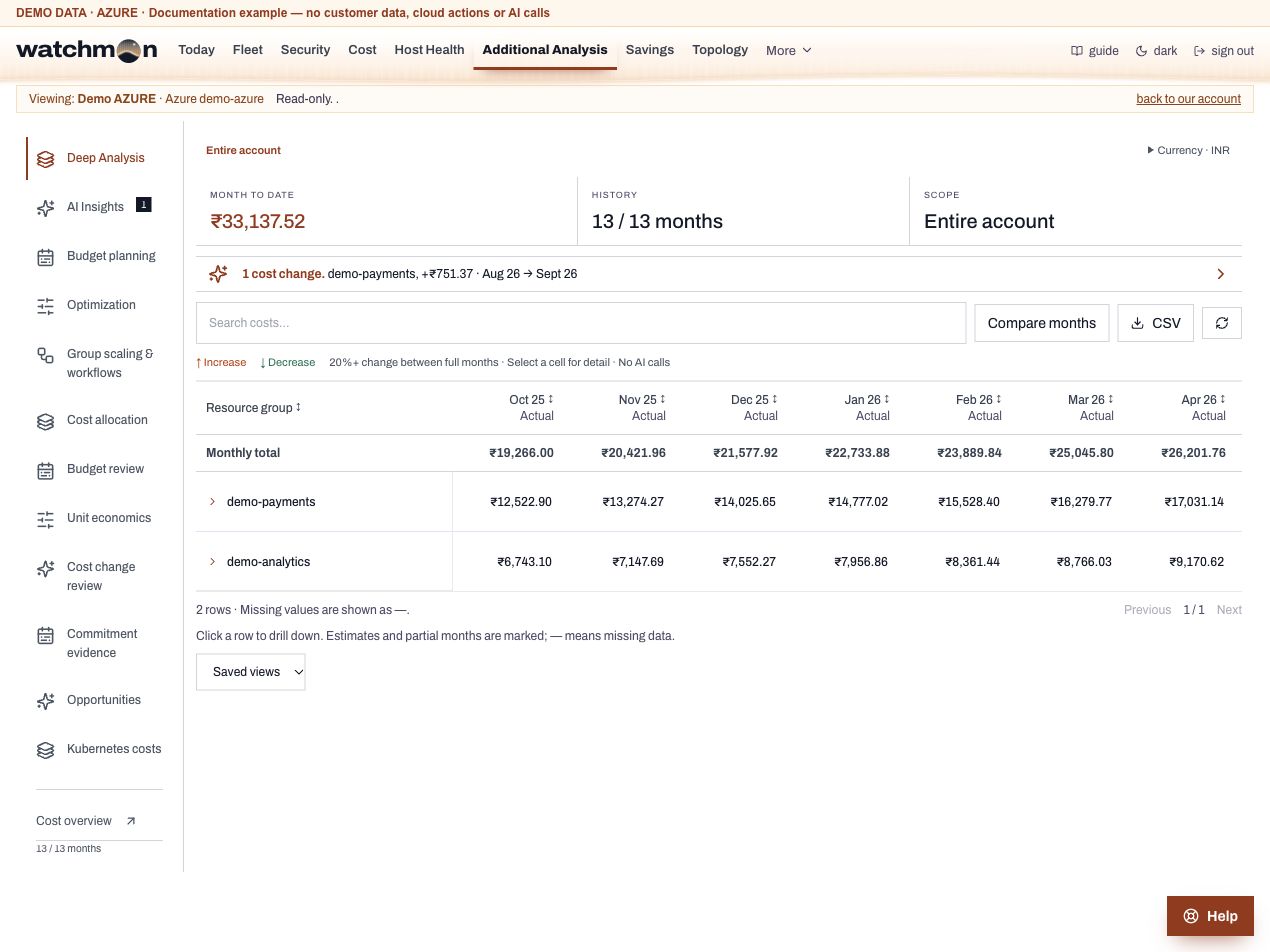
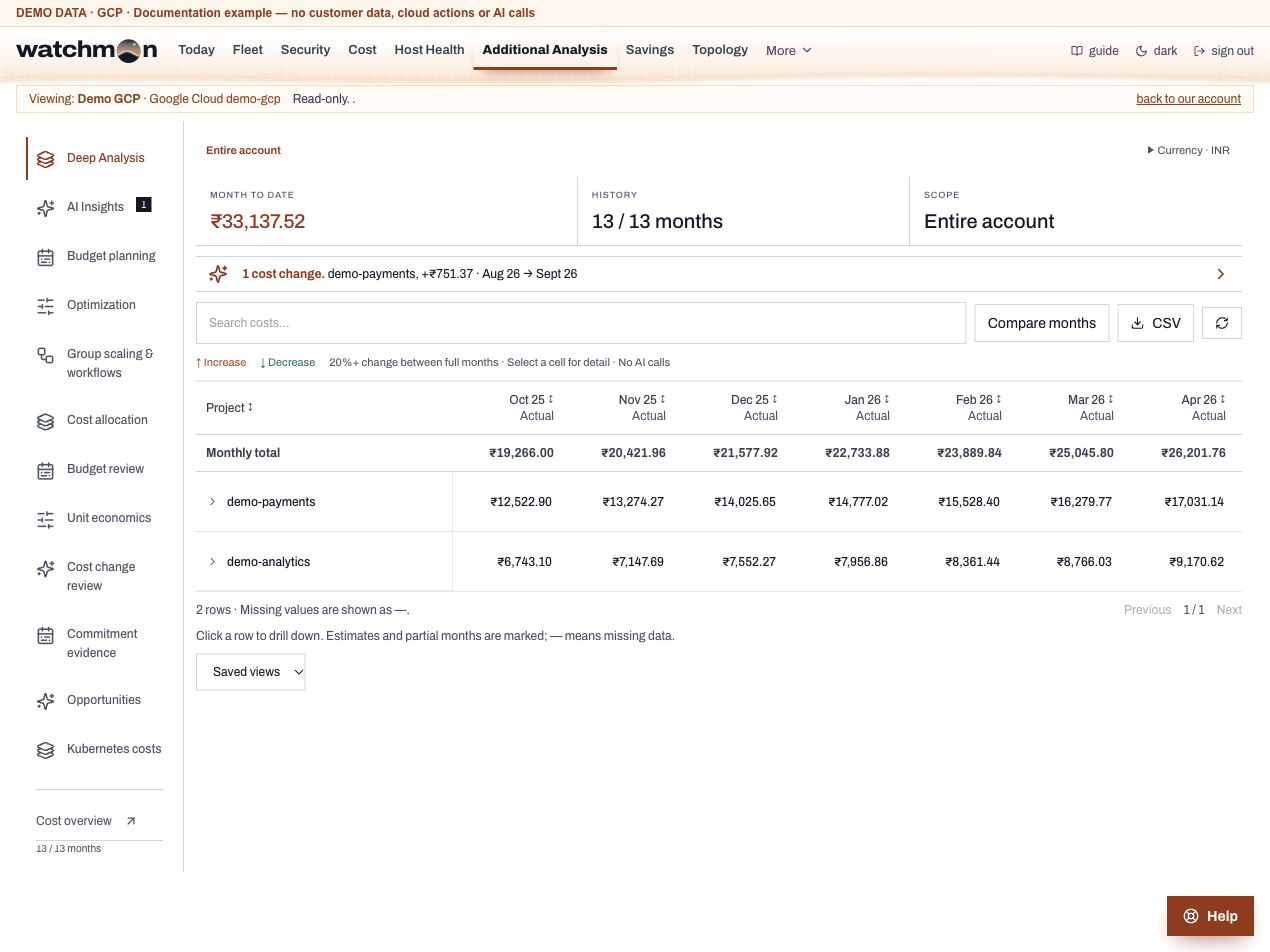
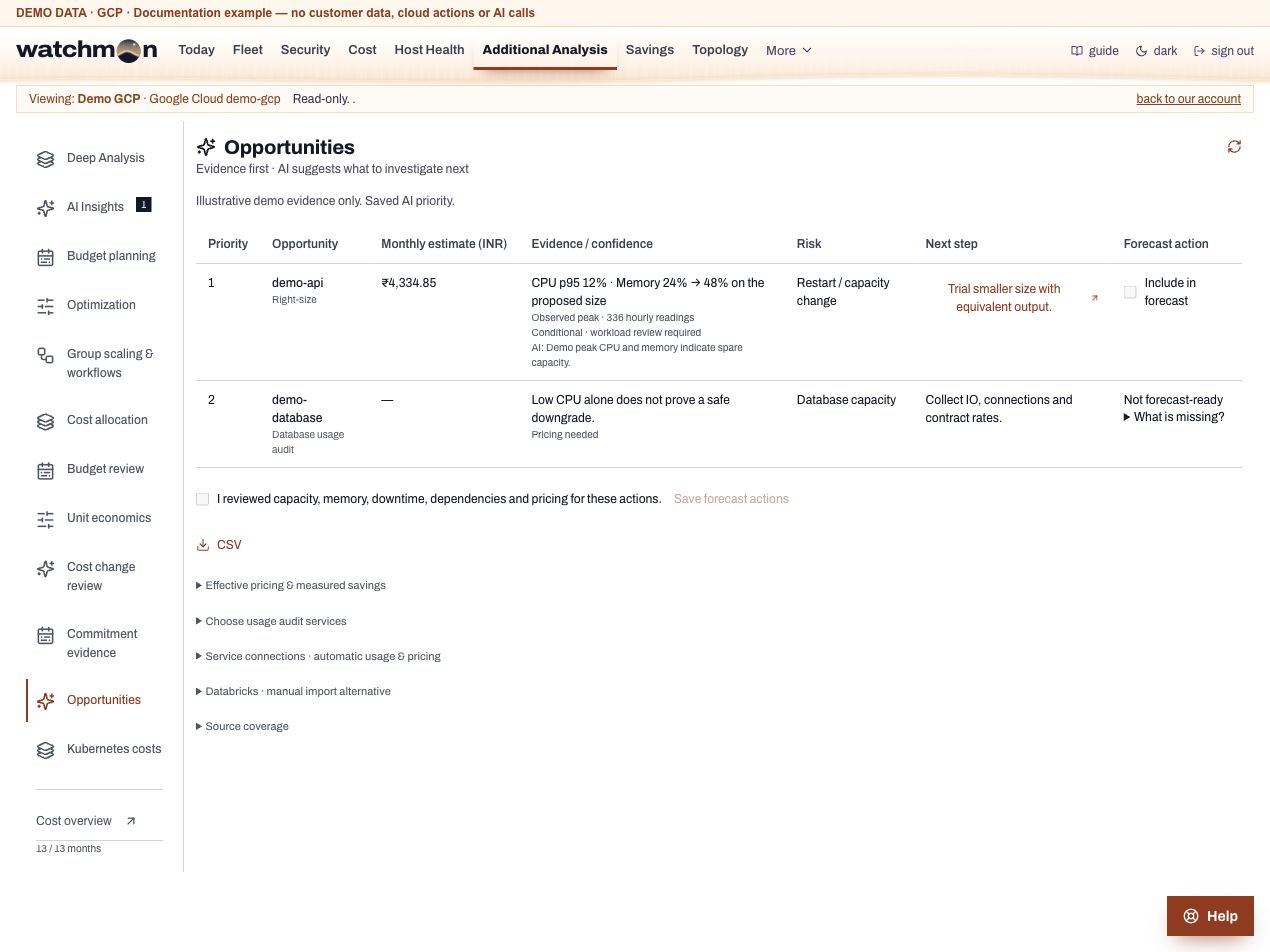
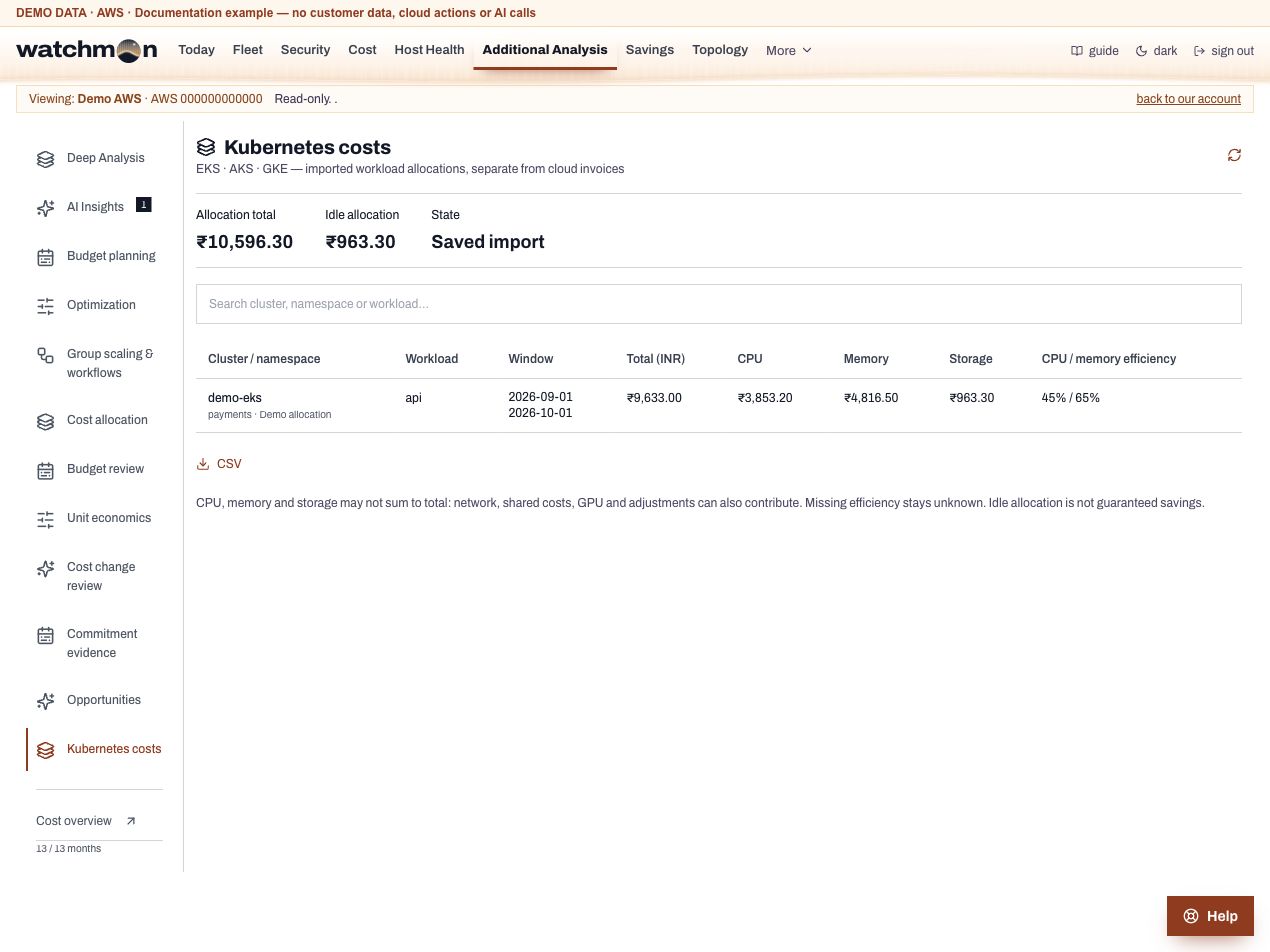
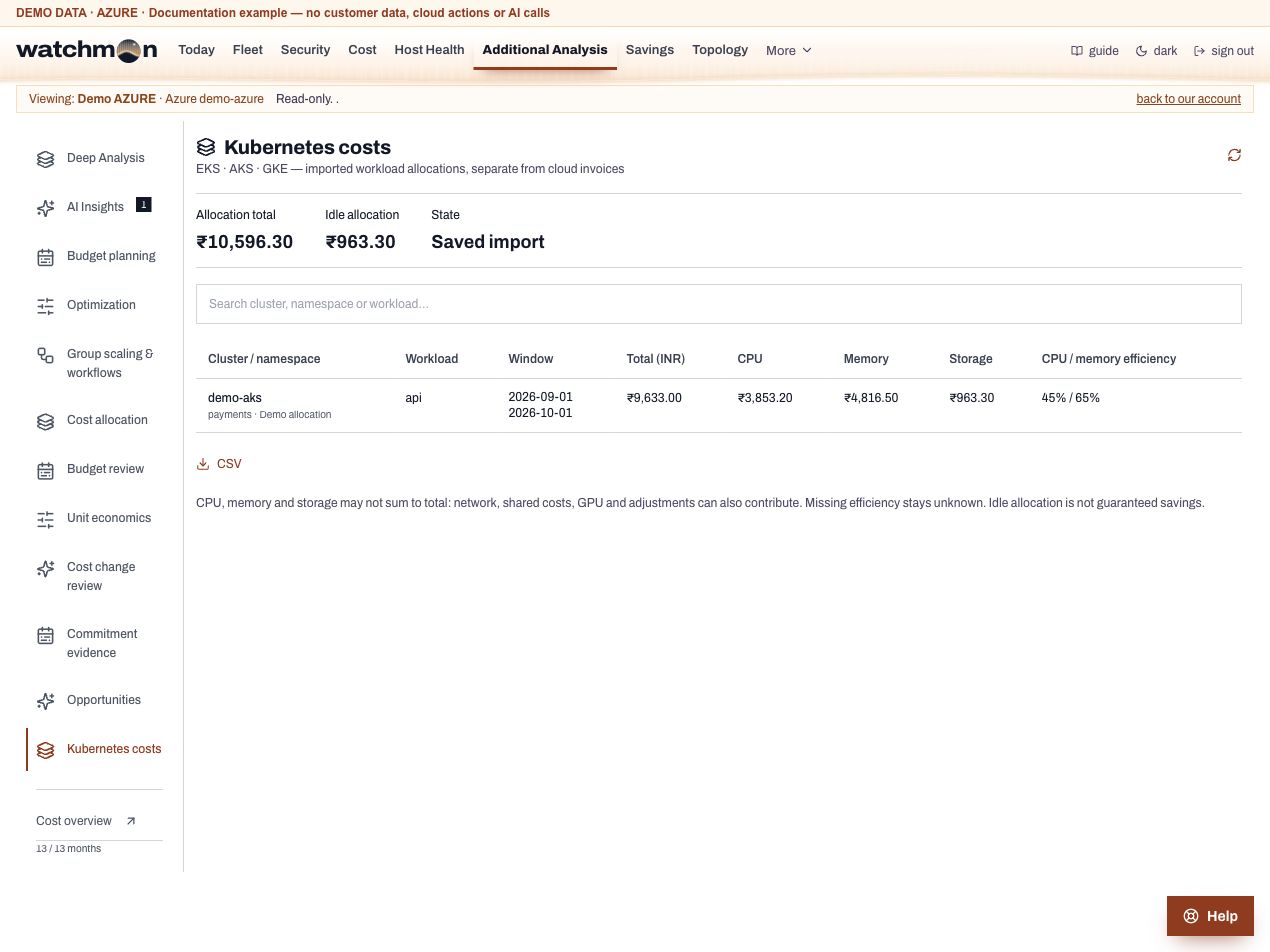
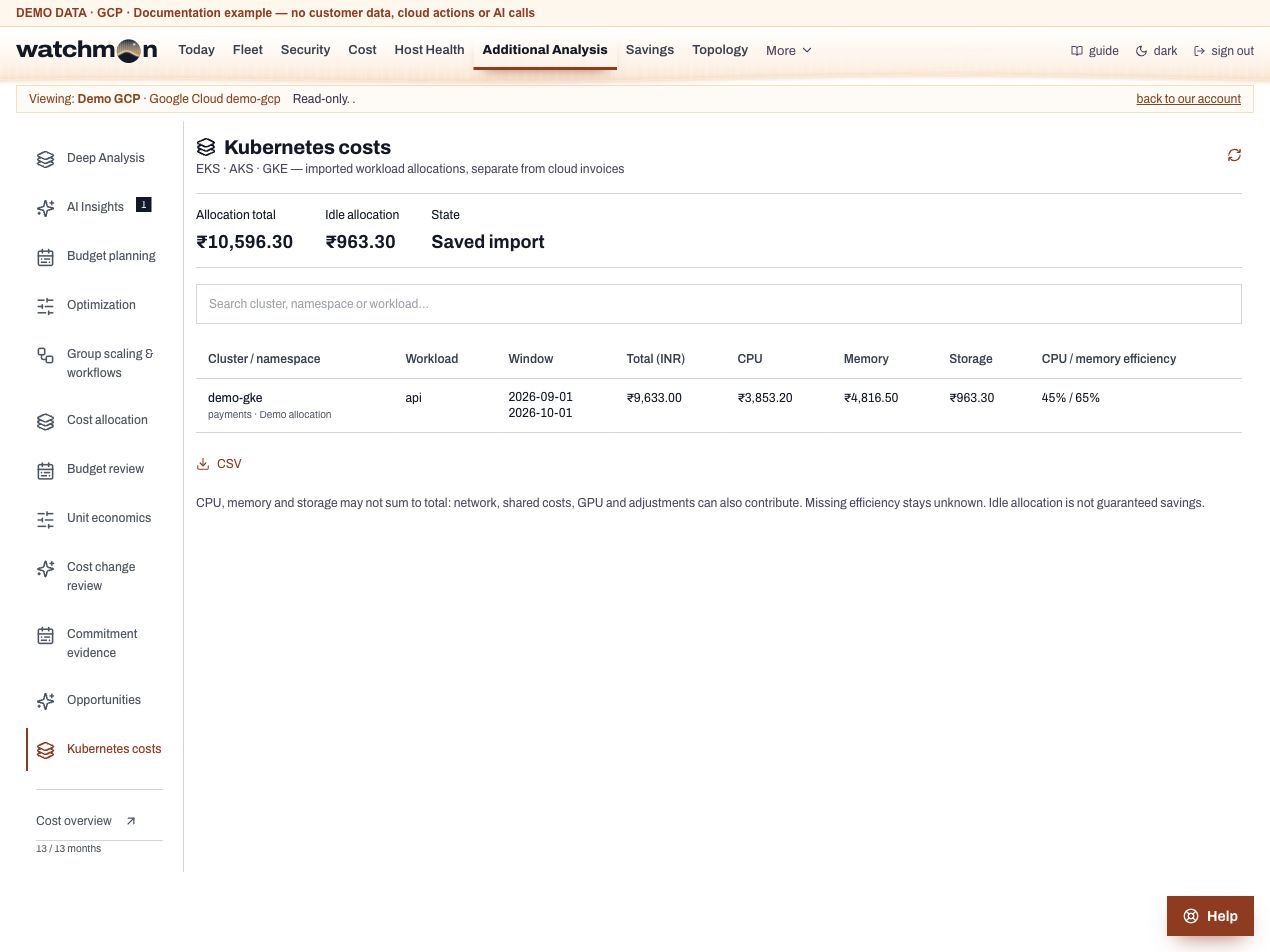
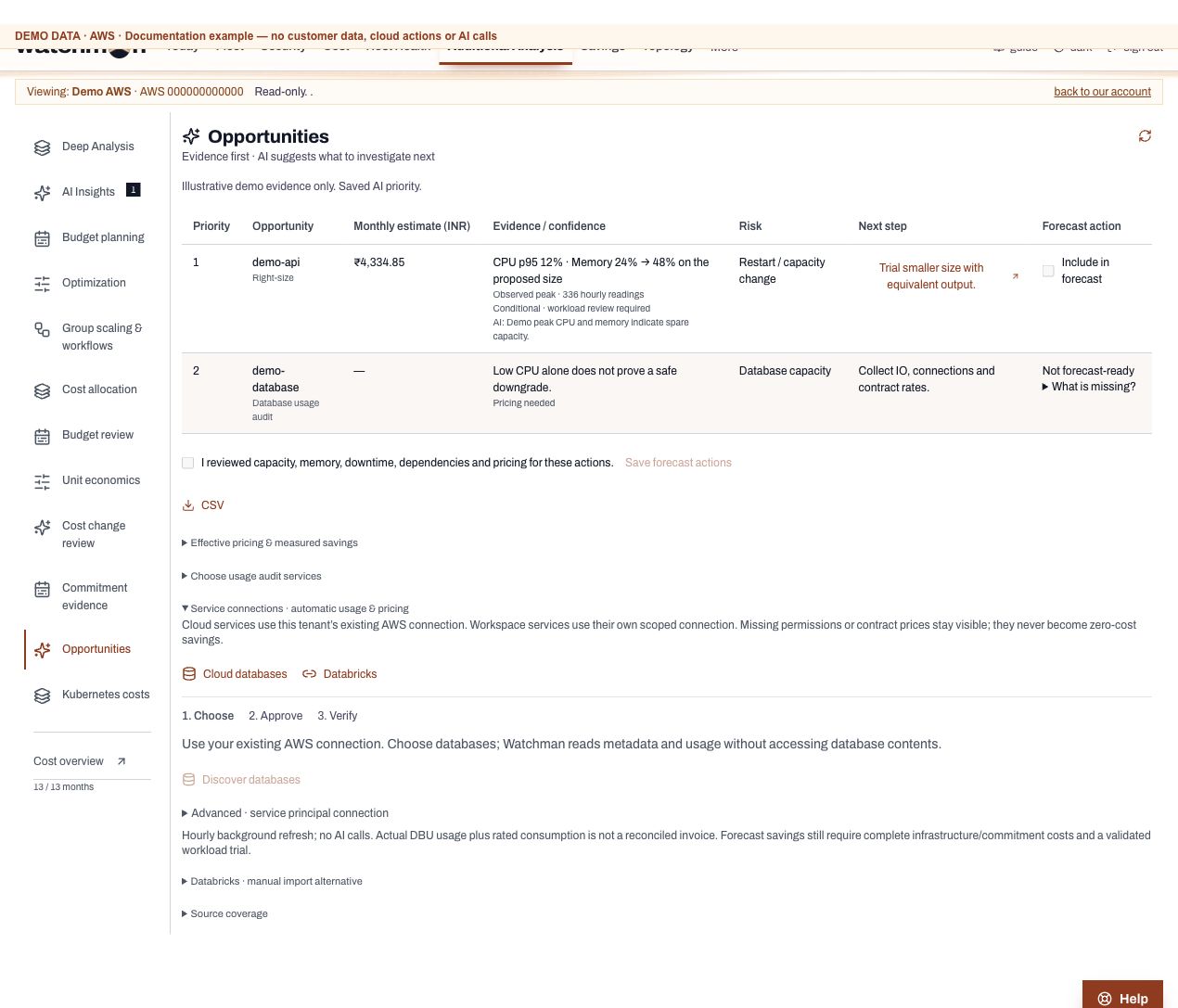
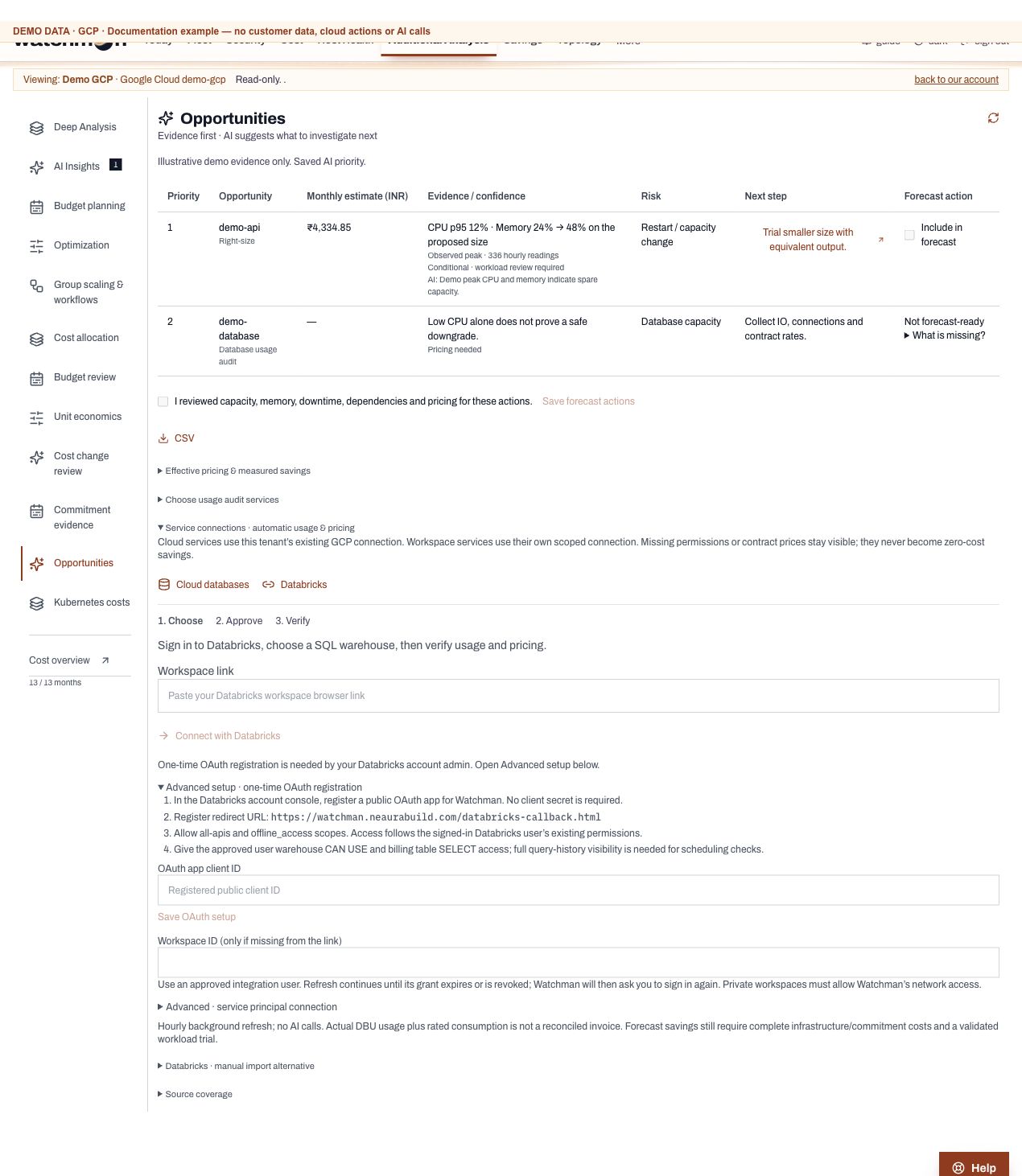
Use Deep Analysis and Opportunities to review current cost drivers.
Connect service usage and effective pricing where needed.
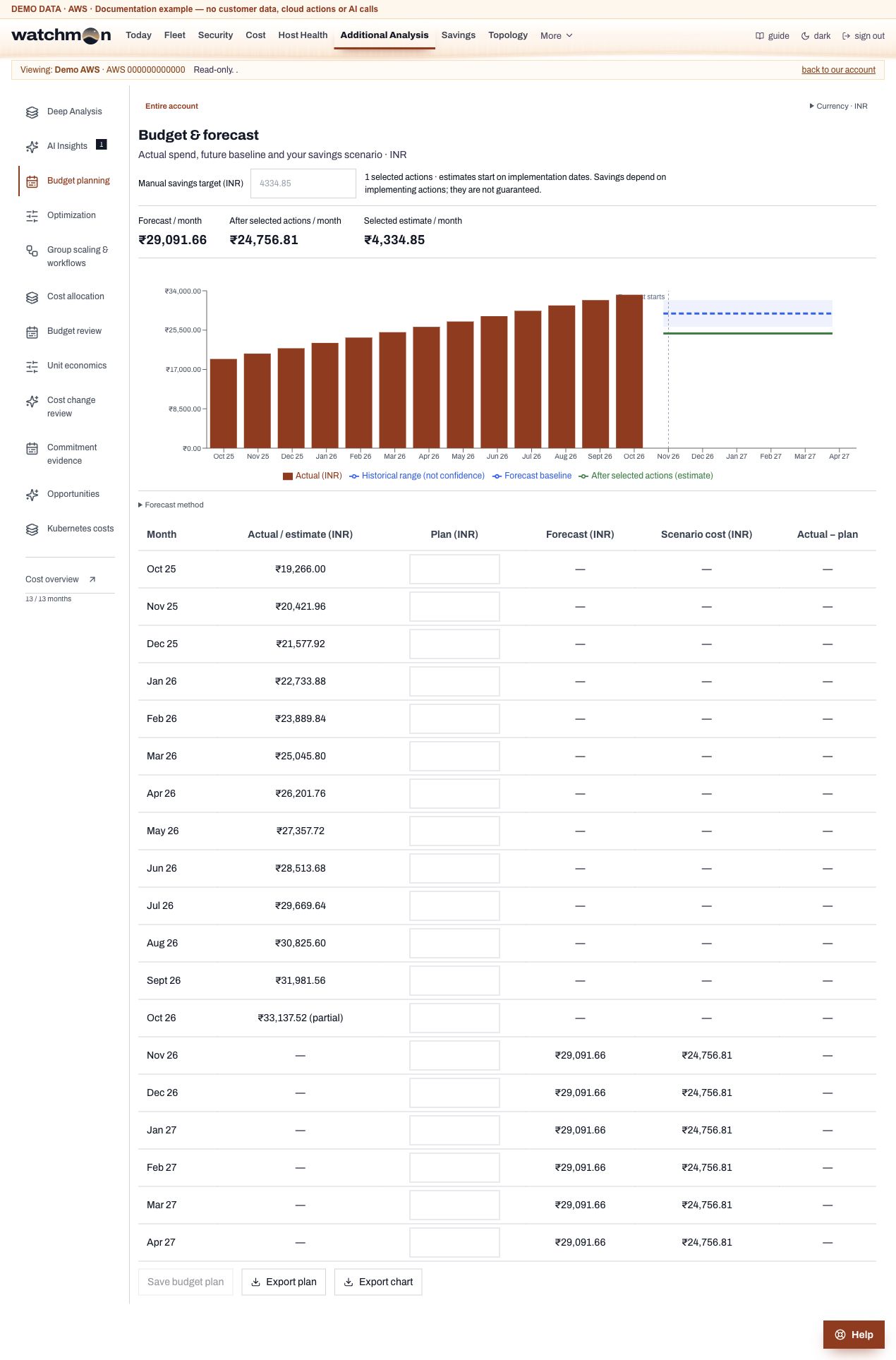
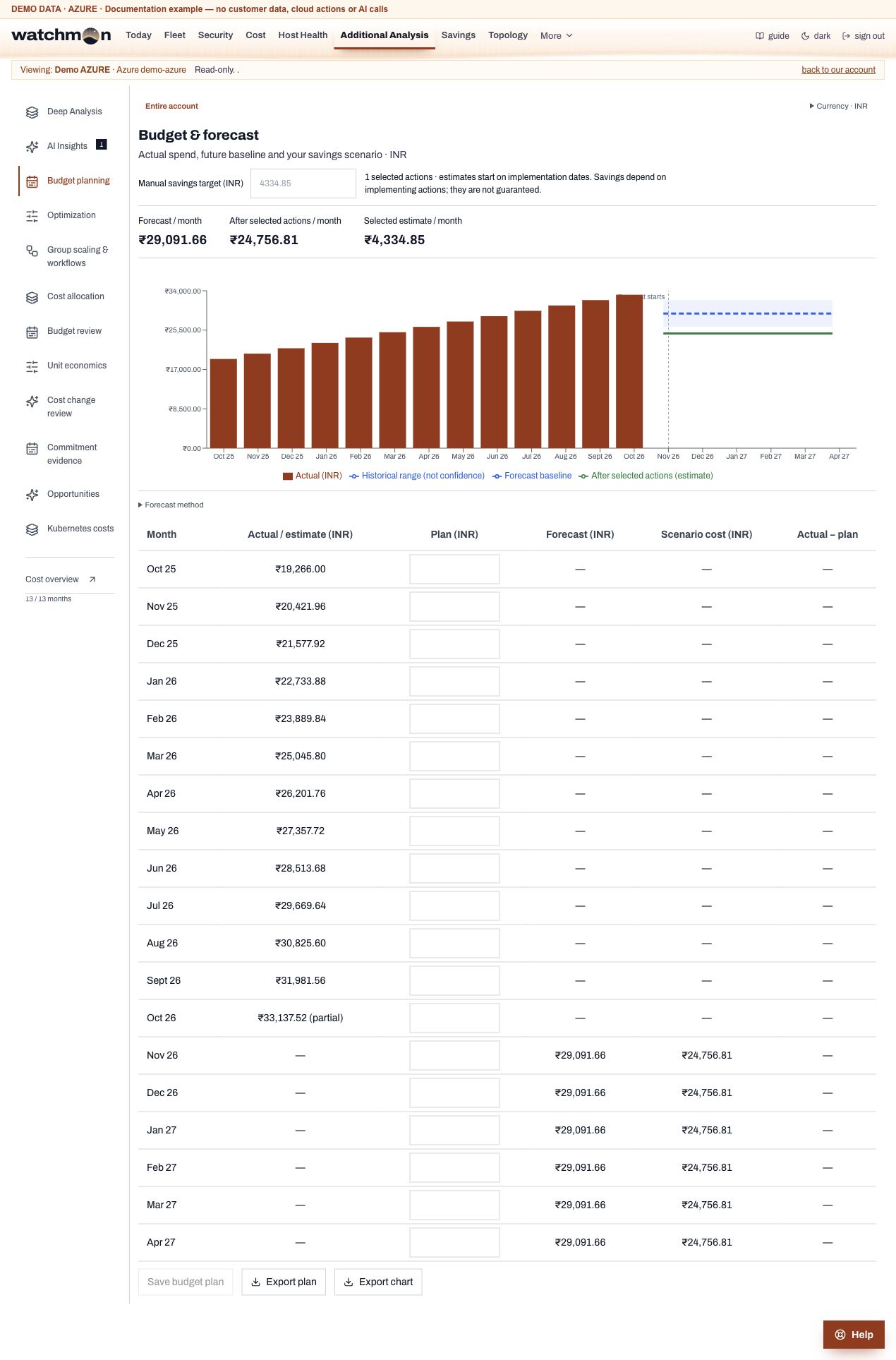
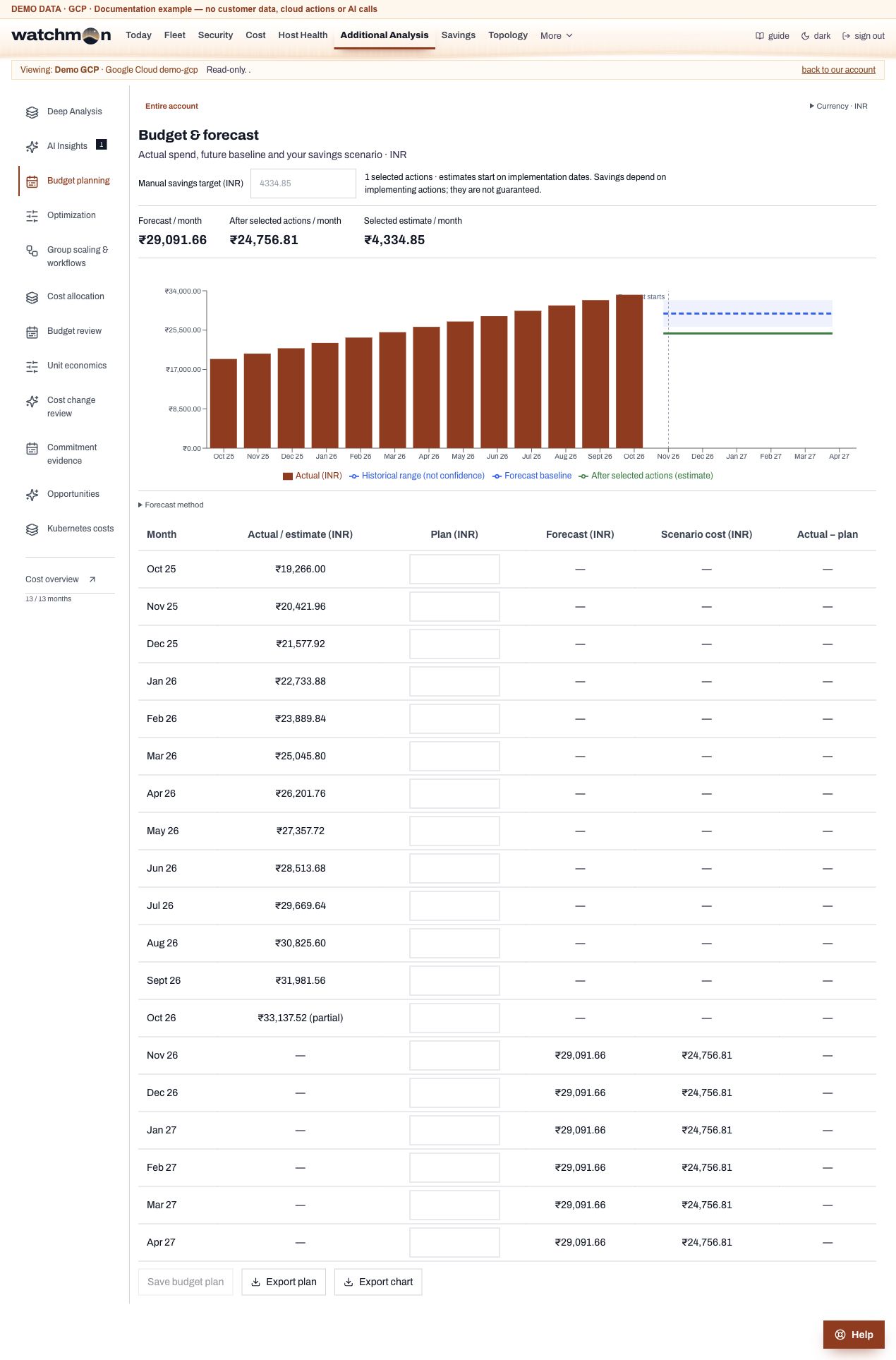
Select reviewed actions for a dated forecast; implement them separately.
Open Savings to link successful receipts and review comparable billing.
Settings is the final item under More. Documentation screenshots and the offline fixture use no live cloud data or AI calls.
What is Watchman?
Watchman, by NeauraBuild, watches your company's cloud accounts on AWS, Azure and Google Cloud. It shows what each account costs, what is exposed, which servers sit idle and whether backups run. If you allow it, it also starts and stops servers, so you stop paying for servers nobody uses.
What Watchman does
Watchman connects to a cloud account with read-only access. That alone gives you:
Cost. The bill so far this month, against last month on the same days, by service, resource group, tag and day, with a budget, alerts and savings advice.
Security. A daily scan with a score, findings by severity, the steps to fix each one, and 90 days of access changes from your cloud's own activity log.
Servers. Every server with its size, disks, addresses, CPU and memory, and whether it is idle.
Backups, health and access. Which servers have no backup, which disks are filling up, who holds which role, and which keys and certificates are about to expire.
With a second, separate permission called Act, Watchman can also:
warn the people who own an idle server and stop it when nobody answers,
keep a server asleep until someone needs it, and wake it from a wake link or the doorbell when someone connects.
What Watchman never does
Important
Watchman never reads your files, databases or application data, and does not read application contents. Approved service-connection credentials are encrypted and never displayed. With read-only access it cannot change, create or delete anything. It cannot log in to your servers.
It never stops a server that counts as production. A server counts as production when its tag says so, or when it has no Environment tag at all. See Production servers.
It never deletes a resource on its own. The optional fix add-on removes an idle address or an unattached disk only when a person presses the button and confirms, and copies a disk first.
NeauraBuild staff cannot read your account's figures, findings, servers or audit log without an access key that someone in your company gives them.
Some parts of a page differ by cloud. Under its title, each article says which clouds it applies to, and it explains the differences where they matter.
Everything in Watchman belongs to your company. A company has one or more cloud accounts and a team of people, each with a role.
Company
Watchman creates your company when you sign up. It has a name, a short handle such as wonder-cement, a time zone (taken from your browser at sign-up), working days, holidays and settings. Anything Watchman sends on a timer, such as the morning brief or the security email, uses the company's time zone.
Accounts
An account is one AWS account, one Azure subscription or one Google Cloud project. A company can hold up to 20 accounts across the three clouds. The account menu in the header picks the account in view, and every page shows that account. Some things cover the whole company (the team, roles, settings, holidays, the morning brief). Others cover one account (cost, findings, servers, budget).
People and roles
Each person signs in with their own work email, belongs to one company and holds one role. A role is a set of permissions: which pages the person sees, what they may change and which emails they get. There are seven built-in roles, and your company can make its own. See Roles and permissions.
Three levels of access to your cloud
You create each grant separately in your own cloud, and you can remove any of them at any time.
Grant
What it allows
Needed for
Read-only (at sign-up)
Reading settings, sizes, tags, findings, usage and cost
Start and Stop buttons, the schedule, idle stops, the wake link, the doorbell
Add-ons
Inside the server (AWS: disk and memory readings), the doorbell (a small server in your account), the fix add-on (remove idle addresses and disks)
Host Health on AWS, waking on connect, removing from Watchman
Report mode and act mode
Even with Act set up, Watchman starts in report mode. It records what it would have started and stopped, and touches nothing. The Audit and Savings pages show those records, so you see the effect before you allow it. An owner or admin switches the account to act mode on the Fleet page, Schedule tab.
The fastest order to get value. Allow about 30 minutes, mostly waiting for your cloud.
Prerequisites
Your work email.
Someone who can create IAM roles in the AWS account, an Owner of the Azure subscription, or someone who can run Cloud Shell commands in the Google Cloud project.
An authenticator app on your phone (Google or Microsoft Authenticator) for two-step sign-in.
The steps
Sign up and connect one account. Follow AWS, Azure or Google Cloud. Your 7-day trial starts when the connection works.
Sign in and set up two-step sign-in. Open the emailed link, scan the QR code, keep the backup codes. See Sign in.
Invite your team. On the Team page, People tab, invite each person with a role. See Team.
Check your time zone, working days and holidays. They are on the Settings page, and every schedule follows them.
Tag every server with an Environment. production, uat, dev or your own word. A server with no Environment tag counts as production and is never stopped automatically. See Tag your servers.
Set a budget. Cost page, Overview tab. You get an email at 80 percent, at 100 percent and when the month is on course to go over.
Read the Security page. Start with critical and high findings. Turn the worst into tasks.
Set up Act and leave it in report mode for a few days. See Act. The Savings page then shows what Watchman would have saved.
Switch to act mode. Fleet page, Schedule tab. Servers tagged auto-stop=true now follow the schedule, and idle servers get warnings.
Tip
Give each server an owner on the Team page, Server owners tab. Idle warnings then go to the person who knows whether the server is needed, not to every admin.
Connect an AWS account
One sign-up connects one AWS account with read-only access. It takes about five minutes.
Before you begin
Someone who can sign in to the AWS account and create IAM roles, usually an administrator.
Your work email, which becomes your sign-in. AWS gives Watchman your company name and contact details, so you type nothing else.
Connect
Open the sign-up page and choose AWS. Under "Where do your servers run?".
Type your work email and your company's handle. The handle is a short name such as acme-cement. The page tells you at once whether it is free.
Read what you grant and tick the box. The page lists what Watchman can and cannot see, with the full terms. Nothing connects until you tick it.
Tick "I'm not a robot" and press Create account and connect AWS.
On the next page, press Connect AWS. AWS opens in a new tab. Sign in to the account you want watched.
In AWS, tick one box and press Create stack. Everything is filled in. Keep the region at Asia Pacific (Mumbai). At the bottom, tick "AWS CloudFormation might create IAM resources", then press Create stack.
Go back to the Watchman tab and wait about a minute. The page checks by itself and tells you when the account is connected. Your 7-day trial starts then.
Open the sign-in link we email you.
Note
Cost figures appear about a day after Cost Explorer is switched on in the AWS account. AWS charges $0.01 for each cost query. Watchman keeps its own copy of your figures, which keeps that to about ₹50 to ₹250 a month.
If the page keeps waiting
This happens when you created the stack in a region other than Mumbai. Type your 12-digit AWS account ID, from the top right of the AWS console, in the box the page shows.
What the stack creates
One IAM role, neaurabuild-control-plane-role, that Watchman can use only with a secret code made for your company (an ExternalId). It reads settings, sizes, tags, metrics, cost and security services. The role explicitly denies the few AWS reads that could return secrets: user data, VPN keys and sampled web requests.
Updating the stack
When Watchman adds a read, such as backups, an older stack does not have it yet. The page that needs it shows a note with a link to update the stack from the current template.
Connect an Azure subscription
Watchman reads an Azure subscription through Azure Lighthouse with the built-in Reader role. Setup takes a few minutes, and Azure can take up to 15 more on its side.
Before you begin
A Microsoft work or school account that is an Owner of the subscription. Personal Microsoft accounts do not work.
The subscription must be in your own Microsoft directory.
Connect with Microsoft sign-in
Open the sign-up page and choose Azure.
Read what you grant and tick the box.
Press Sign in with Microsoft. Sign in as an Owner of the subscription.
Accept Microsoft's request. Microsoft offers nothing narrower for this step. The page uses it once, from your own browser, to create the read-only access. Your Microsoft token never reaches our servers.
Pick the subscription Watchman should read.
Wait. The setup page watches by itself. Some pages may say "still applying" for up to half an hour.
Open the sign-in link we email you. Your 7-day trial starts.
Note
Microsoft may say an administrator must approve. Our sign-in app is new to Microsoft, so the first person in an organisation may see this. An administrator presses I am an administrator: approve now, or you send the link the page gives you to your IT team. This happens once for the whole organisation.
Connect without signing in from the page
Choose "Type the subscription ID instead". Type your work email and the subscription ID (Azure portal, Subscriptions).
On the setup page, copy your connection code.
Press Deploy to Azure. Pick the subscription, paste the code into Connection Code and press Review + create.
What is granted
A Lighthouse delegation named "NeauraBuild Control Plane" that gives our read-only app the built-in Reader role on the subscription, and nothing more. Watchman checks the delegation and refuses to use one that grants anything else. Reader could reach some data that Watchman never reads. We never run log queries, never list storage keys or Key Vault secrets, and never read blobs.
Connect a Google Cloud project
Watchman reads a Google Cloud project through Workload Identity Federation, so nobody creates or shares a key file.
Connect
Choose Google Cloud on the sign-up page. Type your work email and the project ID.
Run the commands the setup page shows, in Google Cloud Shell. The page shows them in full, so you can read every line first. They create your own read-only role in the project, neaurabuildControlPlaneLook, holding exactly the permissions Watchman uses, and let Watchman's identity use it.
Wait for the setup page to say connected.
Cost on Google Cloud
Exact cost comes from your BigQuery billing export, an optional second step on the setup page. Without it Watchman estimates cost from Google's public list prices and labels every such figure as an estimate.
Warning
Google Cloud support is newer than AWS and Azure and has not run against a customer project yet. Right-sizing, cost by group, Data and AI, the cost filters and the doorbell are not offered for Google Cloud yet.
What Watchman never asks for
Never the Viewer role, which can read storage objects and BigQuery rows. Watchman lists servers without their metadata (startup scripts) and reads audit logs only through the required audit view.
Sign in and two-step sign-in
Watchman has no passwords. You sign in with a link sent to your work email, then a 6-digit code from your authenticator app.
Press Send sign-in link. The link works once and for 15 minutes.
Open the link, then type the 6-digit code from your authenticator app.
The first time: set up your authenticator
Scan the QR code with Google Authenticator, Microsoft Authenticator or any app that shows 6-digit codes.
Type the code it shows to prove it works.
Save the ten backup codes. Each works once, in place of the app.
How long a sign-in lasts
Seven days on the same browser. Sign out ends it at once. If someone is removed from the team or switched off, they lose access at their next click.
Lost your phone?
Use a backup code. If you have none left, ask a team admin to reset your sign-in app on the Team page. You set it up again at your next sign-in.
No email arrived?
Check the spam folder.
Check you typed the address your company invited. The page gives the same answer for every address, so it cannot tell you whether an address has a login.
You can ask for 5 links an hour.
Caution
Use only the address watchman.neaurabuild.com. Older addresses no longer sign you in.
If sign-in email is down for a while, try again shortly or contact your administrator. When the main mail service refuses for lack of capacity, Watchman can send through its backup sender. This does not change sign-in rate limits, link expiry or MFA.
When you change account, Watchman clears the previous account's pages and reloads once it verifies the new one. It discards results still loading for the old account. If it cannot verify the new account, the data stays hidden. Today shows the rupee amount with no dollar figure beside it. Cost still shows the billing currency.
Mobile updates
Install the first OTA-enabled build once. After that, fixes to screens, styling and app logic download securely in the background and apply the next time you open the app. Watchman Preview gets only UAT updates. Production gets only Production updates. Offline, the app keeps its last working version. Native changes, app permissions, sign-in domain entitlements and app icons still need a new Android or iPhone build. Updates do not raise AI allowances or bypass account permissions, MFA or action verification.
Mobile sign-in
Use Watchman Production for your live account. Watchman Preview holds fictional data and does not sign in to production. Updated Production builds open verified email links in the app. Do your authenticator check inside the app. The email link still works once and expires after 15 minutes.
If the phone opens the website instead, copy a new, unused Watchman sign-in link and choose Use emailed sign-in link in the app. A link you already used in Safari cannot sign in the app too, so ask for a new one. An expired or used link shows an error and never bypasses MFA. Install the latest build before you test app links.
Tag your servers
Two tags decide what Watchman may do with a server. Tag every server before you switch to act mode.
Tag
Values
What it decides
Environment (or env)
production, uat, dev, test or your own word
Whether the server counts as production. production, prod, prd and live, in any case, mean production. No Environment tag also counts as production.
auto-stop
true
Whether the schedule starts and stops the server, and whether idle checks watch it. The value must be exactly true.
A server with no Environment tag
It counts as production until you tag it. Watchman never stops it on a timer, when idle or when quiet, and stopping it by hand needs a code emailed to you. The account's other servers are not affected. A server with a proper Environment tag stops as its settings say. While any server stays untagged, the company's owners and admins get one email a week naming them, and the Fleet page lists them on the Schedule tab.
Note
Machines a service starts and removes by itself (Databricks cluster nodes, Kubernetes nodes, scale set and Auto Scaling members) never need the tag and are never stopped by Watchman.
How to tag
On the Fleet page, Schedule tab, press Environment tags to see every server with its tag. On Azure, with the sign-in app approved, you pick a value per server and your browser sets the tags with your Microsoft sign-in. On the other clouds the page gives a command per server, for example:
Azure: Choose servers on the Schedule tab adds or removes auto-stop=true the same way. A tag change shows in Watchman after a minute or two.
Live production
A server tagged Environment=productionandLifecycle=active is live production. Automatic actions never touch it. With current Act terms and the matching grant, a permitted manual Start or Stop needs your confirmation and a code emailed for that one action.
Add, verify and disconnect accounts
Add another account
On the Billing page, use Add an account and follow the sign-up steps again. A company can hold up to 20 accounts across AWS, Azure and Google Cloud, all under one login. Switch between them with the account menu in the header.
Your GSTIN
Optional. Once you connect, the setup page and the Billing page show a box for your GSTIN. Watchman checks it against the GST records and fills in your legal name and business address. It keeps only an active registration. Owners and admins can enter it, at most 5 times a day.
Disconnect
In CloudFormation, delete the stack neaurabuild-control-plane. Delete neaurabuild-control-plane-act, -inside, -fix and any neaurabuild-doorbell-… stacks too if you made them. Access ends as soon as you delete each one.
In the portal open Service providers, then Service provider offers, and delete "NeauraBuild Control Plane" (and "NeauraBuild Control Plane Act" if present). Access ends at once.
Delete the neaurabuild identity pool in the Google Cloud console. Access ends within the hour.
Your data in Watchman is kept until you ask us in writing to delete it. See Your data.
Terms and updated terms
Each grant has its own terms, shown in full before anyone accepts: the terms for connecting (per cloud), Act, Inside the server, the doorbell and the fix add-on. Accepting binds the company, so only an owner can accept.
When terms are updated
When we change what we promise, the next account owner who signs in sees the new text, what changed, and an Accept button. Until an account owner accepts, everyone else sees the same text with "An owner must sign in" and cannot use the dashboard. One acceptance covers every account of the company on that cloud.
Note
The terms describe what each permission allows. Watchman advises on security and cost. It does not take responsibility for your account's security.
Today
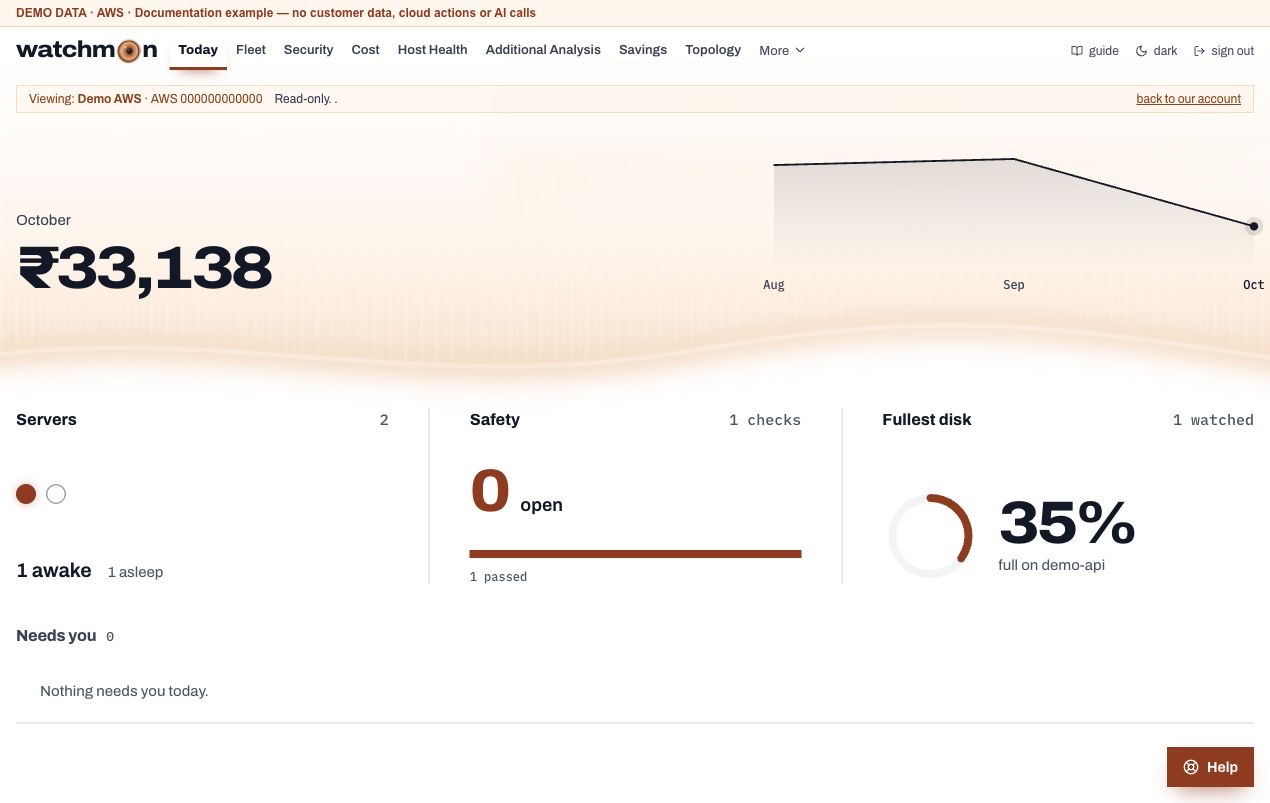
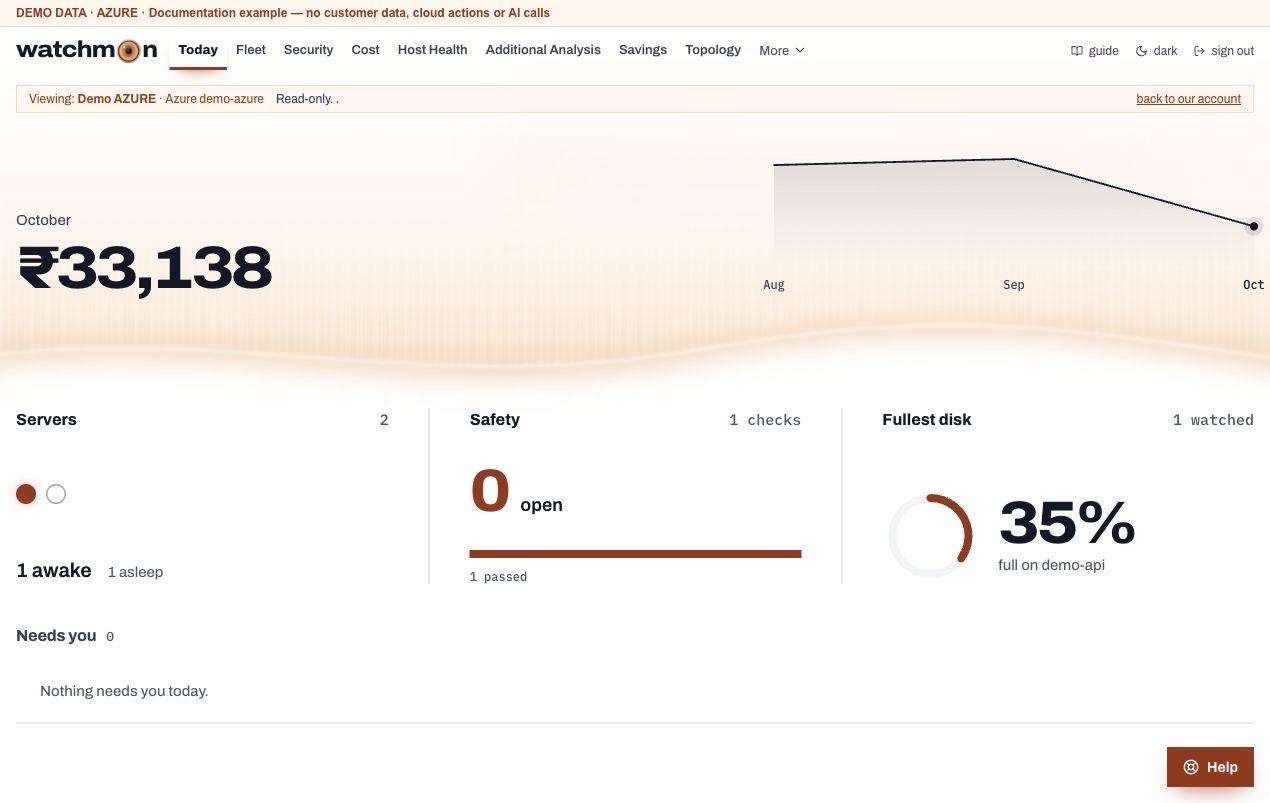
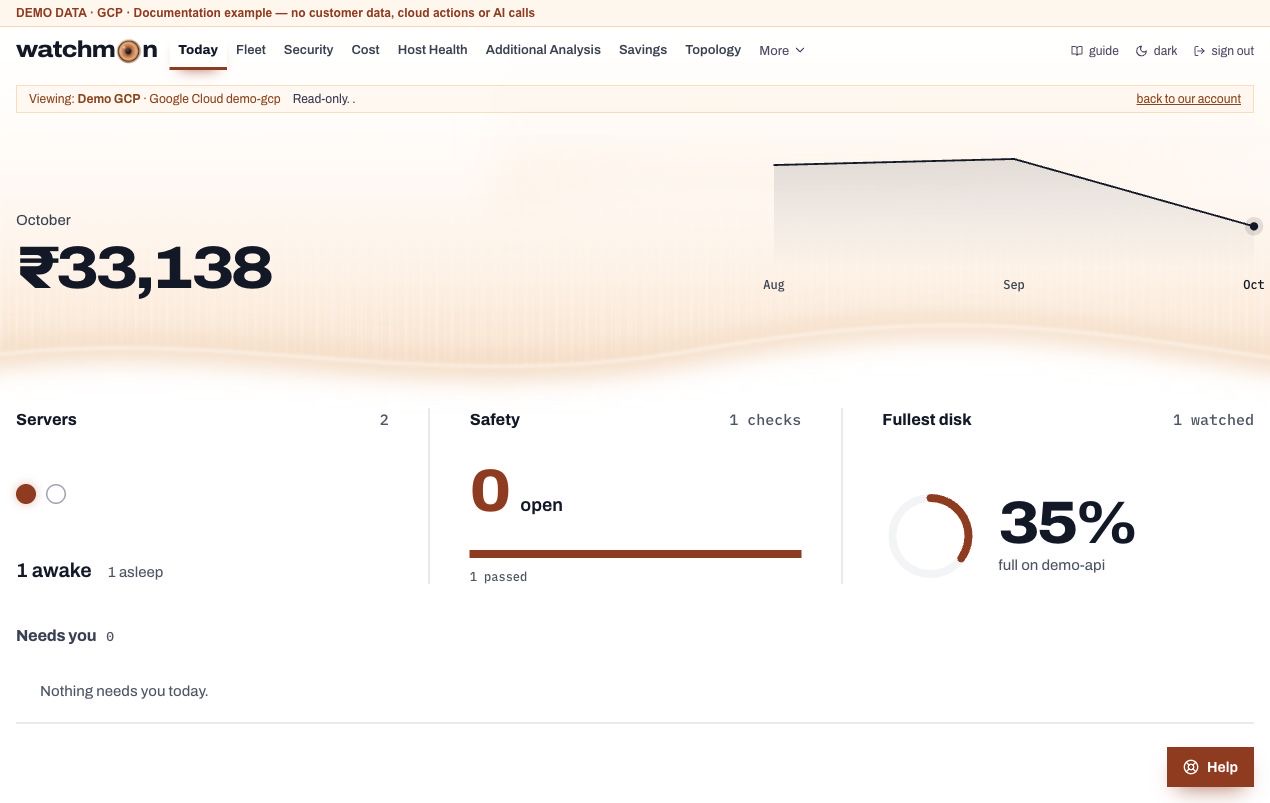
The home page. The bill, and what needs someone now, at a glance.
What it shows
The bill. This month so far against the budget, and what the month is on course to cost.
Saved. What Watchman saved in the last 30 days, linked to the Savings page.
Needs you. The five most urgent things, worst first: critical security findings, disks at 85 percent or more (red at 92), memory at 90 percent or more, idle warnings waiting for an answer, public addresses attached to nothing, and your own high-priority tasks. Each row links to the page that deals with it.
Each part loads on its own and says so if it could not be read, so one slow part never blanks the page.
Screen example
AWS · Today · Fictional demo data. Open image for full size; wide tables scroll inside the app.
Azure · Today · Fictional demo data. Open image for full size; wide tables scroll inside the app.
Google Cloud · Today · Fictional demo data. Open image for full size; wide tables scroll inside the app.
Fleet
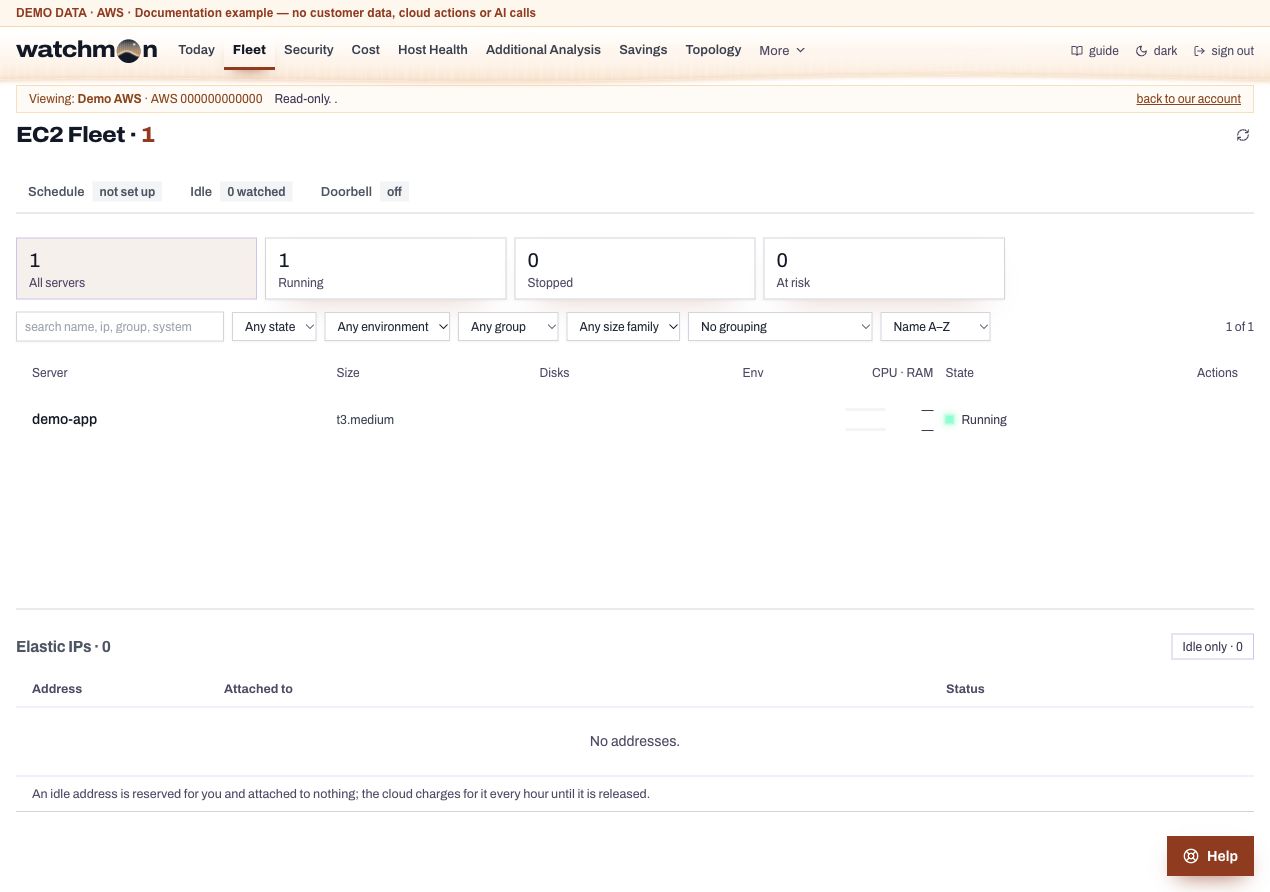
Every server in the account in view, and the place to set up how Watchman runs them.
The server list
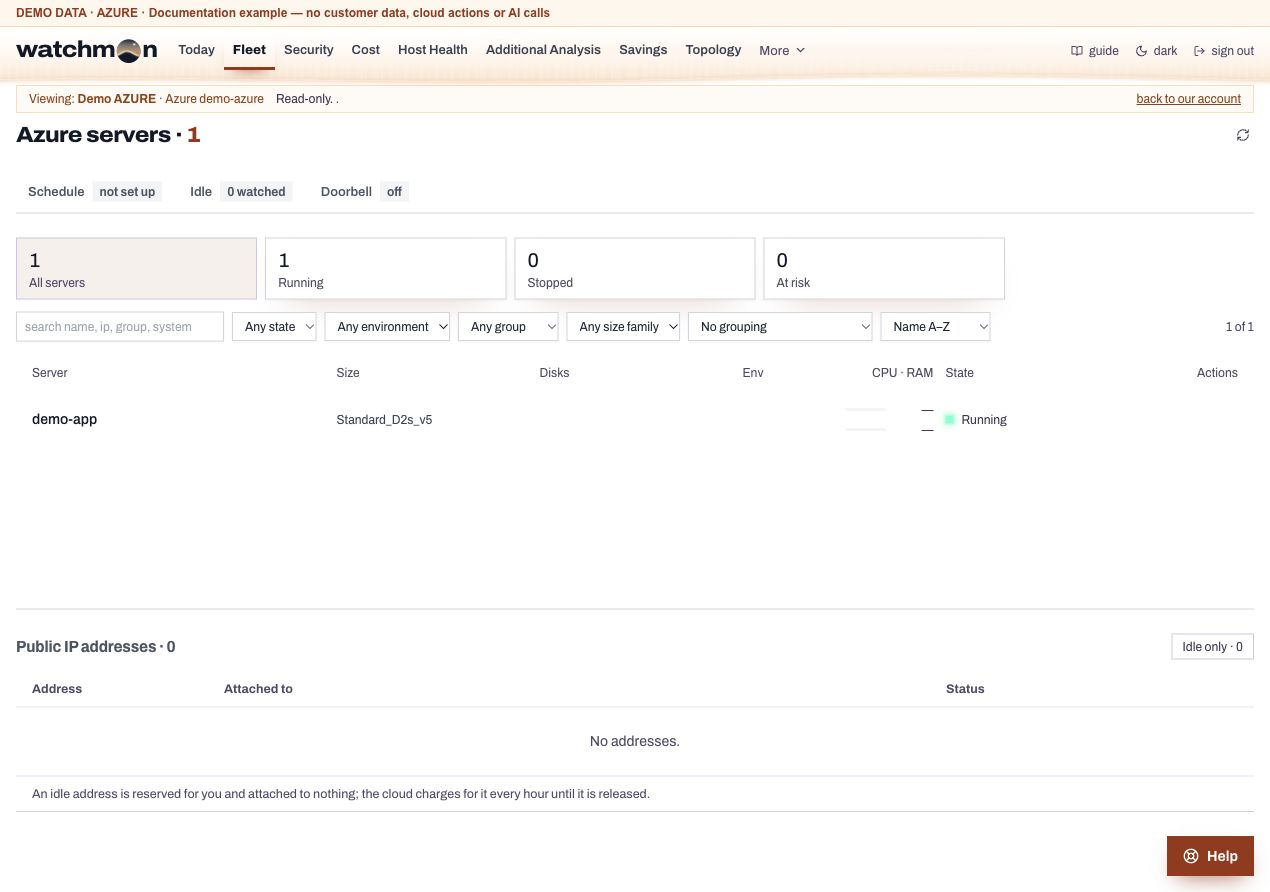
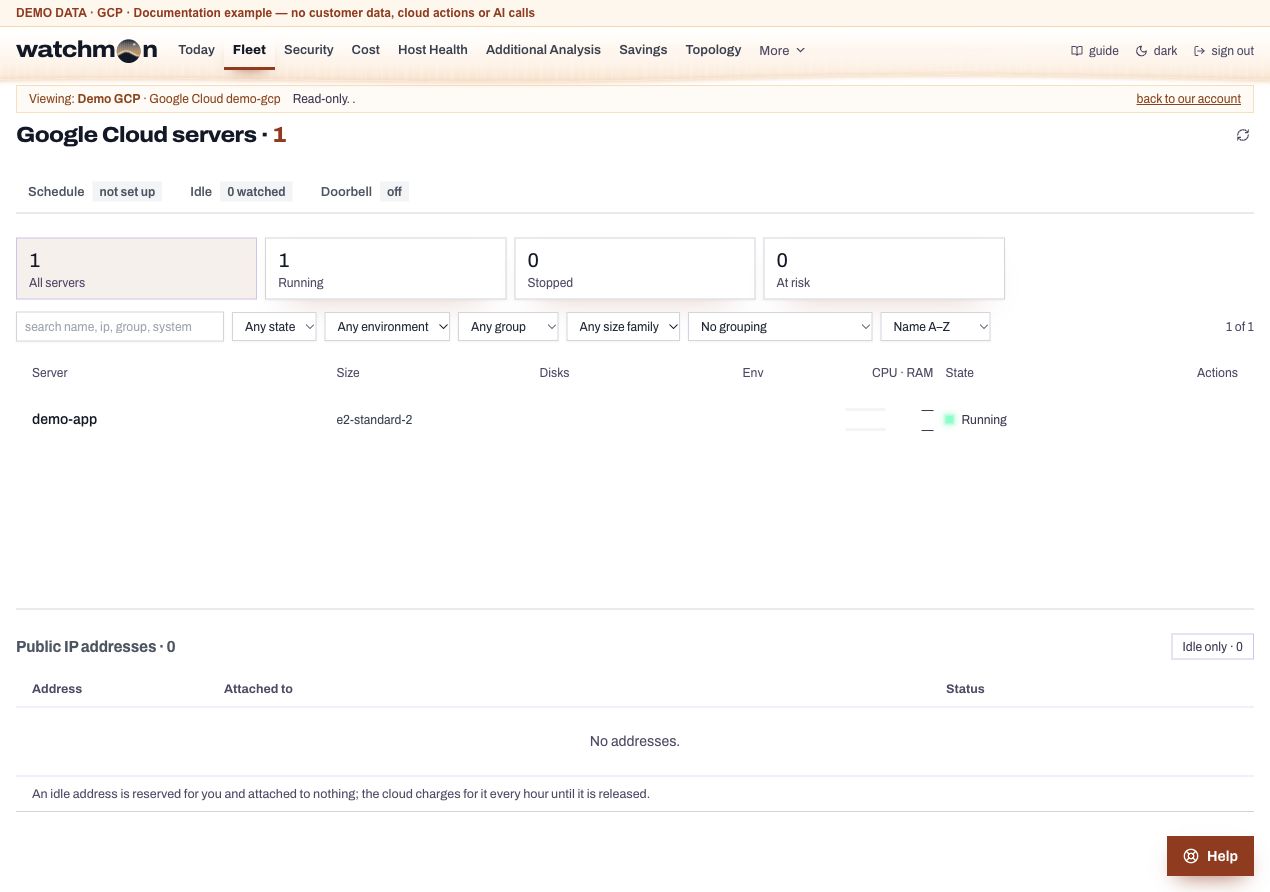
Each row shows the server's name, system, address, size with processors and memory, disks, environment, CPU and memory in use, state, and the last idle check. Group the list by resource group (Azure), Project (AWS), a Watchman group or any tag. Filter with the cards at the top (all, running, stopped, at risk, on demand, each environment). A shield badge marks a server with critical or high security findings.
Click a server's name for its full record: the findings first, then identity, network cards, disks, tags and properties, with a raw view and a JSON download.
Schedule, Idle and Doorbell tabs
Tab
What you do there
Schedule
Set up Act, choose report or act mode, see which servers lack an Environment tag, set Environment tags and choose servers for the schedule.
Idle
The company's idle limits, open warnings, recent idle stops and the readings behind each.
With Act on, people whose role may start and stop servers see Start and Stop on each row. Settings opens the server's own settings. See Server settings.
Public addresses
Every fixed public address, with its status: in use, or idle, still billed. Clouds charge by the hour for an address attached to nothing.
Screen example
AWS · Fleet · Fictional demo data. Open image for full size; wide tables scroll inside the app.
Azure · Fleet · Fictional demo data. Open image for full size; wide tables scroll inside the app.
Google Cloud · Fleet · Fictional demo data. Open image for full size; wide tables scroll inside the app.
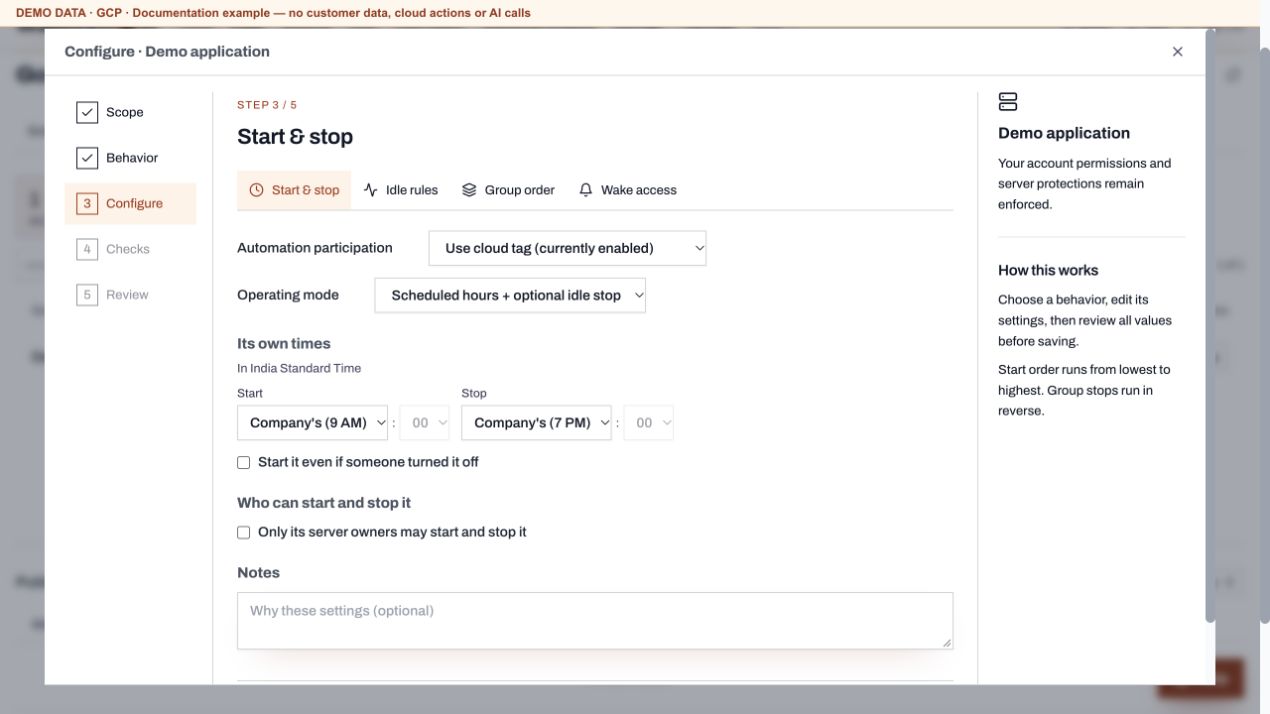
Server settings
Each server's own rules, set up step by step. Open them with Settings on the server's row. People whose role holds server settings can change them.
Each setting has an (i): hover or tap it for what it does. Watchman does not save settings that contradict each other. What a choice turns off is greyed out, and any clash left is listed above Save.
Continue through Configure, Checks and Review, then press Save. Reopen the server settings to check what was saved. On Our account, the idle Pause or Resume switch saves at once, apart from the reviewed fields.
Schedule and idle stopping are separate rules. Scheduled hours + optional idle stop can use both. For timed stopping only, pause the CPU and network idle checks and turn off the separate low-traffic stop. The CPU and network idle limits are not the same as Turn off when quiet, which checks network traffic only. Production protections still apply.
Manual production action: press Start or Stop, confirm the request with Confirm start/stop and send OTP, then enter the six-digit OTP from your email. You can see the request's progress, and any email, access or verification failure shows in the dialog. Use Request a new OTP if a code expires. The server starts or stops only once it accepts the action.
Start and stop
Automation participation
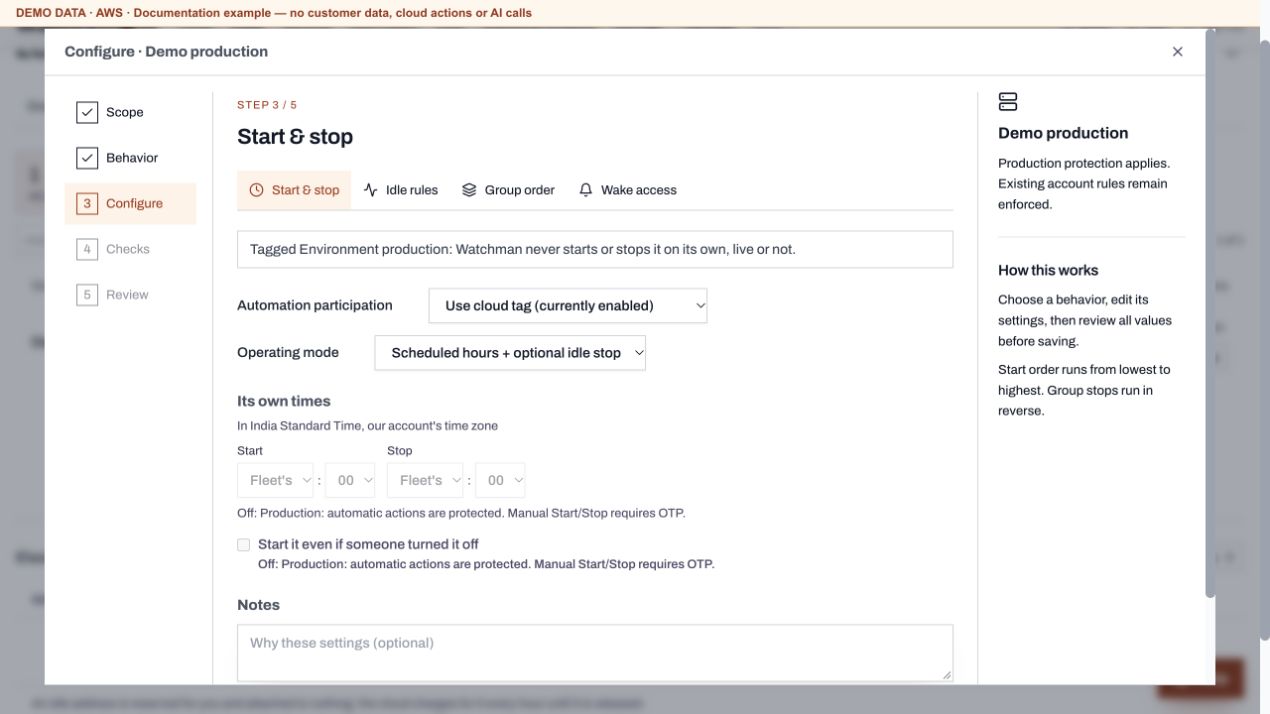
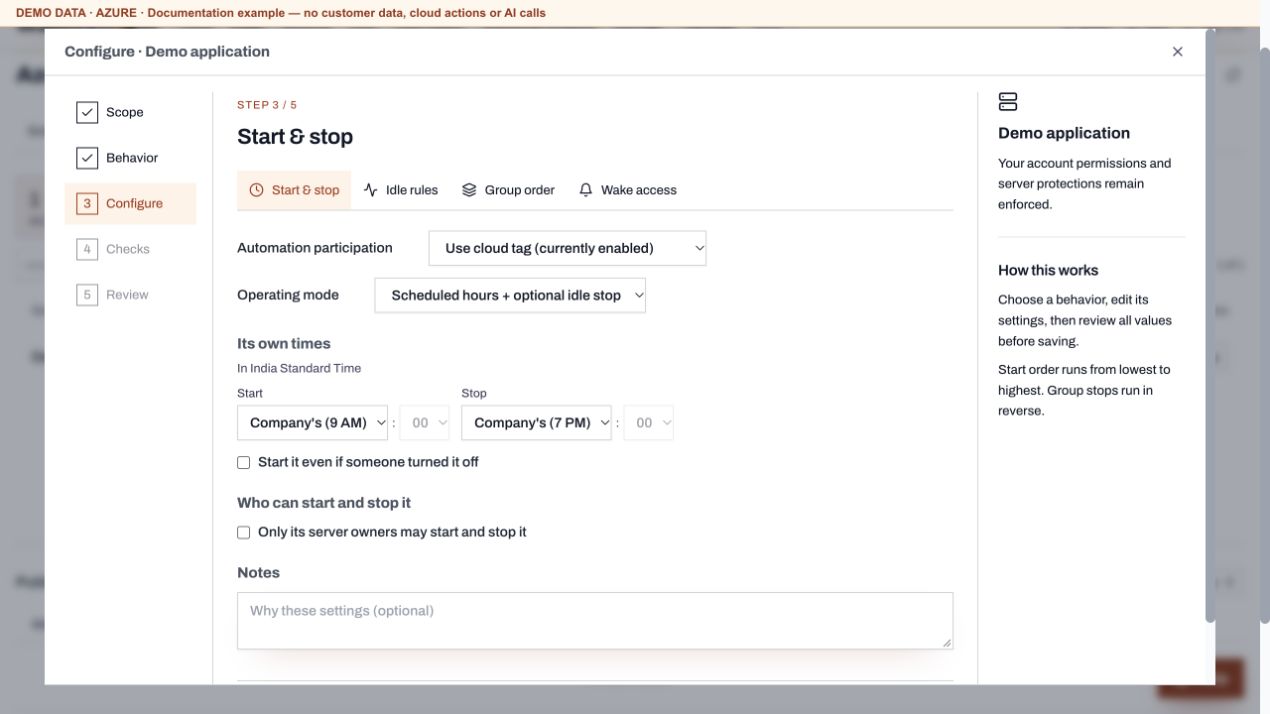
Follow its tag (the schedule takes it when tagged auto-stop=true) or Leave out (buttons, schedule, idle stop and doorbell all leave it alone).
Operating mode
Scheduled hours + optional idle stop, or On demand (start when needed) (on demand: never started in the morning. A person, the wake link or the doorbell wakes it, and Watchman stops it when idle at any hour).
Its own times
A start and stop time to the quarter hour, in the account's time zone, instead of the company's hours.
Days it starts
The company's working days, or every day (weekends and holidays too).
Start it even if someone turned it off
Normally a server a person stopped stays stopped. With this on, it starts at its time whoever stopped it.
Who can start and stop it
Only its server owners may start and stop it: Start, Stop and the wake link are then for its listed owners and the account owners only. The idle check and the schedule still run.
Notes
Up to 300 characters for your team.
Idle
Stop this server when it is idle
For a server without the auto-stop tag: idle warnings and stops apply to it too, but the schedule never starts it.
Idle limits
Its own CPU percent and network (KB or MB an hour). Its own limits win over the company's and the learned ones.
Idle time
How long it must stay at or below both limits. Choose a duration, or follow the fleet or company setting.
Stop when quiet
Stop it with no warning after 15 to 240 minutes with no network traffic.
Pause idle checks
Leave it alone until switched back on.
Allow idle stop (production)
Owners only, for a server tagged production, confirmed with a code emailed to the owner. See Production servers.
Group
A group name (such as erp) and the server's place in the start order, 1 to 99. Lower numbers start first and stop last, so a database comes up before the application that needs it. You cannot stop a group member by hand while a member that stops before it still runs. Use Stop group, which stops the group tier by tier. In a group, a server's own hours must follow the start order.
Doorbell and wake link
Whether the doorbell fronts this server, extra ports it should answer on (numbers, up to 10), who may wake it (your current address is offered first), and the server's wake link to copy.
Screen example
AWS · Guided server settings · Fictional demo data. Open image for full size; this example shows the Configure step.
Azure · Guided server settings · Fictional demo data. Open image for full size; this example shows the Configure step.
Google Cloud · Guided server settings · Fictional demo data. Open image for full size; this example shows the Configure step.
Security
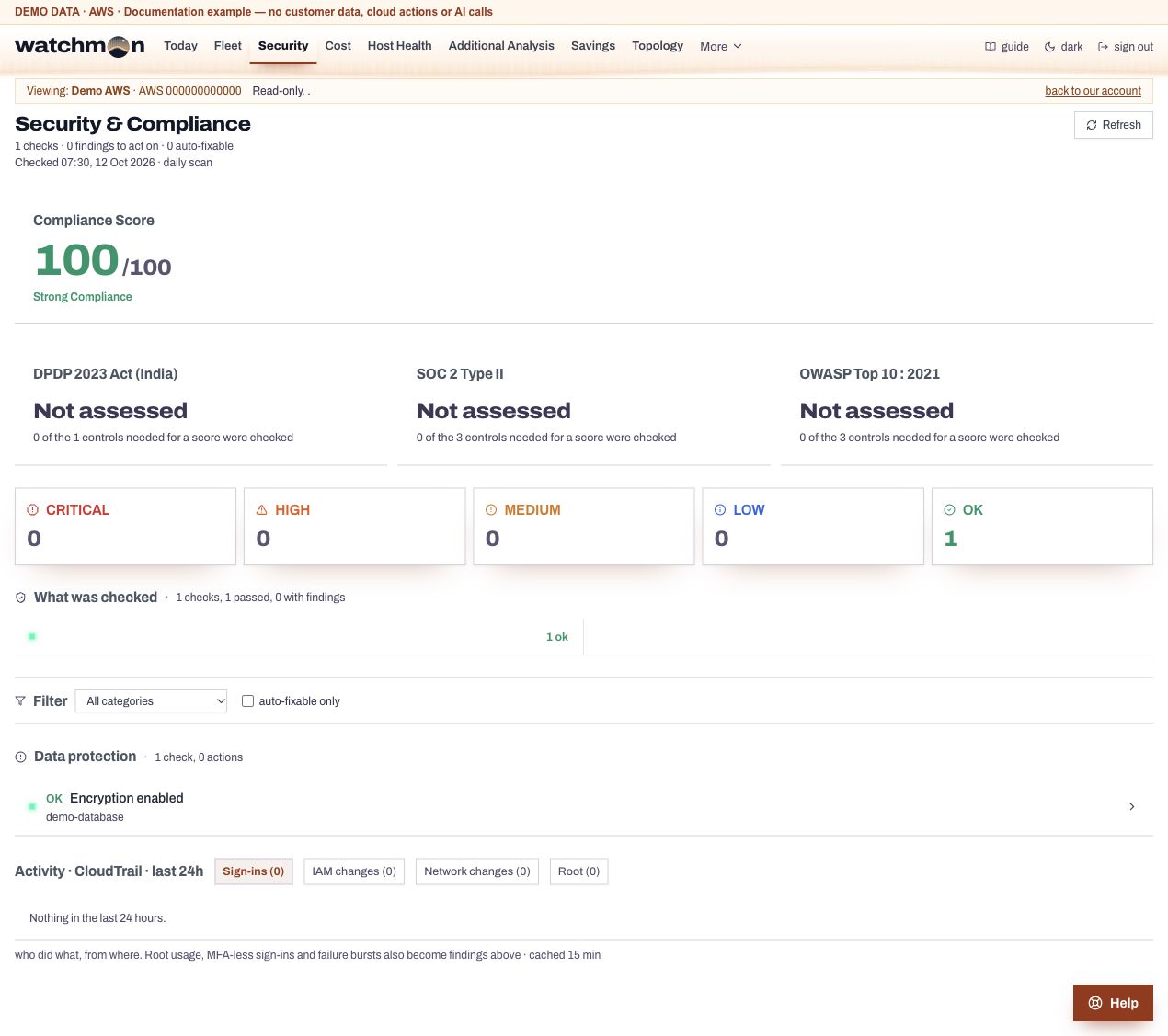
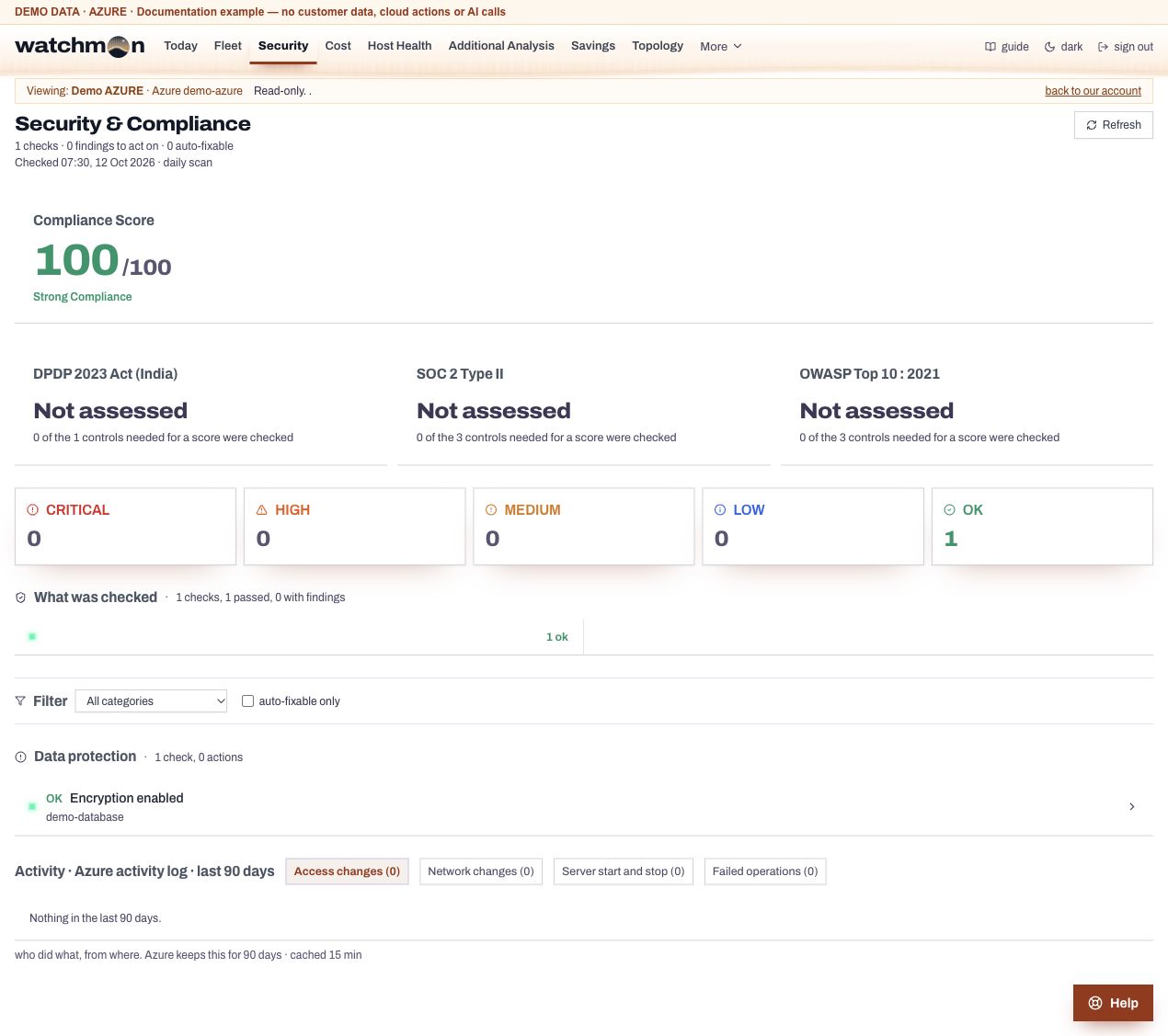
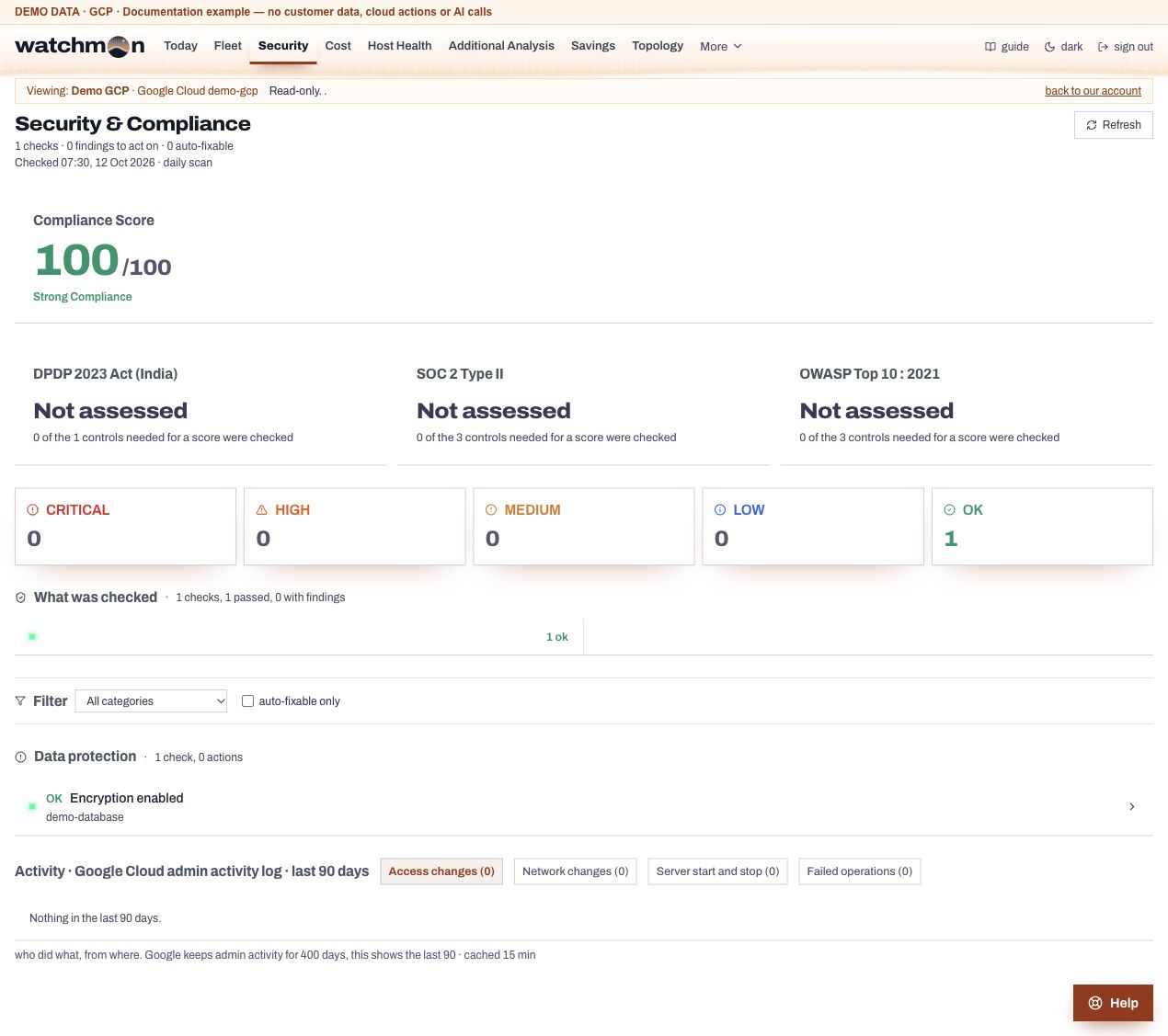
The result of the daily security checks: a score, findings by severity, the steps to fix each, and 90 days of activity.
When the checks run
Every day at 07:00 in the company's time zone (a company setting). Opening the page shows the stored result and never runs the checks. Refresh runs them now, at most once every 5 minutes per account, and not after a trial ended without a subscription.
The score
The score counts checks, not findings. A check that passed counts 1. A check with findings counts less the worse its worst finding is (critical 0, high 0.25, medium 0.5, low 0.75). Checks that could not be read are left out. The DPDP, SOC 2 and OWASP cards show which controls have gaps: a control is met when no critical, high or medium finding names it.
Findings
Grouped by category and marked critical, high, medium or low. Each says what is wrong, why it matters and the steps for your own console. Click a severity card to filter the list. Turn any finding into a task.
Set a check aside
When a whole family of checks is noise for an account, an account owner or admin (or a Security officer) can set it aside. Its findings leave the main list and the score. The page says how many are set aside, and Bring back undoes it.
Accept a risk
On one finding, press Accept this risk and write why (5 to 300 characters). Watchman records the name, date and reason. The finding moves to Accepted and is no longer counted as open or emailed. It locks: only an account owner or power admin can reopen it. A finding that goes away and comes back stays accepted.
Fix from the page (AWS)
With Act set up under the current Act terms, two fixes have a button: turning on default disk encryption, and requiring the newer metadata service on a server. Watchman checks again afterwards and says whether the fix is verified. Every other finding shows the steps.
Activity
90 days from your cloud's own activity log: access changes, server actions, failed operations, and on AWS root use and sign-ins without MFA.
Emails
After the daily scan, one email covering all the company's accounts goes to the people whose role receives security email. Reminders follow at 09:00, 14:00 and 19:00 while a critical finding is open (company settings). Accepted risks are left out.
Screen example
AWS · Security · Fictional demo data. Open image for full size; wide tables scroll inside the app.
Azure · Security · Fictional demo data. Open image for full size; wide tables scroll inside the app.
Google Cloud · Security · Fictional demo data. Open image for full size; wide tables scroll inside the app.
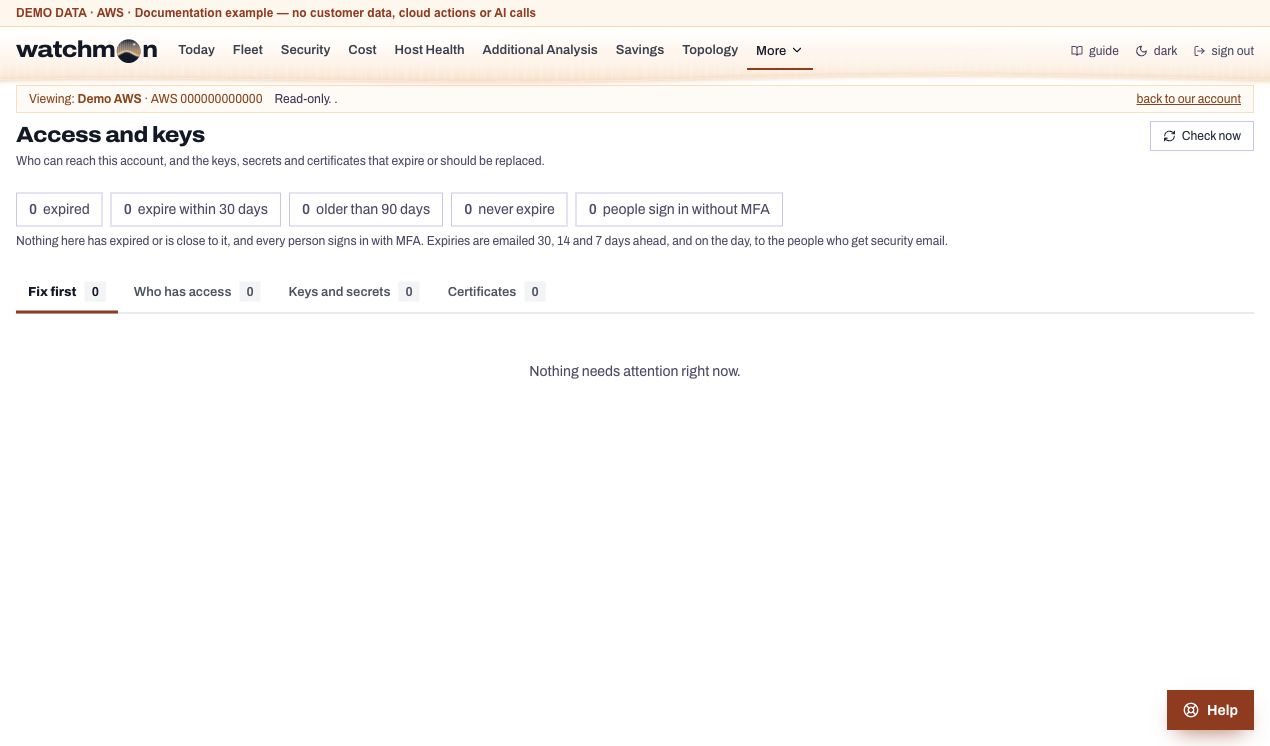
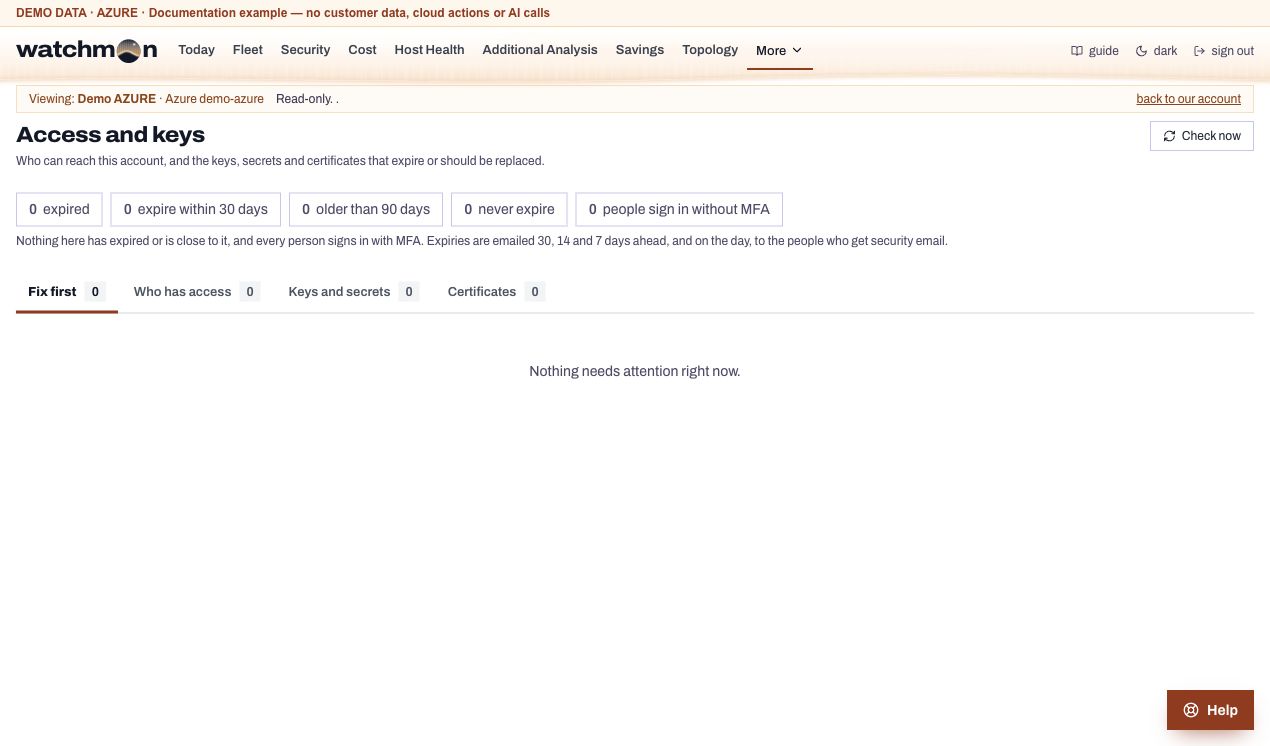
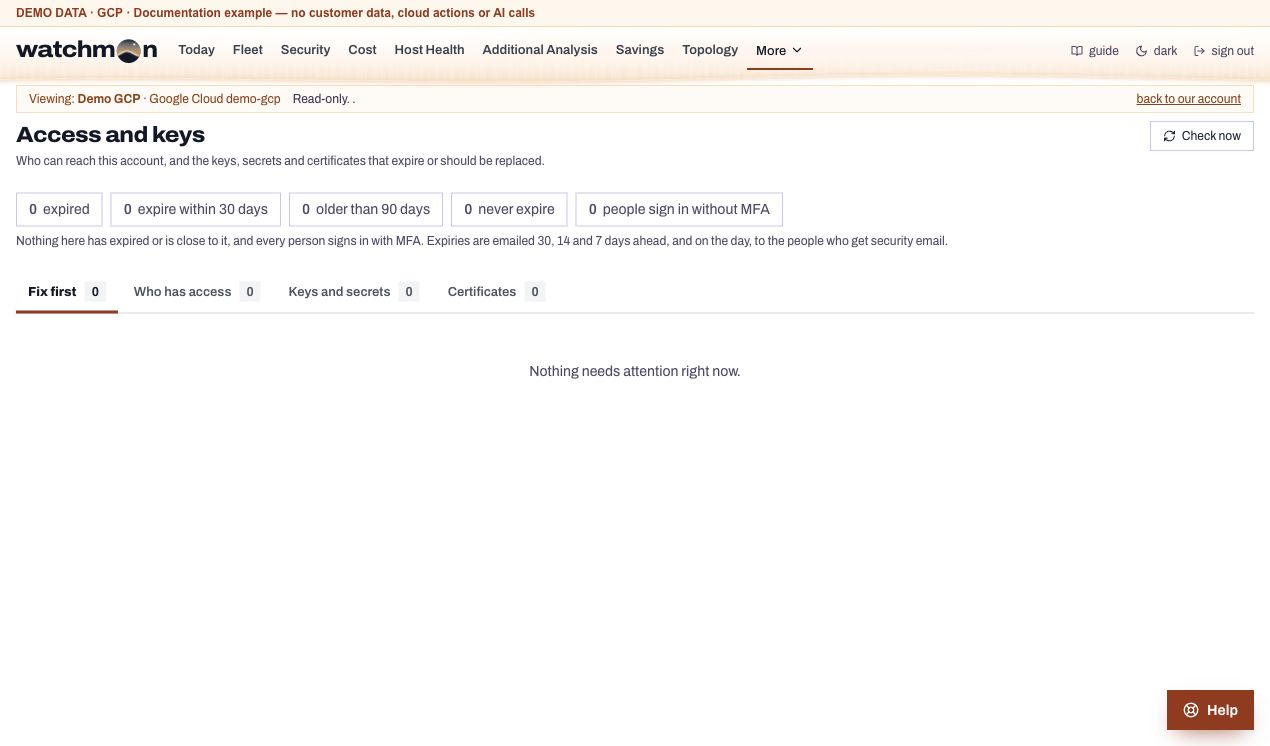
Access and keys
Who holds which role in your cloud, and which keys, secrets and certificates are due.
The page opens on a bar of counts (expired, due, to rotate) that filter the lists below.
Tab
What it lists
Fix first
Everything expired or due within 30 days
Who has access
People and identities, their roles and scopes, MFA and last use, as a grid
Keys and secrets
Access keys, storage keys, vault secrets and keys, grouped by where they are kept, with their age, expiry and where they are used
Certificates
Certificates with their expiry and what uses them
App registrations (Azure)
Your directory's apps, their secrets and certificates
Status words
Expired
Past its expiry.
Due
Expires within 30 days.
Rotate
No expiry, older than 90 days, or rotation switched off.
Never
No expiry and never used.
Azure: people and app registrations
Through Lighthouse, Azure shows Watchman only its own role assignments. To see everyone and your app registrations, press Sign in with Microsoft on the page. Your browser reads them with your own sign-in and keeps the result in that tab for 12 hours. Nothing from your directory reaches our servers.
Reminders
One email a day at most, at 30, 14, 7 and 0 days before something expires, to the people who receive security email (company setting Key and certificate reminders).
Note
On AWS and Google Cloud, today's read-only access does not read ACM certificates, Secrets Manager rotation, KMS key rotation or Secret Manager. The page says so.
Screen example
AWS · Access and keys · Fictional demo data. Open image for full size; wide tables scroll inside the app.
Azure · Access and keys · Fictional demo data. Open image for full size; wide tables scroll inside the app.
Google Cloud · Access and keys · Fictional demo data. Open image for full size; wide tables scroll inside the app.
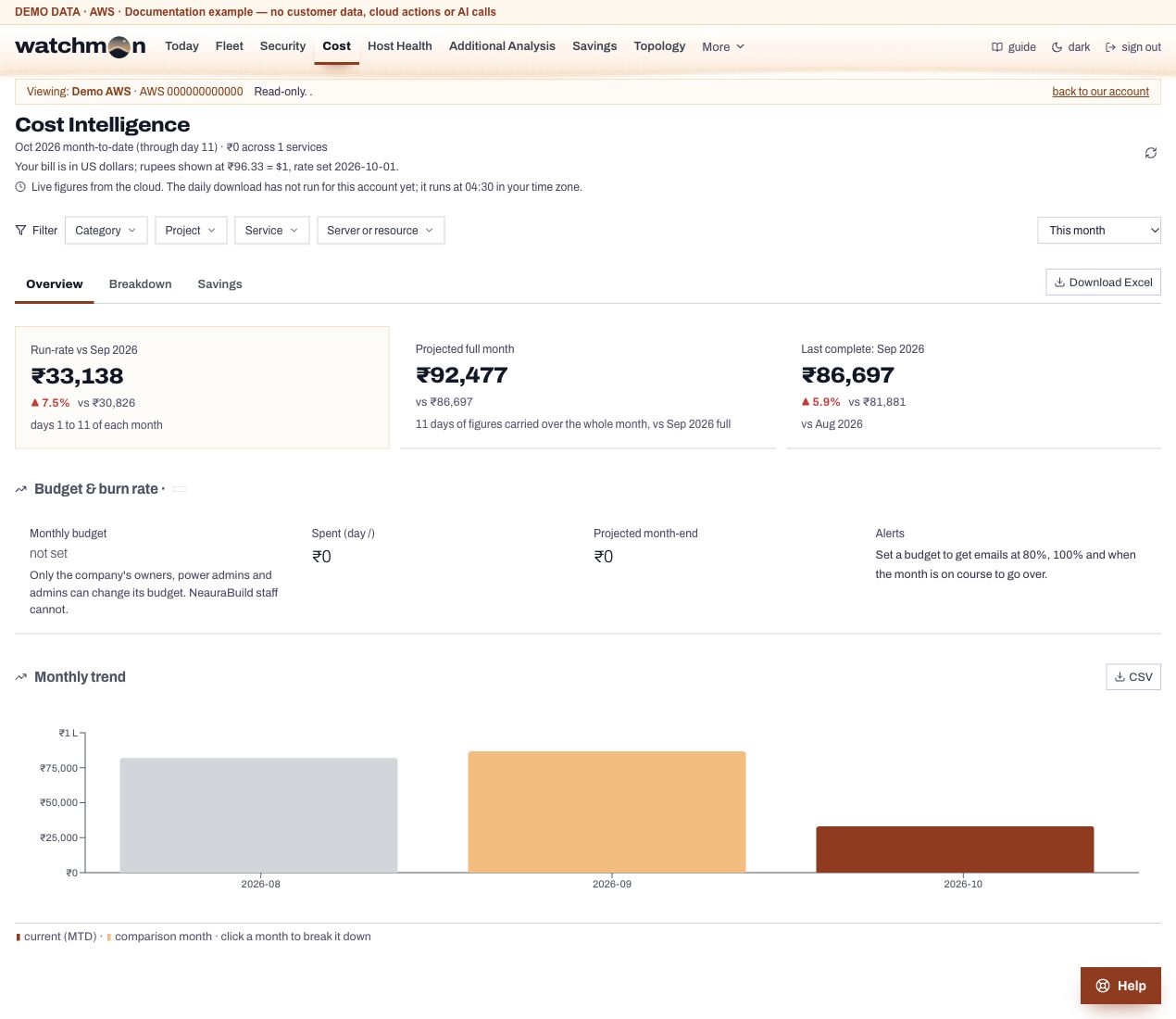
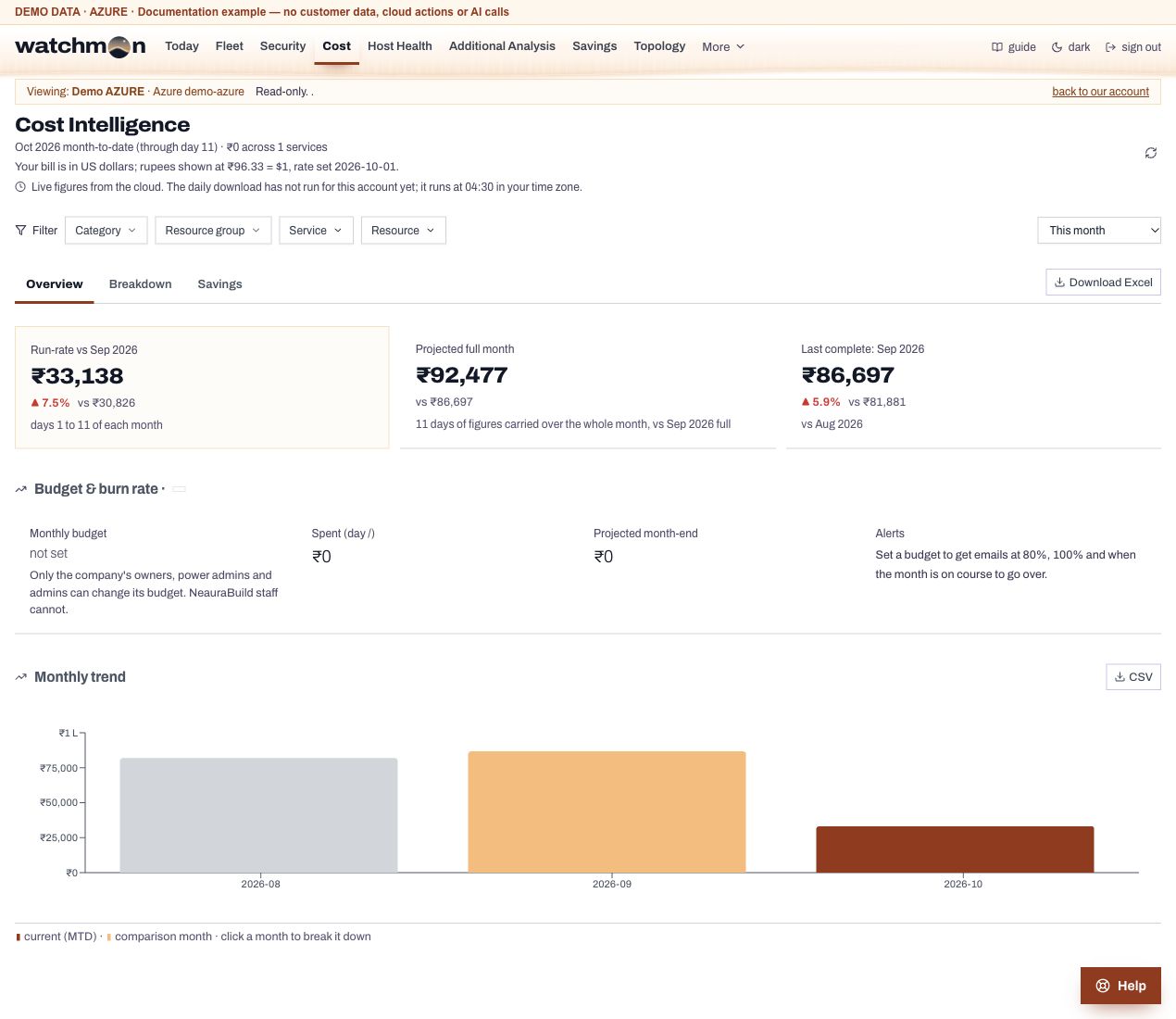
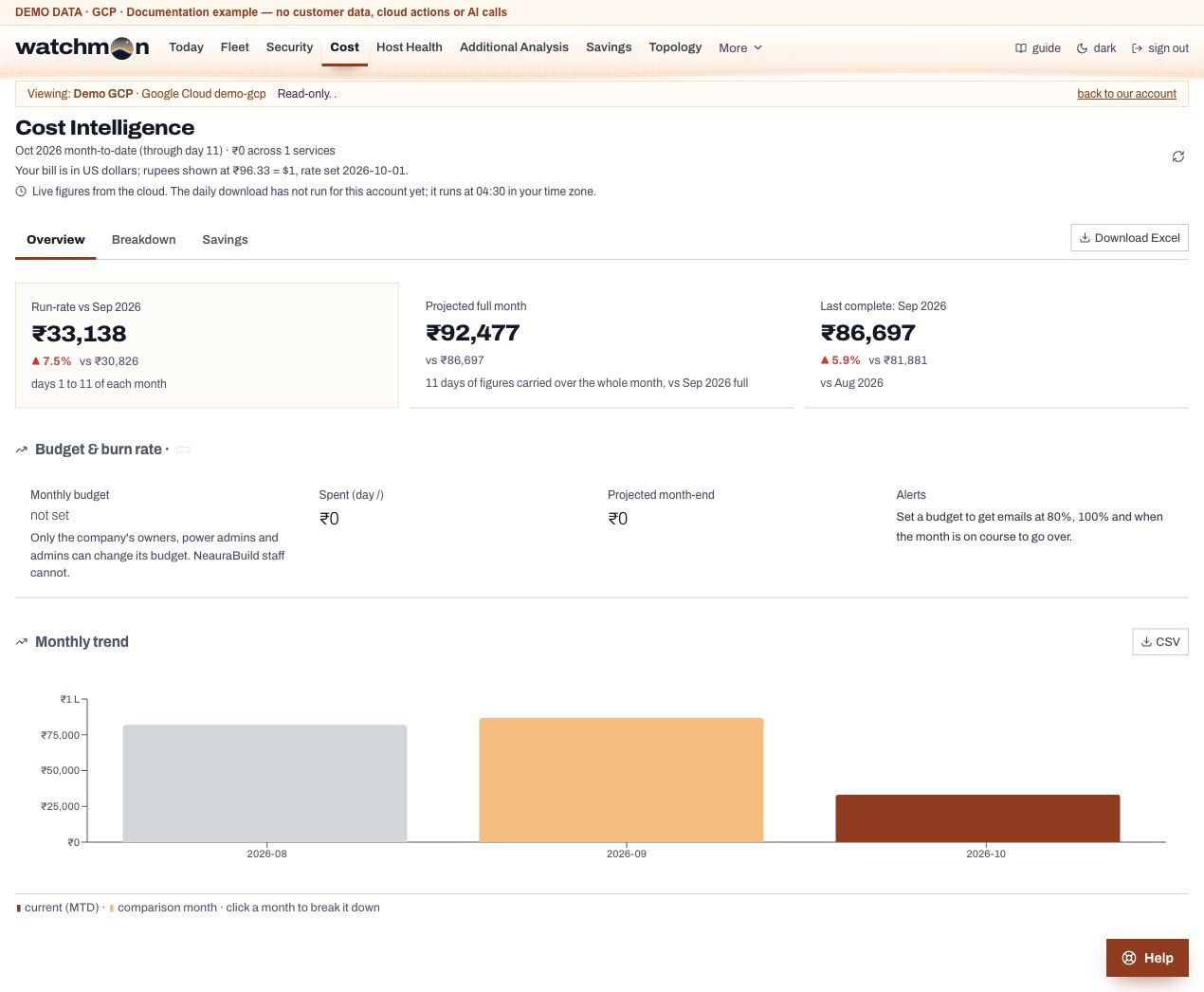
Cost
The bill of the account in view, in tabs, with filters that slice it down to one resource or one day.
A line under the title says which day the figures run through and when they were read. Figures are in the account's billing currency where the cloud reports one. The other currency uses a set rate, and the page says which figure is your real bill.
The tabs
Tab
Contents
Overview
Month so far, against last month on the same days, the projected month; monthly and daily trends; the budget; credits. Download Excel sits on the tab row.
Breakdown
Services and how each changed; cost by resource group or tag, drilled down to resources and meters; Data and AI.
Analysis
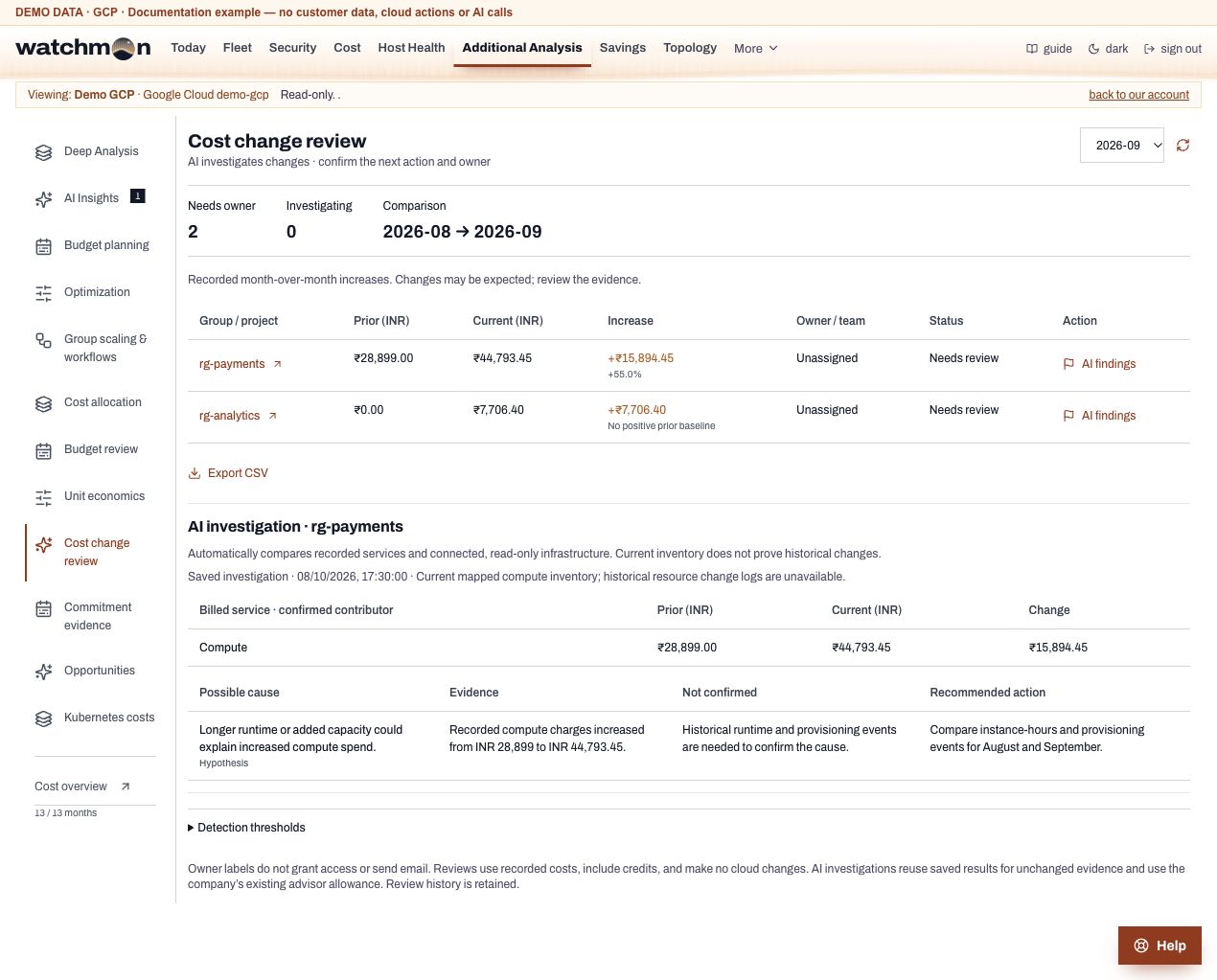
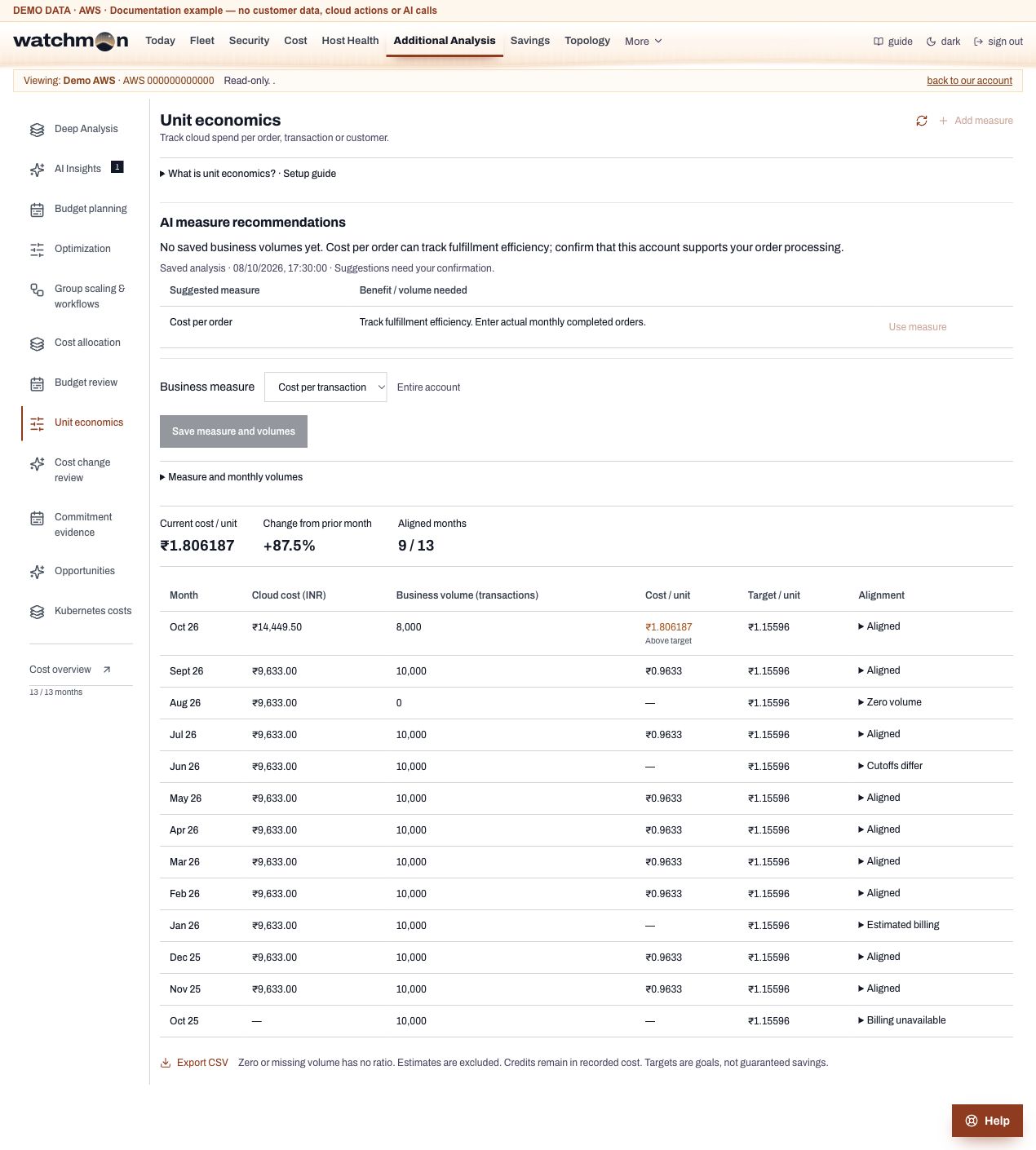
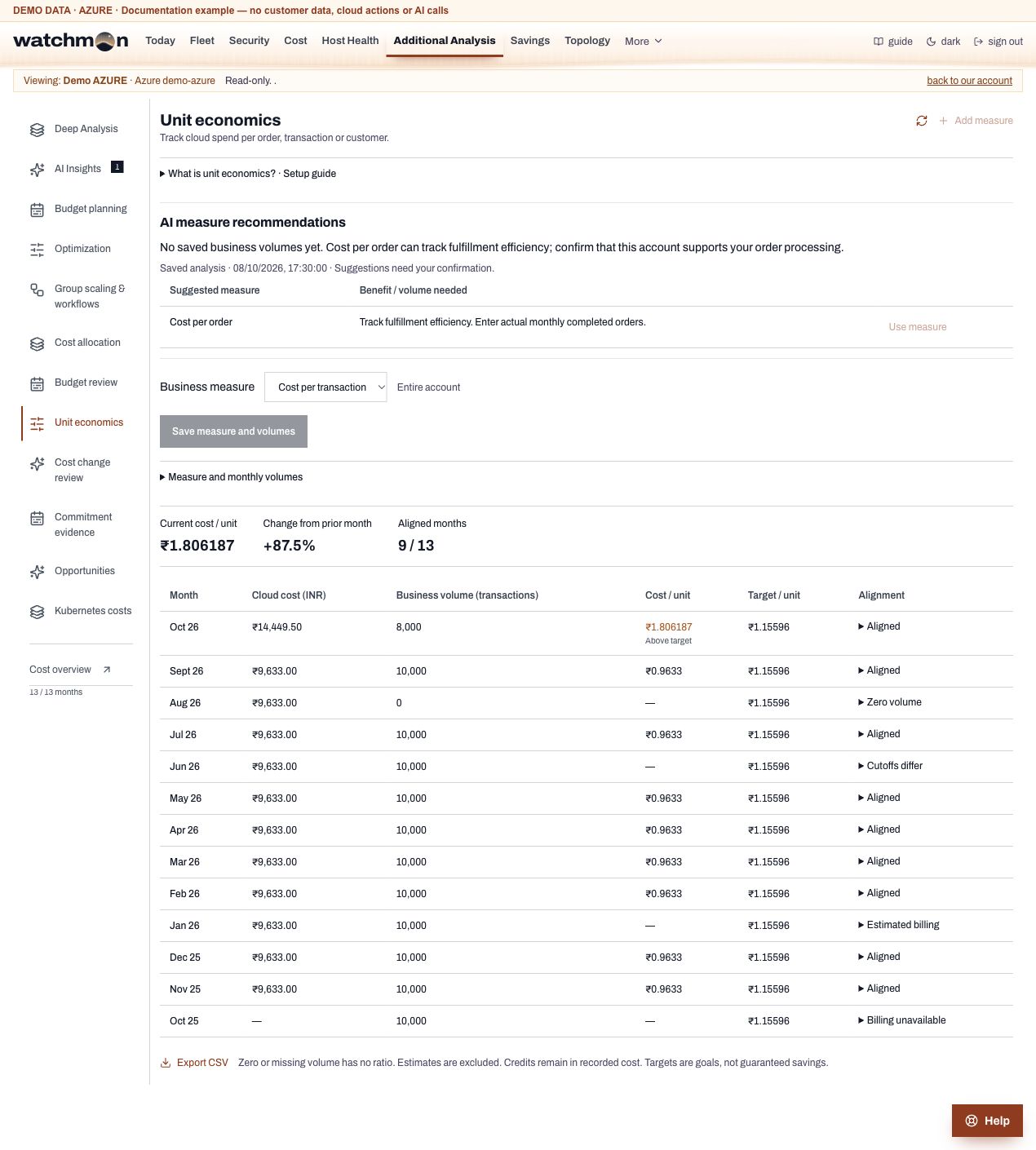
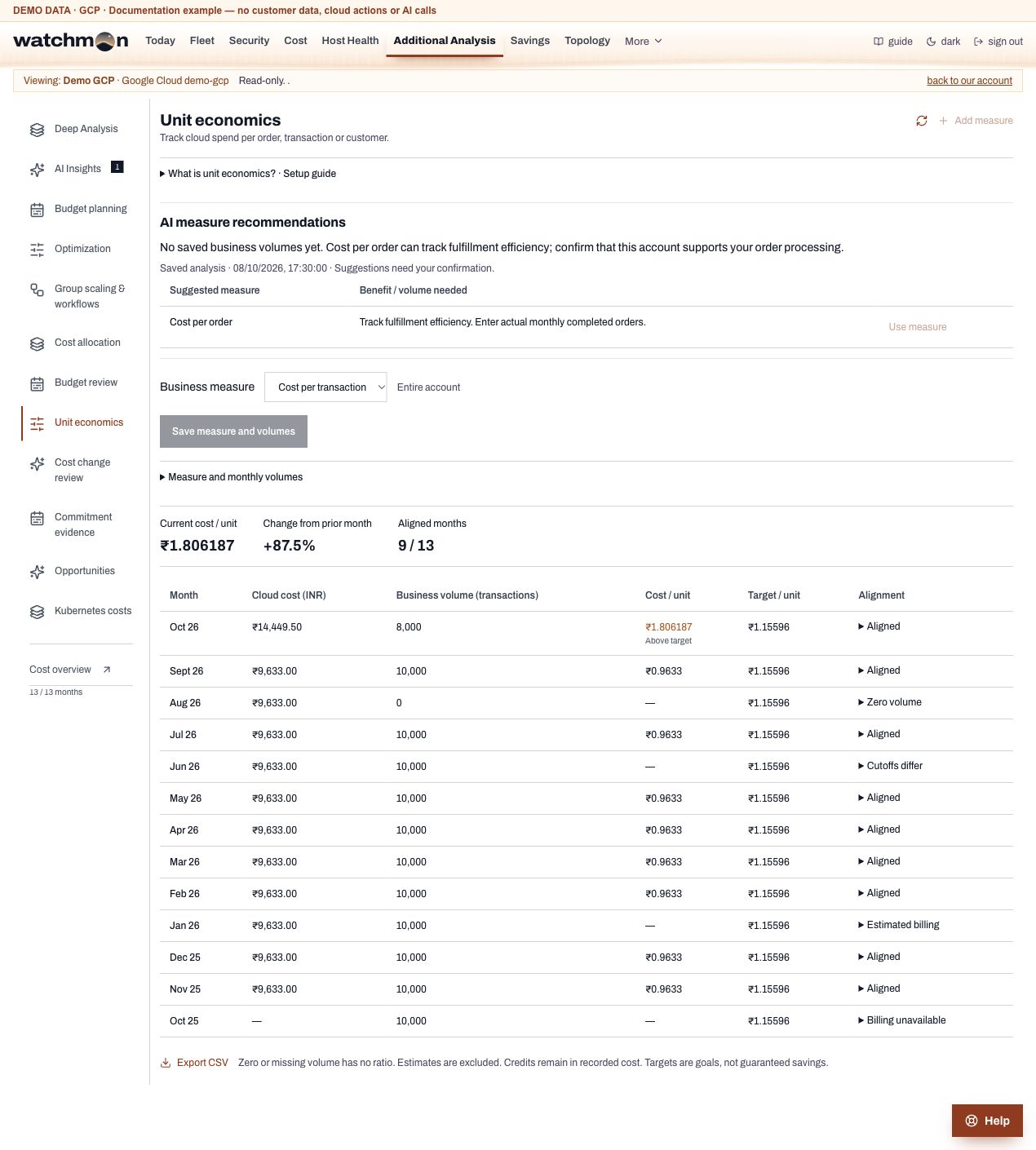
The month-by-month ledger, AI insights, cost change review, commitments and Kubernetes costs. See Deep Analysis.
Cost allocation and unit economics. Shown only when one of them is switched on for your company.
Savings ideas
Right-sizing, the fix add-on, cleanup lists and the AI advisor, then optimization and opportunities.
How months are compared
Watchman compares a month in progress with the same calendar days of last month, so a charge billed on a fixed day each month (a reservation, a licence) is on both sides. On the 1st, when the cloud has posted nothing for the new month, Watchman compares the last complete month in full with the one before. Days the cloud has not posted yet are marked "not posted yet", never shown as zero.
The projected month
Until 7 whole days are posted, the rest of the month follows last month's own days. After that it follows last month's shape, scaled by how this month is running against it. With no whole day posted yet the page says "Not yet". The line under the figure names the method.
Filters (AWS and Azure)
The filter bar has four lists: Category, Resource group (Project on AWS), Service and Resource. Open a list, tick values and press Done. The page then shows only that slice: its total, its share of the account, twelve months as bars, its days, and what it is made of.
Each list shows what every value cost, given the ticks in the other lists.
Click a row under "What it is made of" to add or remove it as a filter. Click a month's bar to open that month, or a day on the daily chart to open that day.
Pick the period: this month, last month, any month, a year, the last 12 months, one day, or Custom dates (up to 62 days).
The address keeps the ticks, so you can bookmark a view or send it to a colleague.
On Azure the lists go down to single resources. The 3,000 that cost most in a month are named, and the rest are counted as "Other and smaller resources". On AWS a resource is a server's Name tag. While a filter is on, the account-wide sections (budget, right-sizing, cleanup, advisor) are hidden.
Budget
One monthly budget per account, on the Overview tab under the headline figures: Set budget, Change budget or Remove. Only owners, power admins and admins can change it. The card says who changed it last, and every change is in the Audit log under "Budget and cost". The company gets an email at 80 percent, at 100 percent and when the month is on course to go over, each once a month. It also gets one on any day that costs far more than the week before.
Cost by group and Data and AI
Drill from a tag or resource group, to a resource, to its services and meters, for any month or year, with a CSV at each level. Data and AI shows spend on data and AI products by workspace and kind of use (for example Databricks all-purpose against jobs compute). Each flag shows the numbers behind it.
Right-sizing (AWS and Azure)
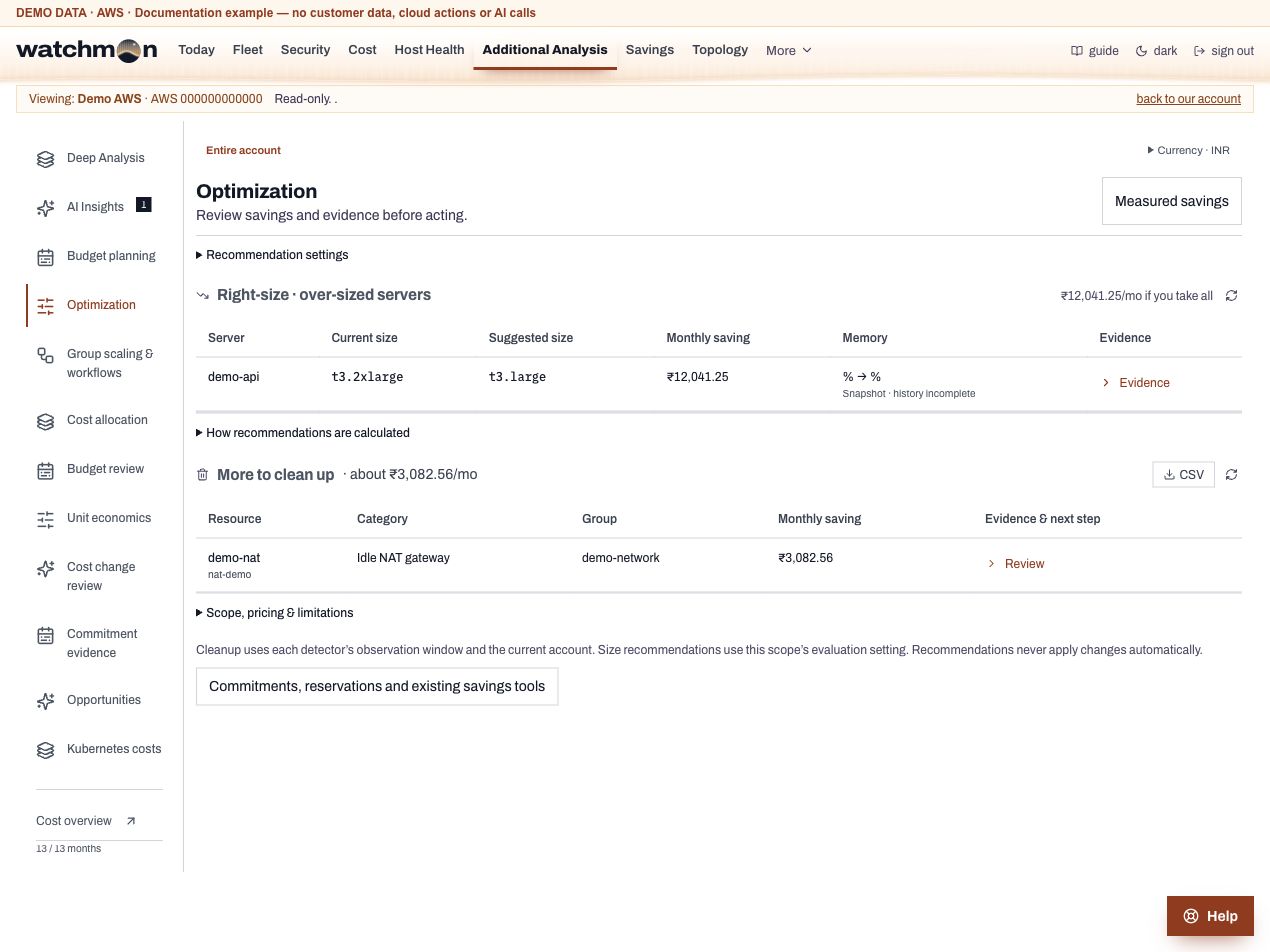
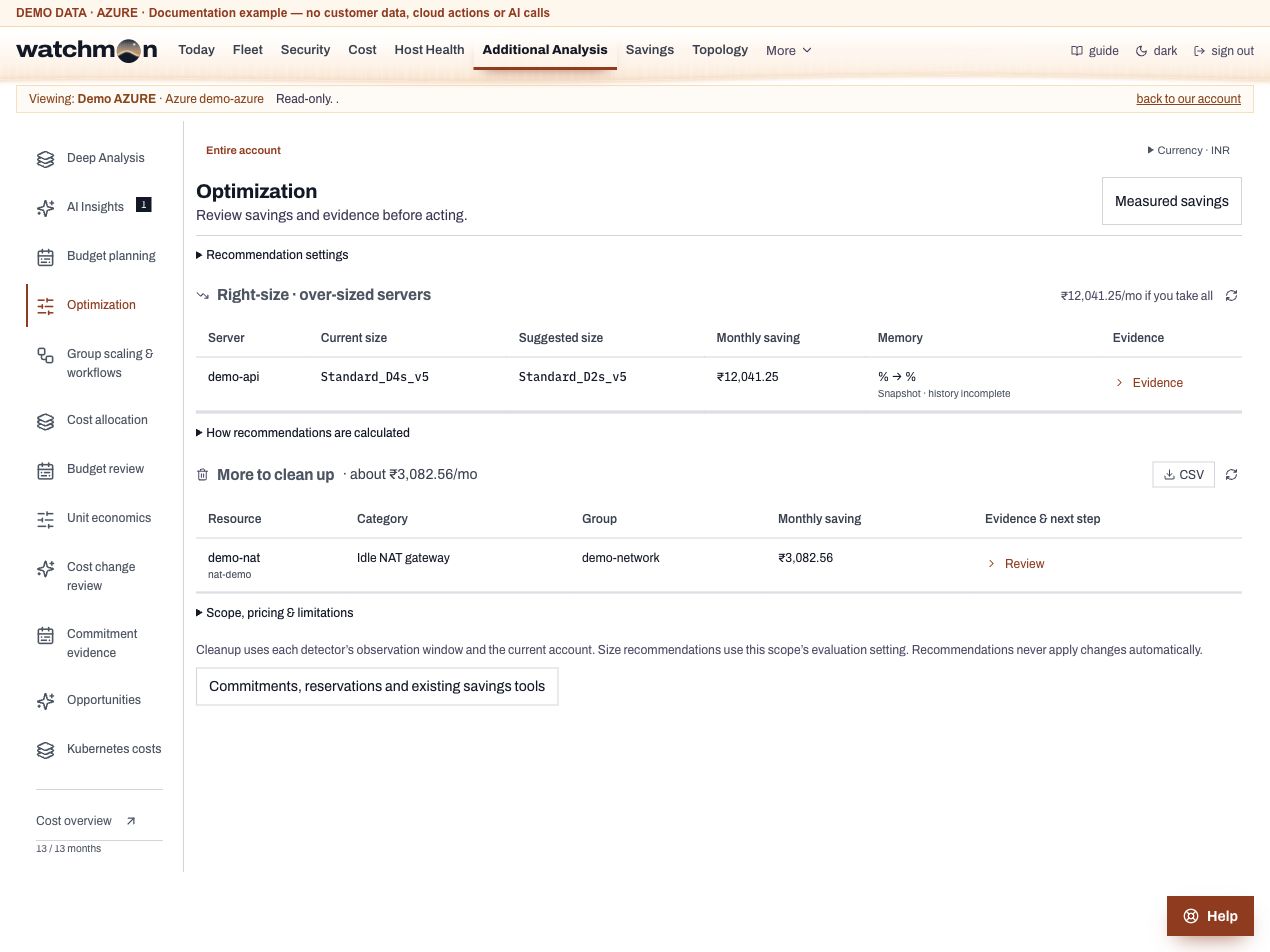
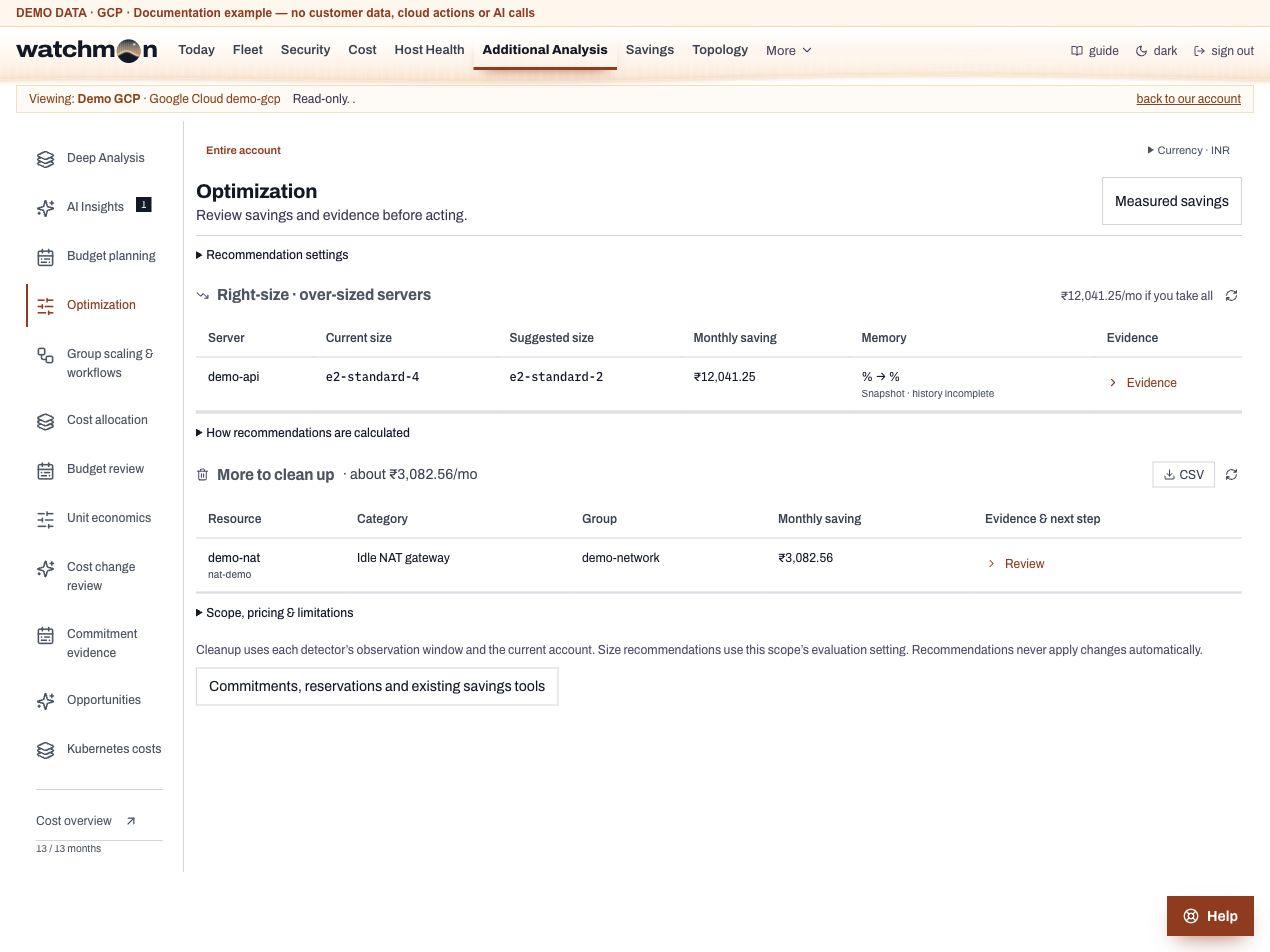
Servers whose CPU and memory stay low for their size, with the next size down and the saving at list price. A server needs at least 7 days of readings. Watchman judges memory on the smaller size, where it must stay at or under 70 percent. A server whose memory Watchman cannot see is listed separately as "check memory first". Watchman never resizes anything.
Cleanup
Things that cost money and do nothing: disks attached to nothing, old snapshots, idle addresses and, on AWS, idle NAT gateways, load balancers with nothing behind them, databases with no connections in 30 days, old images and spare network cards. Each row says why it is listed and gives the step to remove it.
The AI advisor
An owner or admin can ask for savings advice, up to 3 fresh runs a day per company. Watchman sends the account's spend by month and service, and its servers' sizes and usage, to an AI model run by a provider in the United States. Before anything leaves, Watchman replaces every name, id, address, host name, email and account number with a label such as name-1. Names go back only in the answer you see. The section shows exactly what was sent, what stayed with us, and the answer as it came back. Every saving figure comes from Watchman's own checks, never from the model, and Watchman leaves out advice with nothing behind it and says why. See AI and your data.
Remove from here
With the fix add-on, the cleanup lists get a button that removes an idle address or an unattached disk.
Screen example
AWS · Cost Intelligence · Fictional demo data. Open image for full size; wide tables scroll inside the app.
Azure · Cost Intelligence · Fictional demo data. Open image for full size; wide tables scroll inside the app.
Google Cloud · Cost Intelligence · Fictional demo data. Open image for full size; wide tables scroll inside the app.
Billing dates and comparisons
Cost comparisons use the actual billing cutoff for the selected account, across AWS, Azure and Google Cloud. A partial month compares the same calendar dates in the previous month. Monthly reservation charges count on their billed date, without prorating them across resources. The Cost page shows Billing through and Last refreshed separately. Missing matching billing is shown as unavailable; it is never treated as zero or as measured savings.
Savings
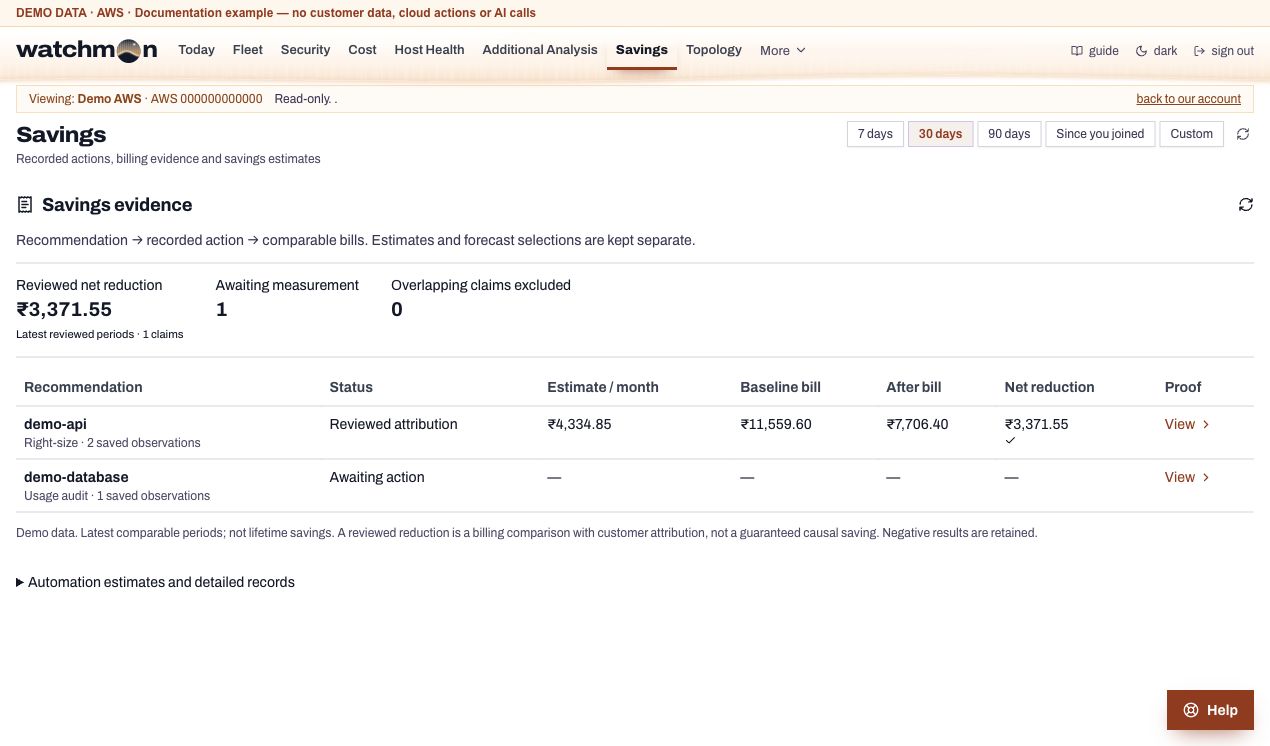
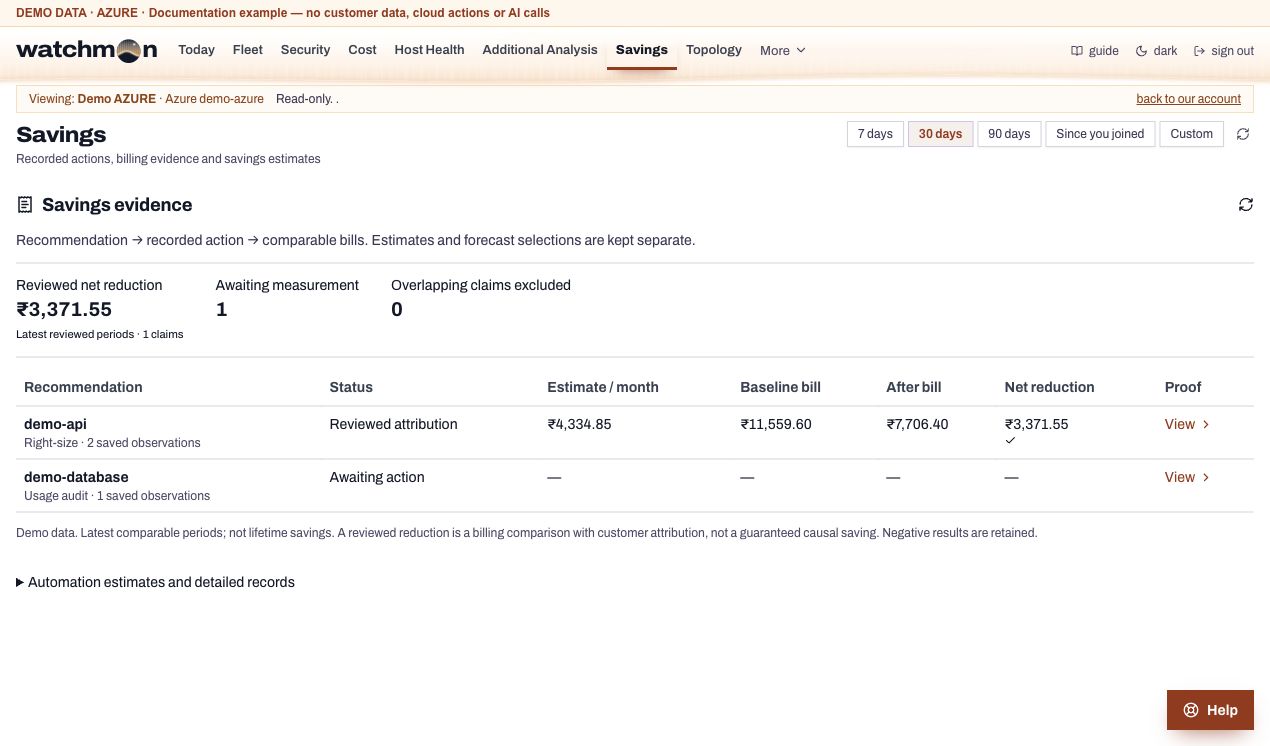
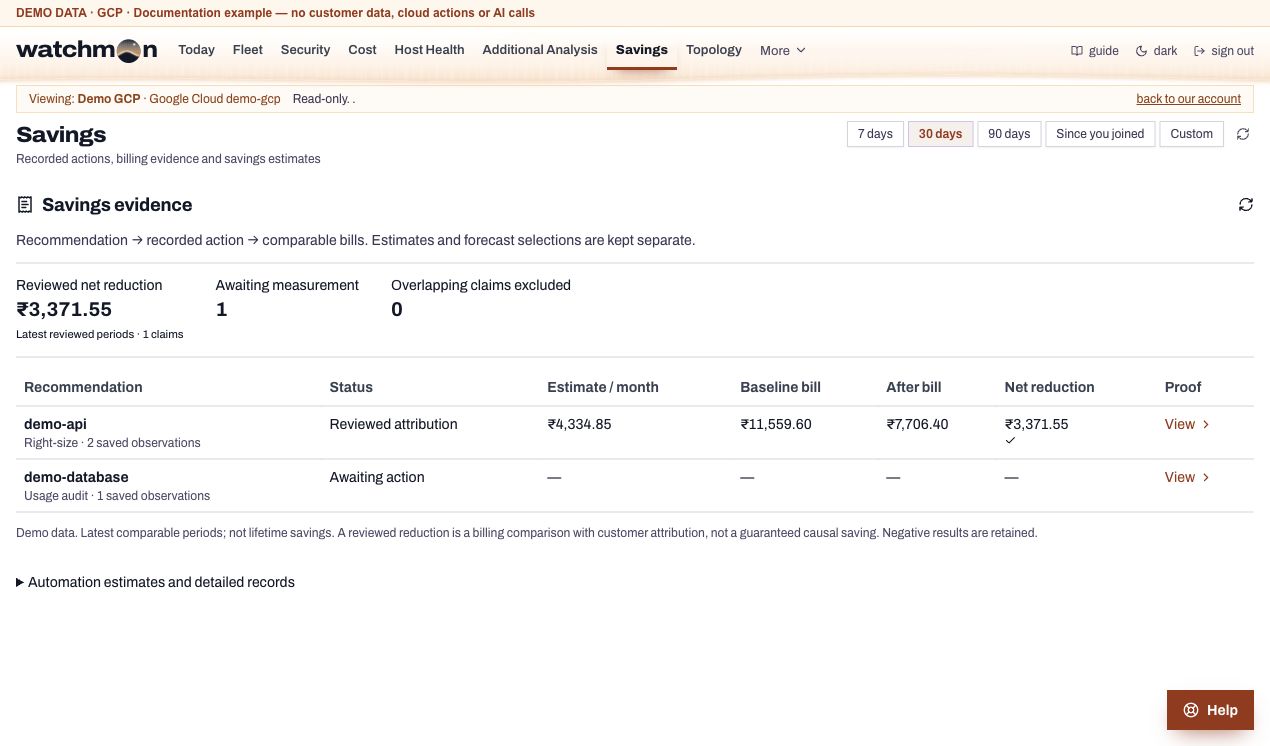
Follow each saved recommendation through its recorded action to the bills before and after.
Record and review a result
Save the recommendationOpen Opportunities or refresh automation records. Watchman keeps the original evidence and later observations apart.
Implement a reviewed actionPicking a forecast only plans an action. When a supported Watchman action succeeds, its receipt links the exact resource to the earlier recommendation.
Open Savings → ViewChoose the saved recommendation and a recorded action. Watchman does not assume changes made outside it.
Compare complete billing periodsChoose a baseline and an after period of equal length that do not overlap. The baseline comes before the action, and the after period starts after its UTC day. End dates are not included, and neither is today.
Review attributionConfirm the workload is comparable, commitments and overlapping actions are reconciled, and credits, refunds and price changes are reconciled. Enter any implementation cost, then Save billing review.
Read the totals
Value
Meaning
Estimate / month
An estimate from the recommendation, not measured savings.
Baseline / after bill
Exact resource charges from the selected complete periods.
Reviewed net reduction
The billing reduction you reviewed, minus implementation cost. It covers the latest reviewed periods, not lifetime savings.
Awaiting measurement
An action or comparable billing evidence is still needed.
Overlapping claims excluded
Claims for the same resource with overlapping result periods are left out, so nothing counts twice.
Missing or unallocated resource billing stays unavailable. A review with unchecked attribution saves an observation only. Watchman keeps negative results. A reviewed comparison does not prove on its own that the action caused the change.
Automation records
Expand Automation estimates and detailed records for sleep hours, estimated always-running compute cost, rate cards and detailed records. These estimates stay separate from reviewed billing reductions. Disks, fixed fees and commitments you keep may still be billed while compute is stopped.
Screen example
AWS · Savings evidence · Fictional demo data. Open image for full size; wide tables scroll inside the app.
Azure · Savings evidence · Fictional demo data. Open image for full size; wide tables scroll inside the app.
Google Cloud · Savings evidence · Fictional demo data. Open image for full size; wide tables scroll inside the app.
Backups
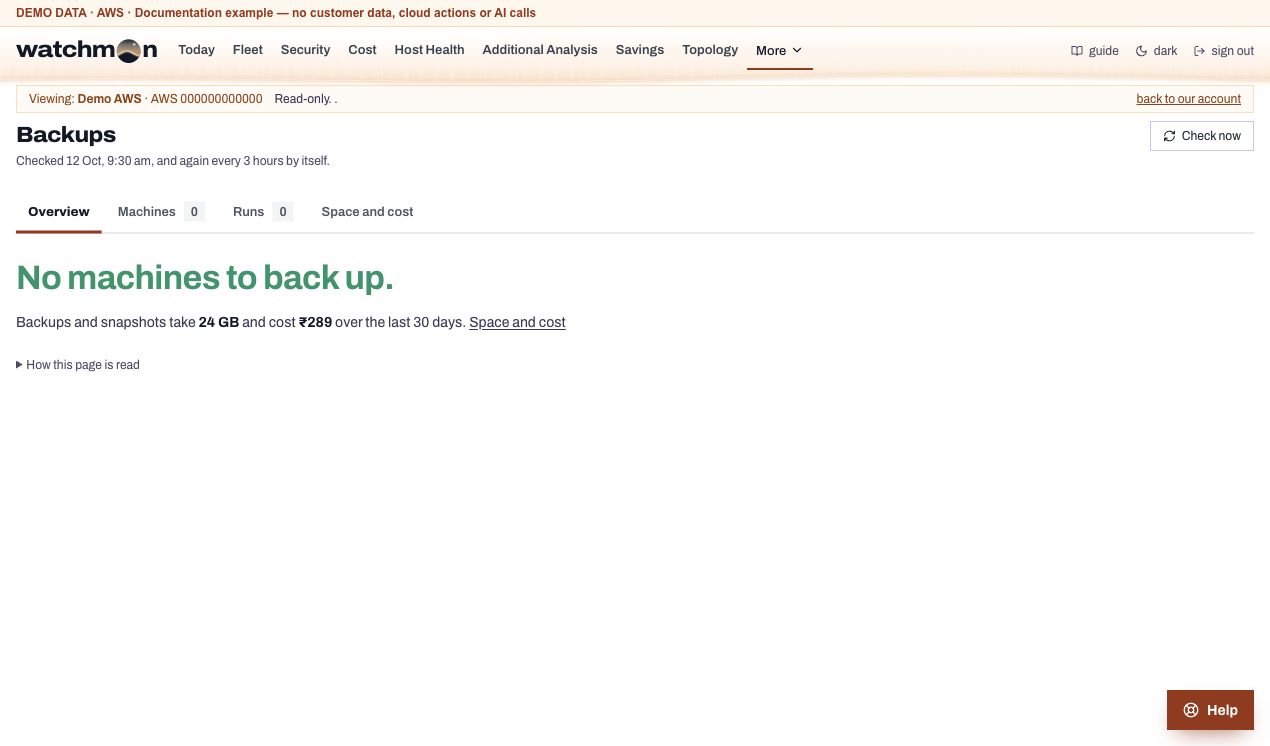
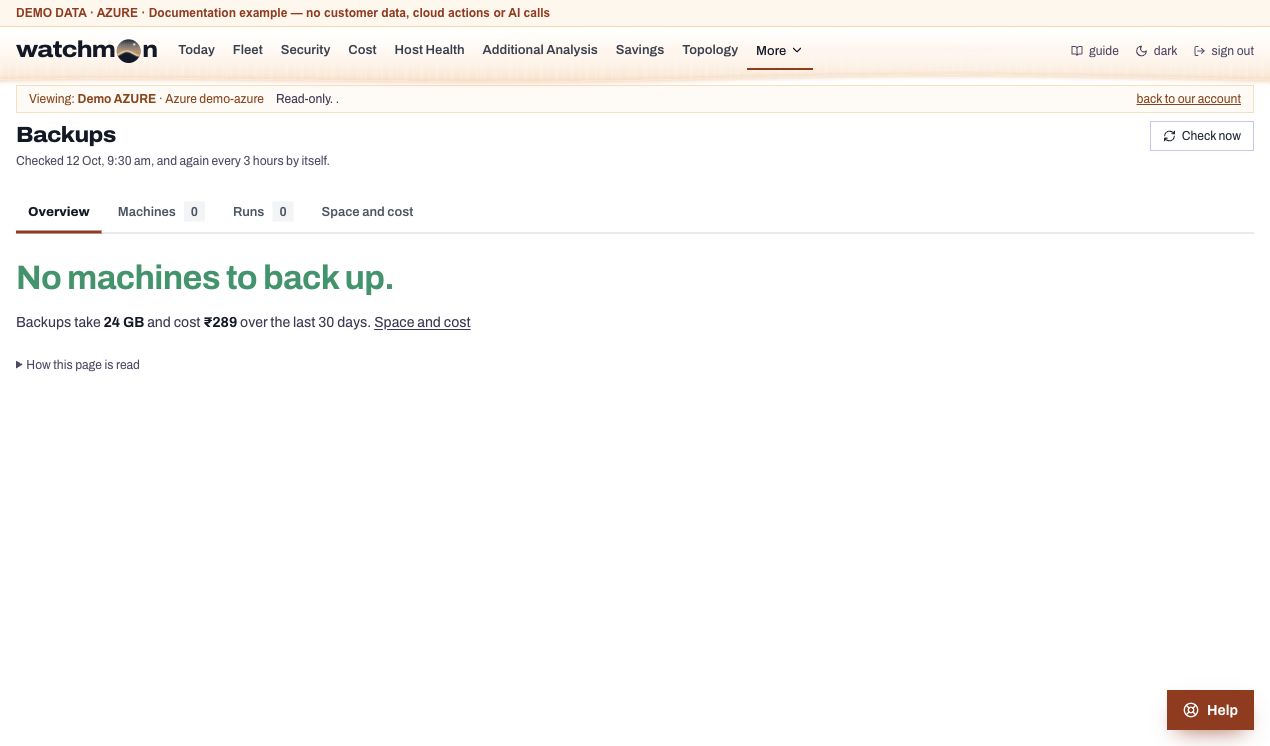
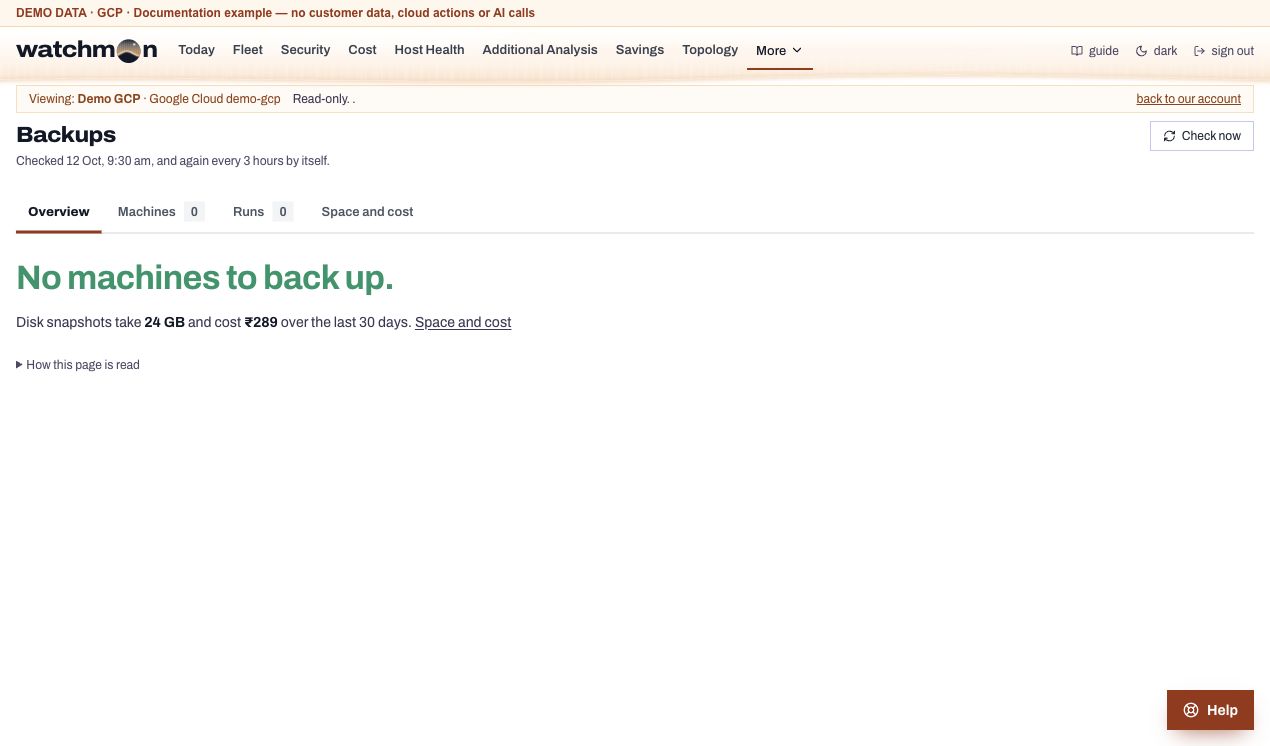
Whether backups run, machine by machine: how often, the newest good copy, failures, size, and what they cost.
Tab
Contents
Overview
One verdict, a bar of every machine by status, the first things that need attention, space and cost
Machines
Every machine with its newest copy, schedule, 7-day strip and how long copies are kept; filters for status, group, vault, schedule and environment
Schedules
Each backup policy or plan in words, the type of backup, what it covers and its runs this week
Runs
Every backup job of the last 7 days with its result, time taken and size
Space and cost
Vaults and items with their size; the last 30 days' cost
History
One row a day, kept for years, with a CSV
Machine status
Failing
The last backup failed.
None
No backup at all.
Off
Protection stopped or paused.
Late
No good copy within one and a half times its schedule (plus 12 hours).
Warning
The last run finished with warnings.
Gone
A backup of something that no longer exists, still billed.
Skipped
Marked as not needing a backup.
OK
A good copy on time.
Mark a machine as not needing a backup
In a machine's details on the Machines tab, anyone whose role holds server settings can pick a reason (a test server, rebuilt from code, backed up another way, being retired) and an optional note. The machine drops out of what needs attention and always shows under "Not backed up on purpose", grouped by environment, with the reason and who marked it. It needs a backup after all takes the mark off.
How fresh
Watchman reads backups again every 3 hours. Refresh now reads at once, at most every 5 minutes. Machines a service starts and removes by itself (cluster nodes) are left out on purpose and listed separately.
Note
On Google Cloud, a server counts as protected when a snapshot schedule is attached to one of its disks or a snapshot was taken in the last 7 days. How long copies are kept is not shown there.
Screen example
AWS · Backups · Fictional demo data. Open image for full size; wide tables scroll inside the app.
Azure · Backups · Fictional demo data. Open image for full size; wide tables scroll inside the app.
Google Cloud · Backups · Fictional demo data. Open image for full size; wide tables scroll inside the app.
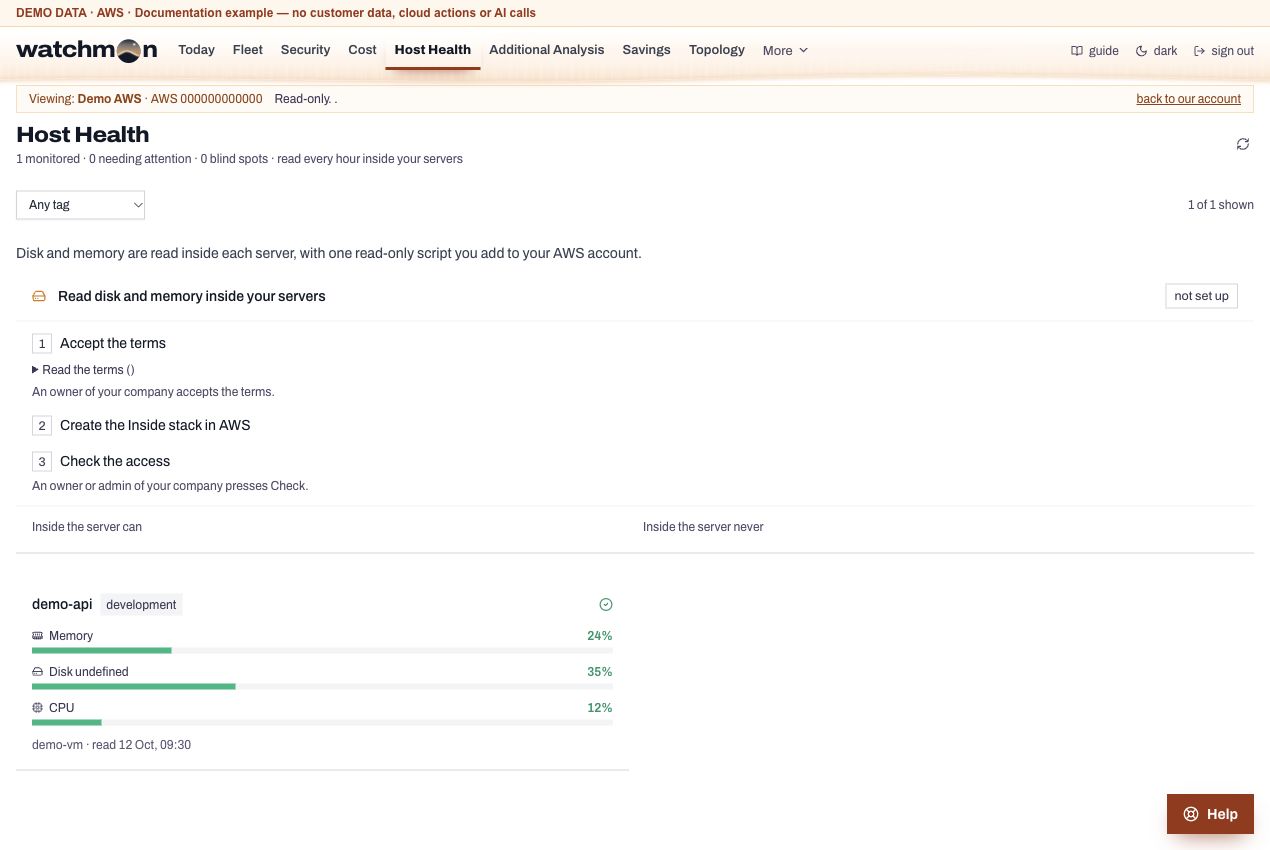
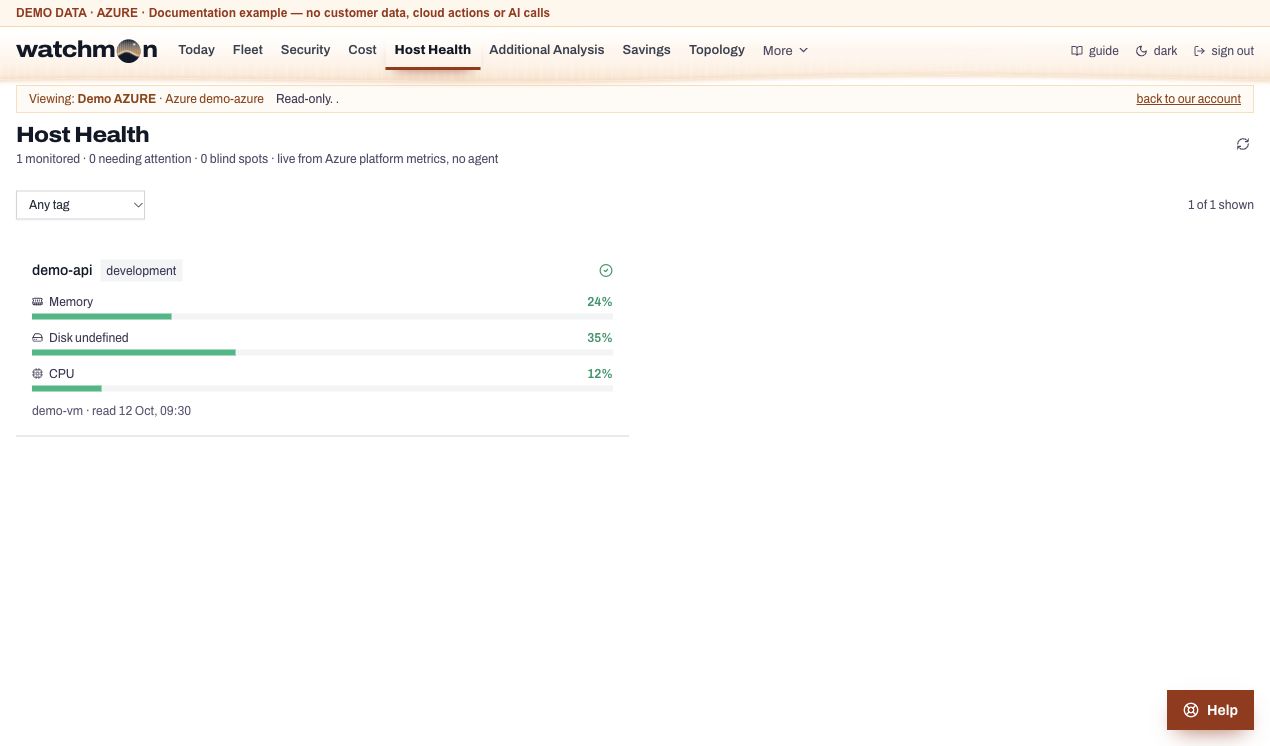
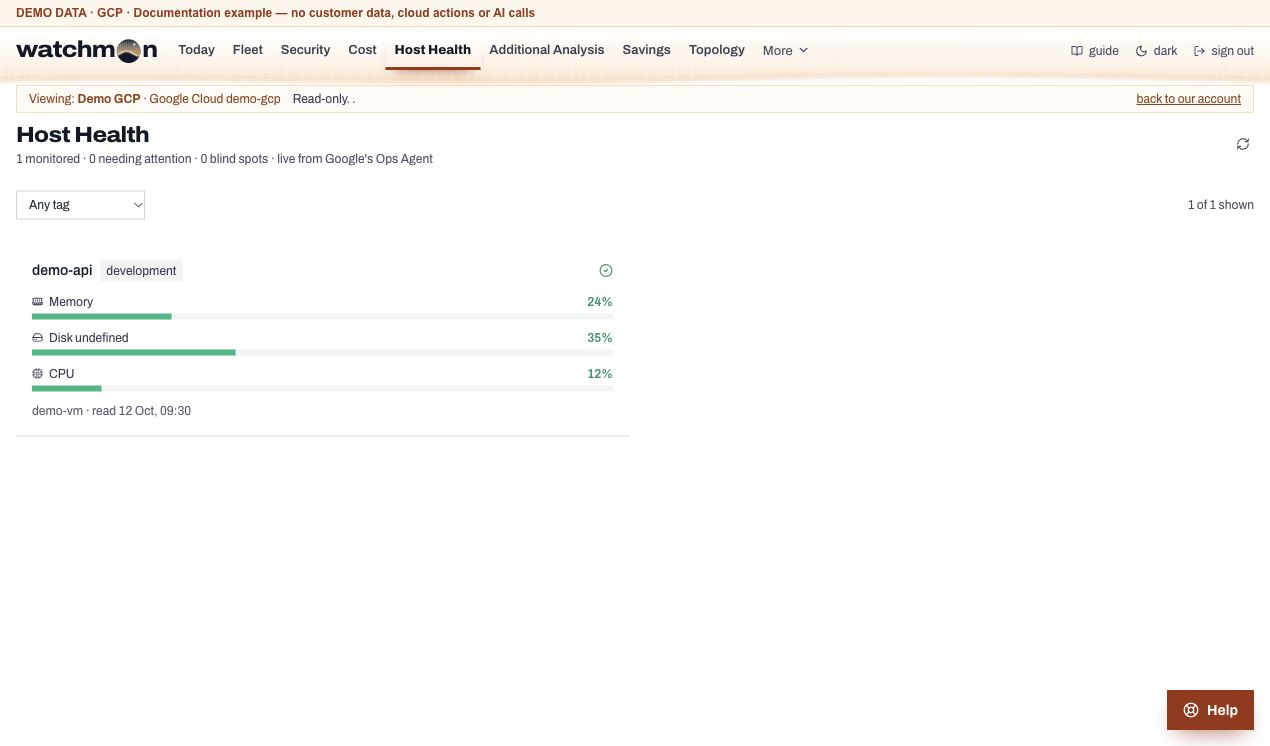
Host Health
Disk, memory and swap of each server, with a forecast of when a disk fills.
Memory from Azure itself; disk only where the Azure Monitor agent sends guest readings
Google Cloud
The Ops Agent
The company gets an email when a disk is on course to fill within 5 days or is already at 92 percent (09:00 by default), and when memory stays at 90 percent or swap at 60 percent. Filter by resource group or tag. Readings are kept 14 days.
Screen example
AWS · Host Health · Fictional demo data. Open image for full size; wide tables scroll inside the app.
Azure · Host Health · Fictional demo data. Open image for full size; wide tables scroll inside the app.
Google Cloud · Host Health · Fictional demo data. Open image for full size; wide tables scroll inside the app.
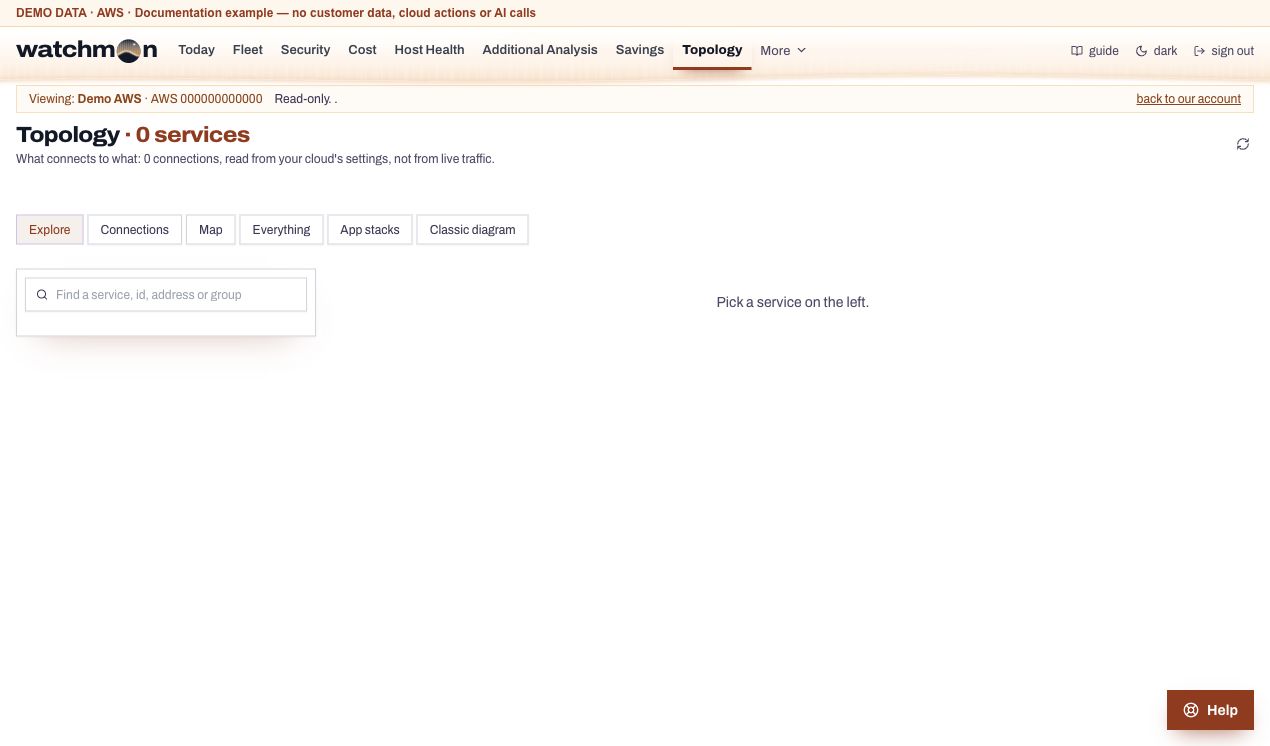
Topology
A map of what connects to what in the account, in plain words.
Explorer (opens first): pick a service on the left and see what connects to it, what it connects to, and why.
Connections: every link grouped by what it means, with those worth a look first (open to the internet, allowed to connect, has permission to use).
Overview map: families of services as cards and the links between them.
Neural map: every service as a cell on a ball and every link as a fibre between two cells. It fills the screen under the menu. Drag to turn the ball, scroll or pinch to zoom, and click a service to bring it to the front. Pick a service and press Play to watch a signal spread along its links, one hop at a time, while the list beside it says each step in words. Choose which way (what it reaches, what reaches it, or both) and how far (1 to 3 hops). The colours are explained beside the ball; click one to light only those services. A bigger cell has more links. Press Esc or the close button to go back.
Each link says whether it is wiring (set up) or a permission (allowed, not seen). None is observed traffic. That would need flow logs, which Watchman never reads.
Screen example
AWS · Topology · Fictional demo data. Open image for full size; wide tables scroll inside the app.
Azure · Topology · Fictional demo data. Open image for full size; wide tables scroll inside the app.
Google Cloud · Topology · Fictional demo data. Open image for full size; wide tables scroll inside the app.
Tasks
Things to do, assigned to people in the company. Anything on Security, Cost or Host Health can become a task. People whose role assigns tasks can give them to anyone active in the company and change or delete any task. Everyone else makes tasks for themselves and changes their own. The person assigned gets an email, and on Monday at 09:00 (company setting) everyone with open tasks gets a list.
Screen example
AWS · Tasks · Fictional demo data. Open image for full size; wide tables scroll inside the app.
Azure · Tasks · Fictional demo data. Open image for full size; wide tables scroll inside the app.
Google Cloud · Tasks · Fictional demo data. Open image for full size; wide tables scroll inside the app.
Audit log
Who did what and when, for every account of the company.
Starts and stops, idle warnings and their answers, security changes, settings, budget changes, team changes, tasks, access keys and every view by NeauraBuild staff. Filter by time (1 day to a year, or your own dates), kind of action, person or automatic, server, or any word. Download the result as CSV or Excel. Idle entries keep the 5-minute readings behind them. Open See the readings.
Entries never expire.
Screen example
AWS · Audit log · Fictional demo data. Open image for full size; wide tables scroll inside the app.
Azure · Audit log · Fictional demo data. Open image for full size; wide tables scroll inside the app.
Google Cloud · Audit log · Fictional demo data. Open image for full size; wide tables scroll inside the app.
Morning brief and your emails
Each morning at 07:30 in the company's time zone, one email covers all the company's accounts: yesterday's cost so far (clouds are still posting it), servers running, open findings, what was started and stopped, and idle warnings waiting. The Brief page shows the latest one.
Choose your own emails
On the Brief page you can switch off the kinds of email you do not want: start and stop actions, warnings, security, the morning brief, cost. Your role decides which kinds you can get at all. Addresses set under Extra addresses in Settings always receive everything. See Emails Watchman sends.
Settings
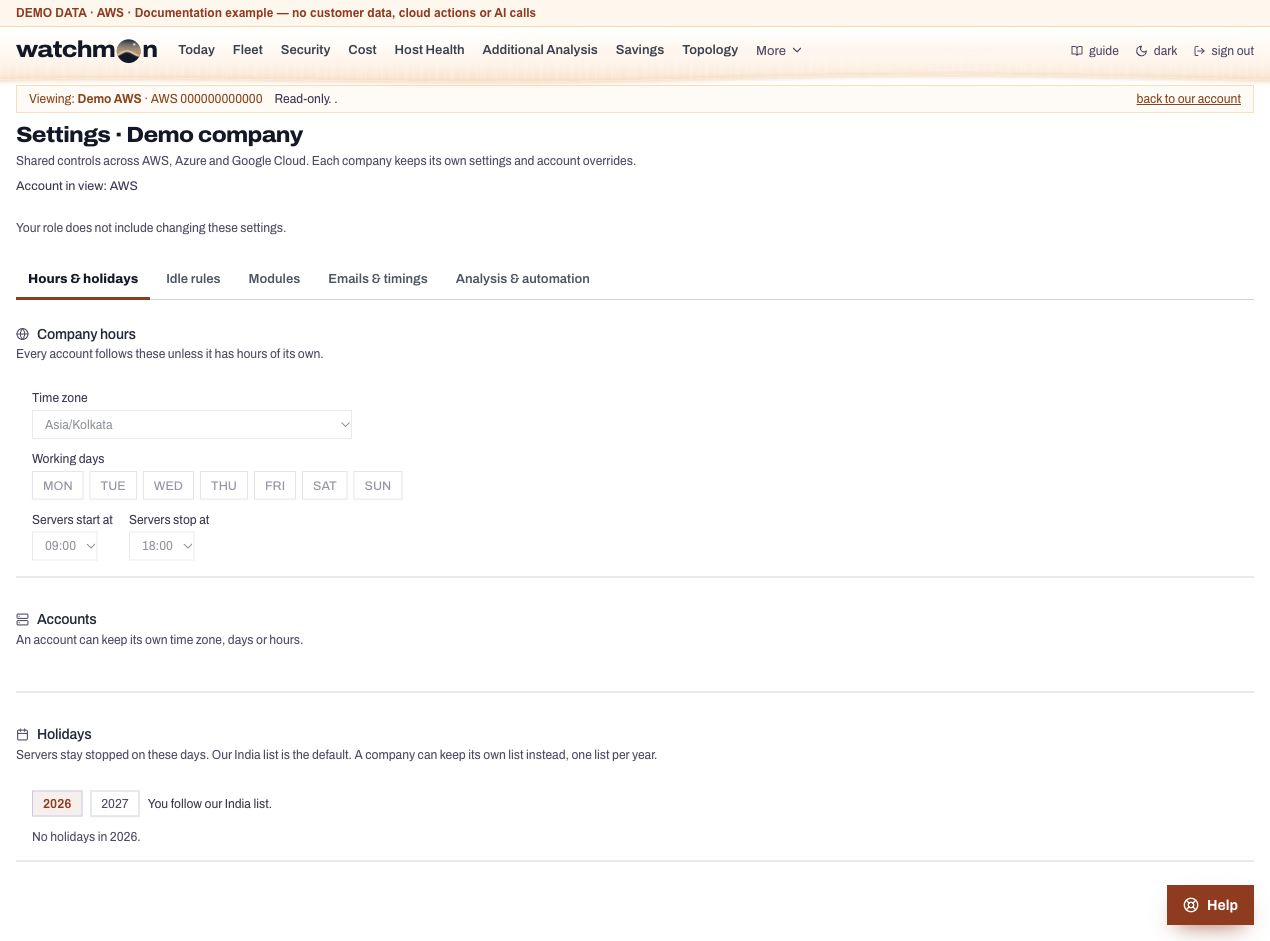
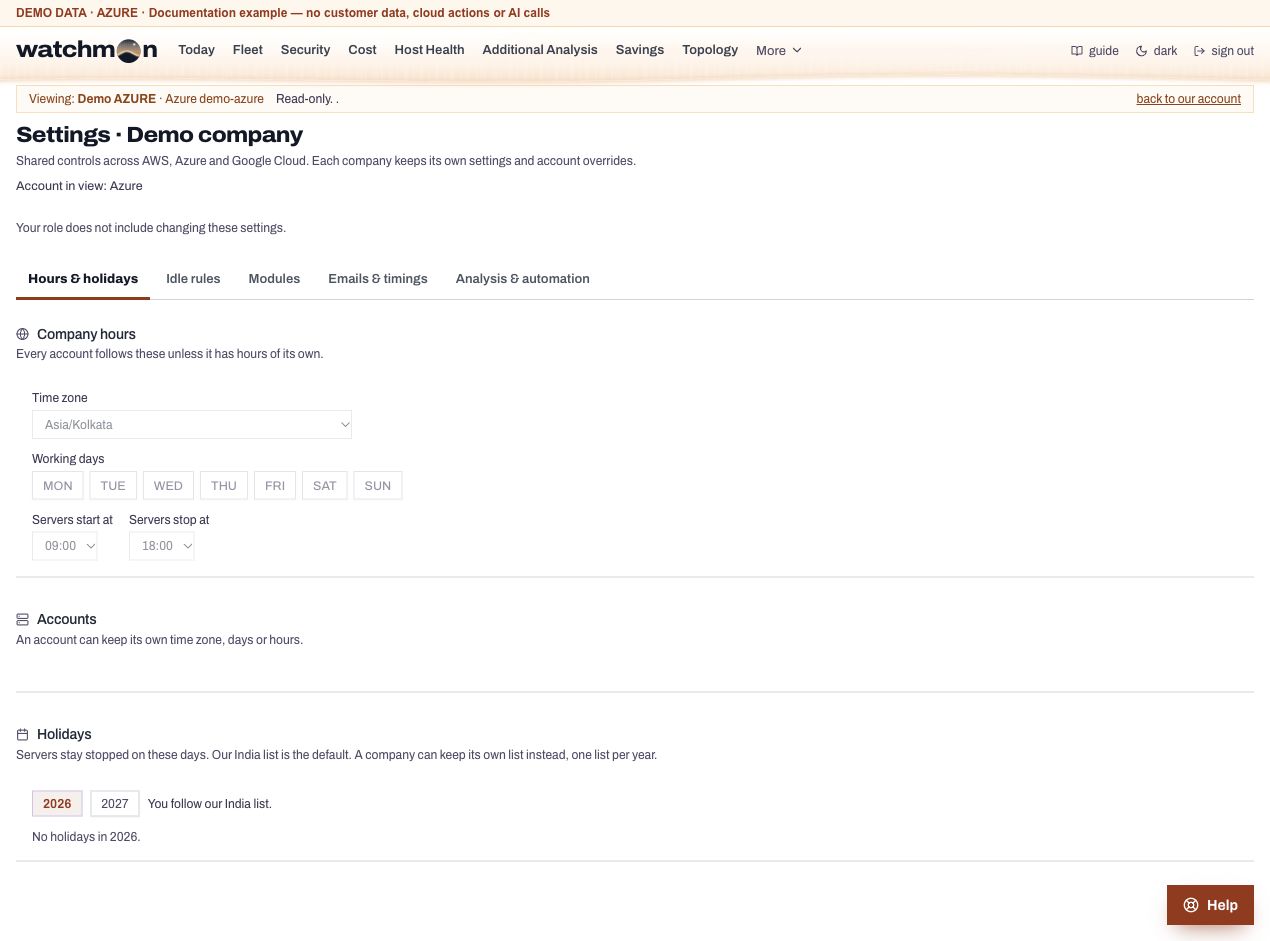
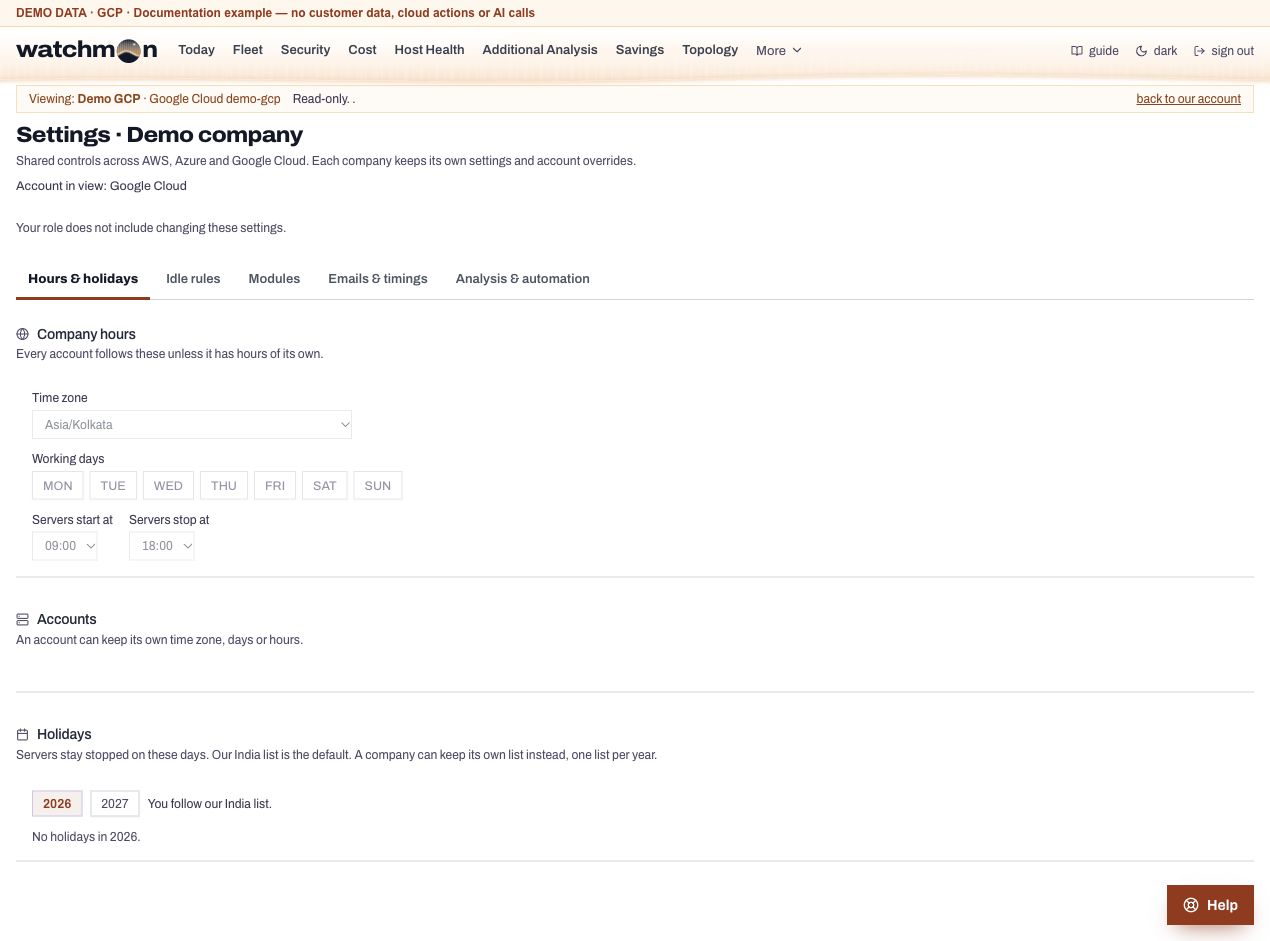
The company's hours, holidays, modules, email timings and idle rules. Everyone can read them. People whose role holds company settings can change them.
Time zone, working days and hours
The schedule's start and stop hours, in whole hours in the company's time zone. Start comes before stop on the same day. An account can have hours of its own, and a server can have its own times (Server settings).
Holidays
A company follows NeauraBuild's India holiday list until it switches to its own list, one a year, where you add and remove days. On a holiday the schedule starts nothing, but stops still happen. A server set to start every day starts anyway.
Modules
Switch off a part of Watchman for everyone: Security, Cost, Savings, Topology, Backups, Host health, Tasks, Morning brief, AI (the cost advisor and the Help chat). The doorbell is off until you switch it on. A module your plan leaves out cannot be switched on here.
Emails and timings
When the brief, the scan, cost alerts, the disk forecast, key reminders and the task digest go out, and whether some go at all. See the settings reference.
Idle rules
How idle limits are chosen (learned from each server, or the company's fixed CPU and network), the idle time, minutes between warning and stop, the grace after Keep running, and who gets copies of warnings outside working hours. See How idle detection works.
Screen example
AWS · Settings · Fictional demo data. Open image for full size; wide tables scroll inside the app.
Azure · Settings · Fictional demo data. Open image for full size; wide tables scroll inside the app.
Google Cloud · Settings · Fictional demo data. Open image for full size; wide tables scroll inside the app.
Team
Tab
What you do there
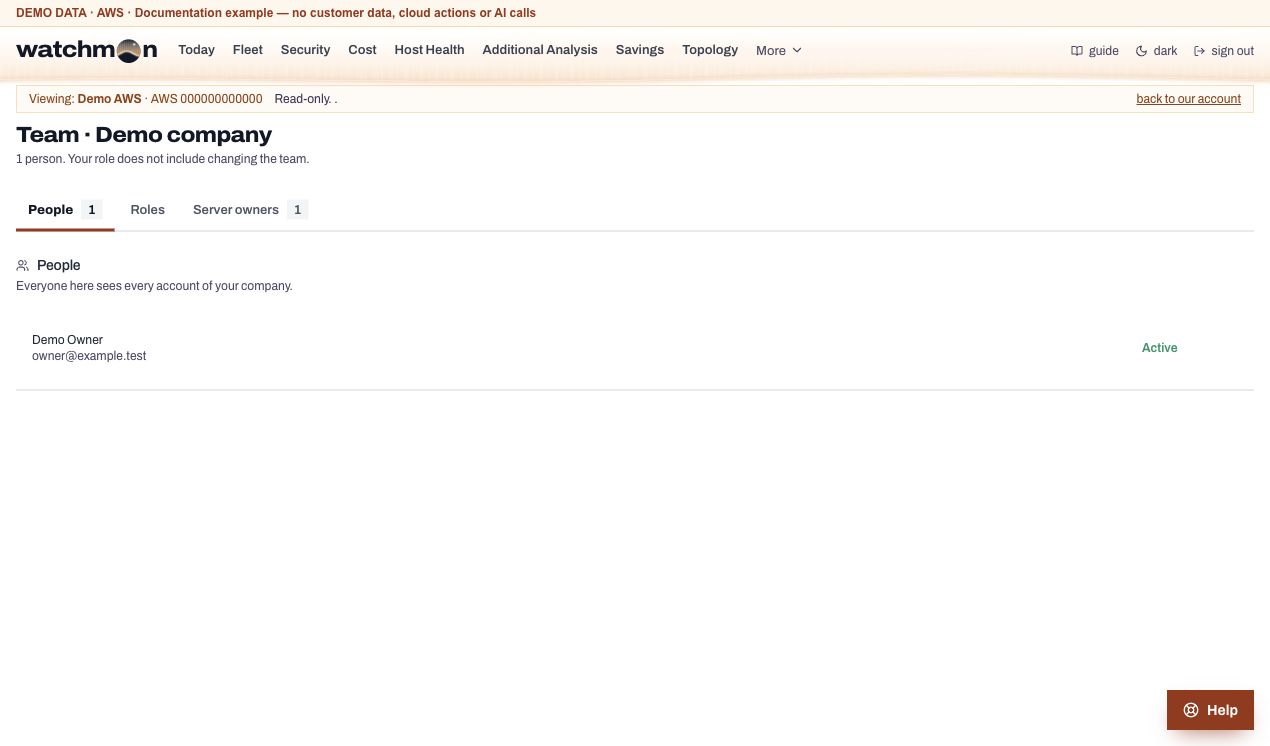
People
Invite someone by email with a role, change a role, switch a person off, remove them, reset their sign-in app
Roles
What each role can see and do; make your own roles
NeauraBuild access
Give our staff a time-limited access key, approve their requests, revoke keys. See NeauraBuild access keys.
Server owners
Who owns each server: they get its idle warnings, can start and stop it, and see it on Fleet. Its wake link, and acting on several servers at once
Rules that always hold
A company keeps at least one account owner; only an account owner makes or removes one.
Nobody changes their own role, and nobody gives a role that holds more than their own.
An address that already has a login in another company is refused.
Removing a person ends their access at once and takes them off the servers they owned.
Screen example
AWS · Team · Fictional demo data. Open image for full size; wide tables scroll inside the app.
Azure · Team · Fictional demo data. Open image for full size; wide tables scroll inside the app.
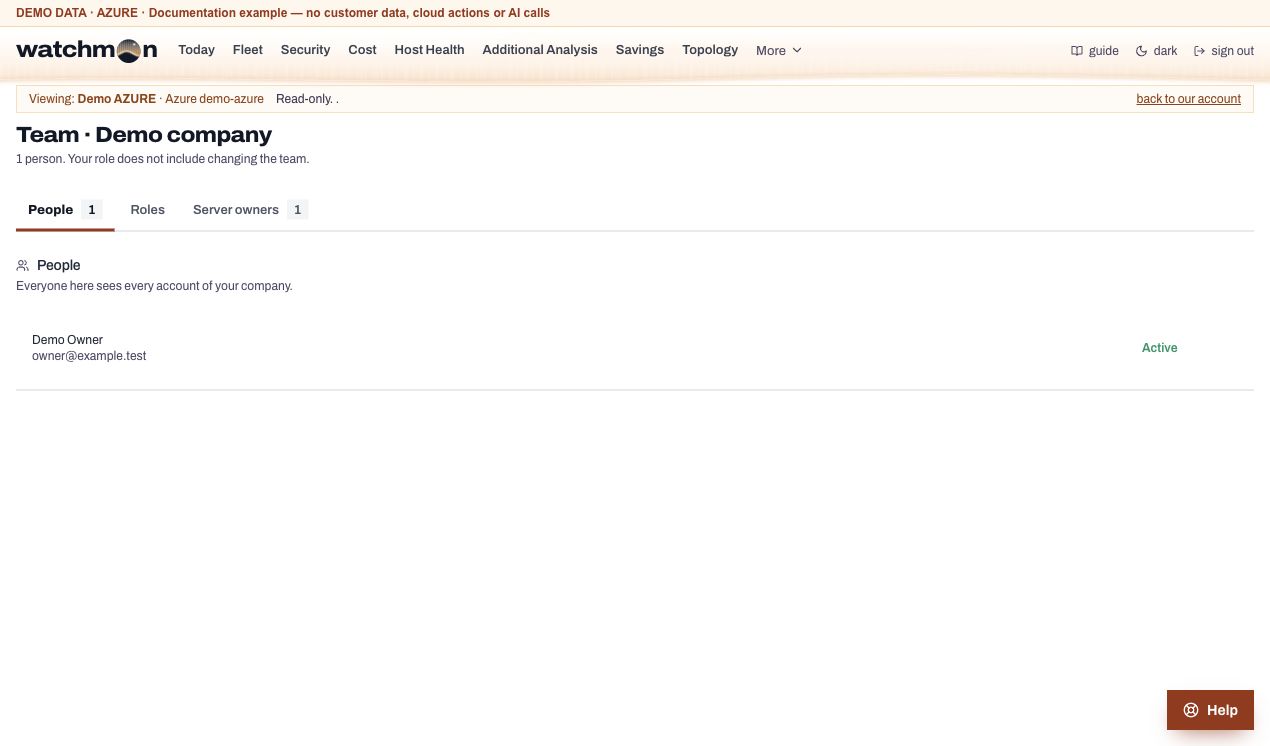
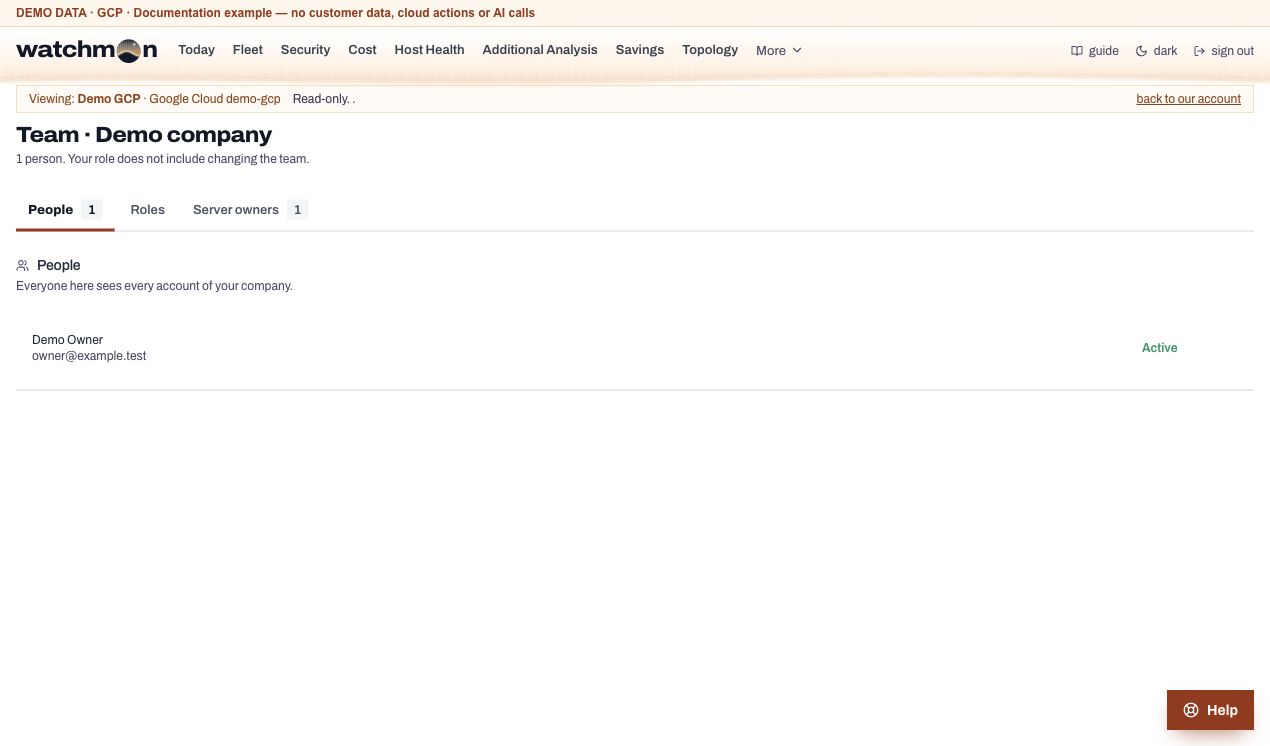
Google Cloud · Team · Fictional demo data. Open image for full size; wide tables scroll inside the app.
Billing and the trial
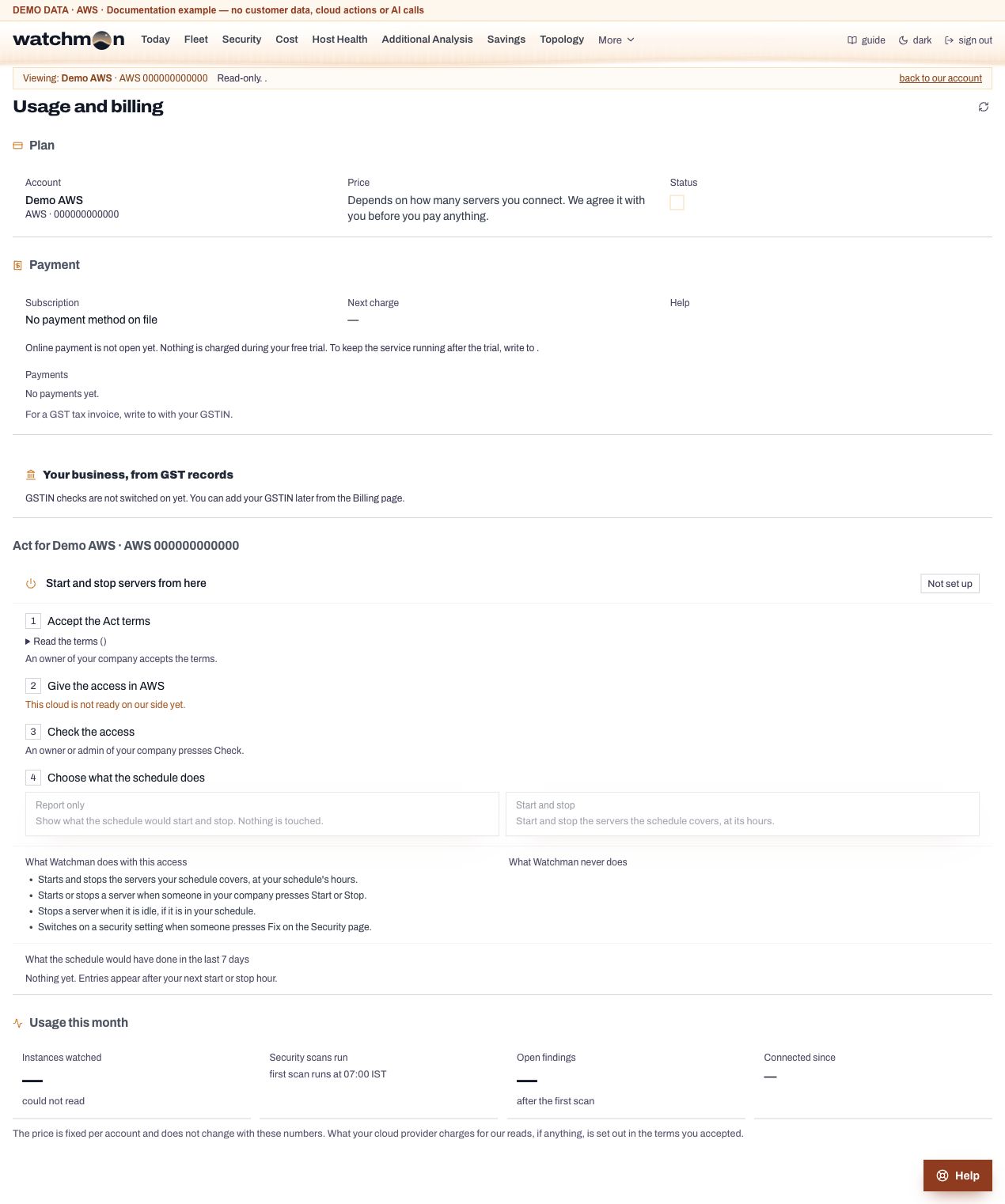
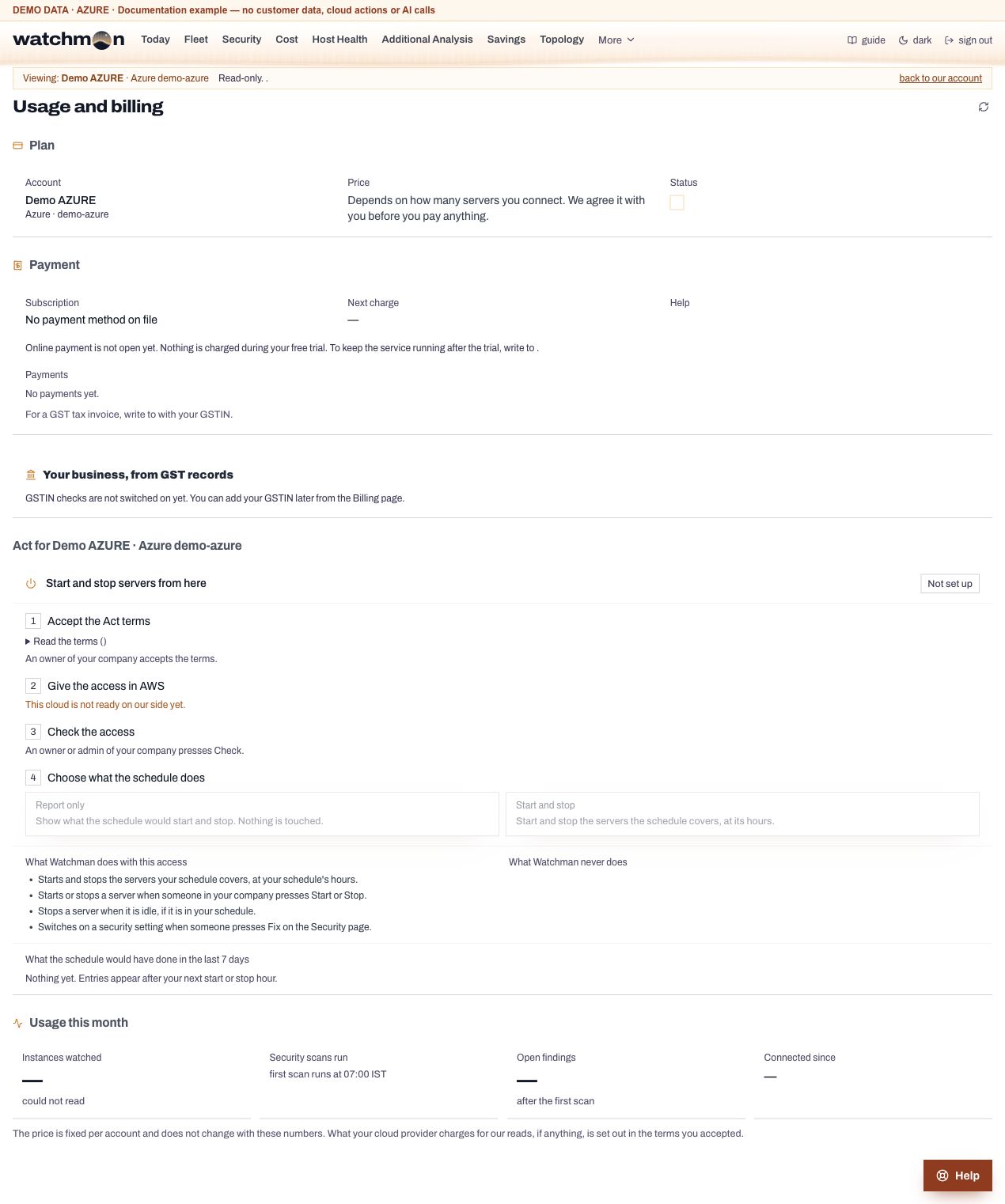
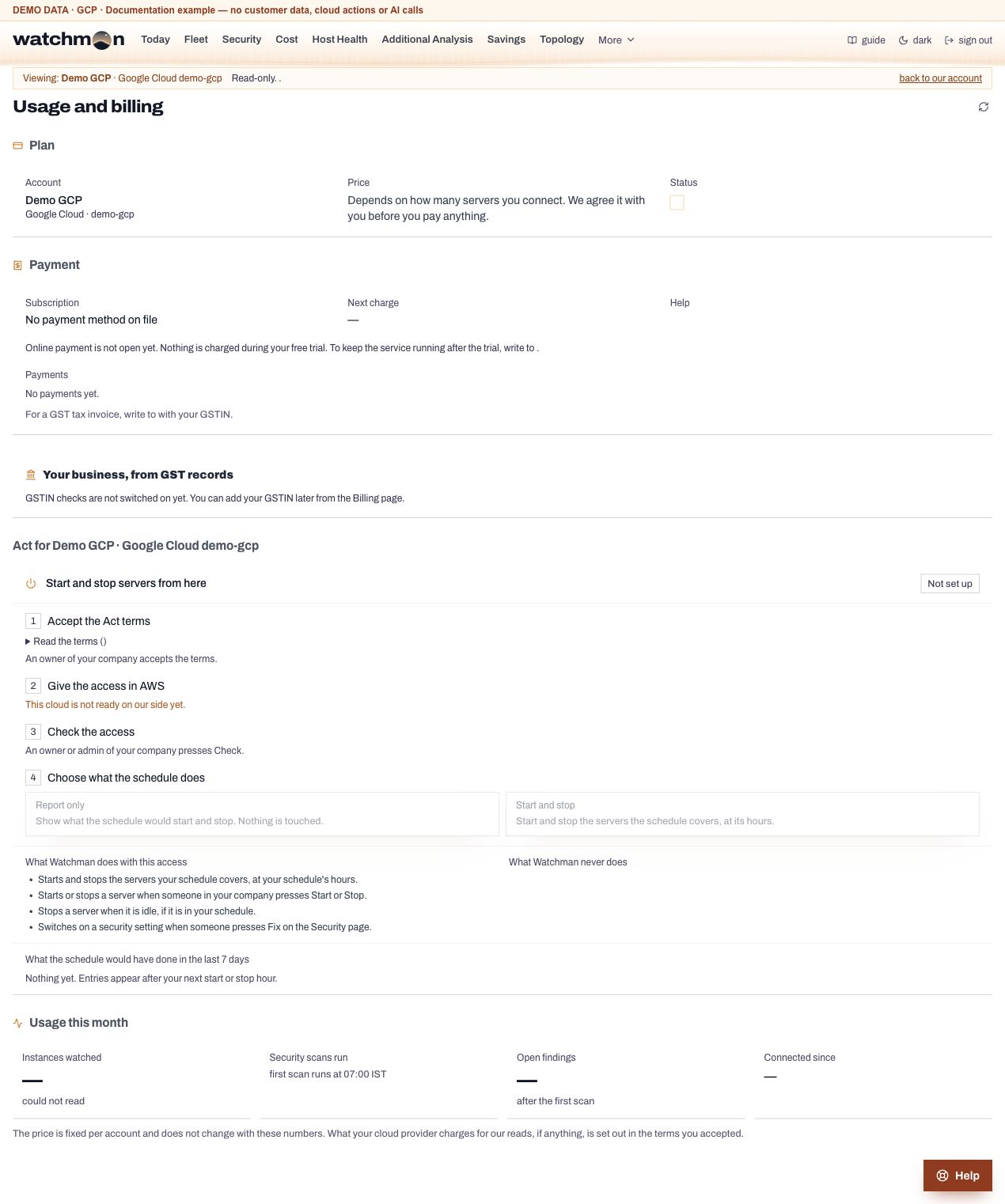
The first 7 days from your first connection are free and need no card. After that, the price depends on how many servers you connect. We agree it with you in writing before you pay anything. The doorbell add-on is priced the same way.
If a trial ends without a subscription, you can still read the dashboards, but daily scans, scheduling, idle stops and Refresh pause. Nothing is deleted at once. We erase an unpaid trial account 90 days after the trial ends, and send one email at least 30 days before.
Once a price is agreed, you subscribe on the Billing page with a monthly mandate by UPI Autopay, card or net banking through our payment provider. Tax invoices come from NeauraBuild. Cancel on the same page at any time.
Screen example
AWS · Billing · Fictional demo data. Open image for full size; wide tables scroll inside the app.
Azure · Billing · Fictional demo data. Open image for full size; wide tables scroll inside the app.
Google Cloud · Billing · Fictional demo data. Open image for full size; wide tables scroll inside the app.
Help chat and support tickets
The Help chat
The Help button, bottom right on every page, answers questions about how Watchman works. It cannot see or change your account. A company can ask 40 questions a day. Before a question leaves, any server name, id or address you typed is replaced by a label; the line under each answer shows what was replaced. The AI switch in Settings turns it off.
Tickets
Press Raise a ticket in the chat or on the Support page. Give a subject, a description and how urgent it is (low, normal, urgent). The chat so far and the page you were on go with it. Our team replies on the ticket. You get the reply by email and on the Support page, where everyone in the company can follow, reply, close and reopen. A company may raise 20 tickets and send 100 replies a day. A closed ticket is deleted a year after it closed.
Caution
Never put passwords, access keys or card numbers in the chat or a ticket. NeauraBuild staff never ask for them.
Screen example
AWS · Support · Fictional demo data. Open image for full size; wide tables scroll inside the app.
Azure · Support · Fictional demo data. Open image for full size; wide tables scroll inside the app.
Google Cloud · Support · Fictional demo data. Open image for full size; wide tables scroll inside the app.
Set up Act: let Watchman start and stop servers
Act is a second permission, separate from the read-only one. It can start and stop servers, and nothing else. The Start and Stop buttons, schedules, idle stops, the wake link and the doorbell all need it.
Set it up
On the Fleet page, Schedule tab, under "Start and stop servers from here":
An owner accepts the Act terms. They say exactly what the permission allows and refuses.
Create the permission in your cloud.
Press Open AWS CloudFormation, tick the IAM box and press Create stack. The stack neaurabuild-control-plane-act makes the scoped action role. Manual Start and Stop on production needs the revised grant and two checks. Automatic production protections stay separate.
Press Open the Azure portal and create the second delegation the same way as the first. It gives a second app of ours the built-in role that can only power virtual machines on and off.
Run the commands the page shows. They create a custom role with exactly two permissions, start and stop, and grant it to Watchman's Act identity.
Press Check. Watchman proves the permission works and that it holds nothing more.
Choose report or act. Report only (the default) records what would happen. Start and stop lets Watchman act.
Choose the servers the schedule covers. Tag them auto-stop=true, or on Azure press Choose servers. See Tag your servers.
What Act never does
Act on live production automatically. Manual production access under the current terms is confirmed separately. A server left out of automation stays out.
Stop a server that counts as production automatically. See Production servers.
On Azure: act on a server with a lock (on it, its resource group or the subscription), a scale set member, or a server another service manages.
On Google Cloud: act on a managed group member, a server with local SSDs or with your own disk keys.
If you remove Act
Watchman notices the next time it is refused, goes back to report mode, writes it in the audit log and emails the company.
Note
Under the Act terms of 2 October 2026, Start, Stop and idle stop work on any server, tagged or not; the schedule still takes tagged servers only. To act on untagged servers, update an AWS Act stack made before that date from the current template. The page tells you.
The schedule
In act mode, servers tagged auto-stop=true stop at the stop hour every day and start at the start hour on working days that are not holidays.
The rules
Starts happen on working days that are not holidays, and only for servers Watchman itself stopped. A server a person stopped stays stopped, unless its setting "Start it even if someone turned it off" is on.
Stops happen every day.
Own times: a server with its own start and stop times (to the quarter hour) follows them instead of the company's hours. With "every day" it starts on weekends and holidays too.
Order: servers start in ascending start order (database first) and stop in descending order (web first), waiting for each tier.
The Schedule tab says when the schedule starts nothing today (a holiday or a day off). Report mode records each step as "would have" in the Audit log and on Savings.
Groups and Stop group
Give servers that work together a group name and a start order in their settings. Stop group stops the group tier by tier, waiting until each tier has stopped. A person's Stop on one member is refused while a member that should stop before it is still running.
How idle detection works
Every 15 minutes Watchman looks at each watched server's CPU and network. A server that stayed low for its whole idle time gets a warning. If nobody keeps it running, it is stopped.
Which servers are watched
Running servers tagged auto-stop=true, and untagged servers whose setting "Stop this server when it is idle" is on. Never live production, a server left out, a server whose idle checks are paused, or a server that counts as production (unless an account owner allowed it).
What counts as idle
Watchman reads CPU percent and network in 5-minute readings. Over the server's idle time (30 minutes unless the company or the server says 15, 45 or 60), every reading must be at or below both limits. One busy reading means the server is in use. One reading may be missing, but there must be at least two.
Limits come from, first match wins
Set where
1. The server's own limits
Server settings, Idle tab
2. The company's fixed limits
Settings, Idle rules, when "How the idle limits are chosen" is set to the company's (defaults CPU 10 percent, network 10 MB an hour)
3. Learned limits
Learned each night from the server's own last 7 days
4. Watchman's defaults
When nothing else applies
For two hours after a server starts, a learned limit stricter than the account's rule is raised to it, so a server is not called idle before it warms up. Network limits can be typed in KB or MB an hour.
Tip
A server behind its own load balancer (Azure) can be judged on its users' traffic through the load balancer instead of its own network, which background jobs keep busy. This is on by default in Idle rules.
See the check
Each server's row on Fleet shows its last check: idle or in use, the highest CPU and network it saw, and the limits. Every warning and stop keeps the readings behind it. Open them with See the readings on the Idle tab or the Audit entry.
The warning
The server's owners get an email with two buttons, Keep running and Stop now. For a server with no owner, the warning goes to people whose role receives warnings. Outside working hours and for on-demand servers, a copy also goes to the company's owners and power admins and to the addresses set in Idle rules.
Stop now stops it at once.
Keep running leaves it alone for the grace time (60 minutes by default). If it is still idle then, its people get one last warning. One server can be kept running at most 3 times a day (company setting). Each Keep running makes Watchman slower to call that server idle again.
No answer: after the warning time (15 minutes by default) the server is stopped in act mode, or the stop is recorded in report mode.
The last look before a stop
Just before stopping, Watchman checks again. The server is left running if:
any reading since the warning is above the limits the warning was issued on (if no new reading has arrived, it waits for one, an hour at most);
people used it through the doorbell, or its application had traffic in the last 2 minutes (company setting);
on AWS with Inside the server, someone typed or clicked on it since the warning (a remote session left open with nobody working does not count);
the warning email reached nobody;
the deadline passed more than an hour ago (the warning expires instead).
Turn off when quiet
A simpler rule you set per server: if every 5-minute network reading stays at or under 1 MB for the minutes chosen (15 to 240), the server is stopped with no warning and no email. It counts only when the server was up the whole time.
After hours and overnight
The rule is the same at every hour. Outside a server's working hours the warning also goes to the owners and power admins, and next morning the company gets one summary of what was stopped overnight.
On-demand servers
They stay asleep until a person, the wake link or the doorbell wakes them. Once it has been up for its idle time, it is warned when idle at any hour and stopped if nobody answers.
Production servers
Manual Start and Stop require the current Act setup and two checks for production.
Start or stop manually
Have an account owner accept the current Act terms and install the matching action grant. AWS connections made under older grants may still refuse Start and Stop on production.
Open Fleet and choose Start or Stop for a server in a valid state.
Review the exact server and action, then confirm.
Enter the code emailed for that action. A code for a different server or action cannot be reused.
Check the result in your cloud and the audit log. Missing access, a resource lock or the wrong server state can still block the action.
Automation protection
Manual permission does not enable automatic production stops. The automation checks protect servers tagged production and untagged servers. Live production stays protected from automatic actions. An older per-server idle exception, confirmed explicitly, is separate from manual Act access. Manual permission does not turn it on.
The same confirmation works for supported AWS EC2, Azure virtual machines and Google Compute Engine instances. Change managed service capacity through that service's own controls.
The wake link
A page per server that says whether it is asleep, wakes it with one press, and says where to connect.
Copy it from the server's settings (Doorbell and wake link tab) or from the Team page, Server owners tab, and send it to the people who use the server to bookmark. The server's listed owners can wake it, and so can anyone whose role starts servers. It only ever starts a server. The idle check puts it back to sleep.
Use it for servers people reach through a load balancer, such as development boxes, which the doorbell cannot front. Mark them on demand and send each developer the wake link of their box. On Server owners you can tick several servers and add an owner, mark them on demand, or copy all their wake links at once.
Set up the doorbell
A sleeping server saves money, but nobody can reach it. The doorbell is a small server in your own cloud account that holds a sleeping server's address and wakes it when someone connects.
Before you begin
An owner or admin switches the doorbell on in Settings, Modules. If it shows as not in your plan, raise a ticket.
Each server has one network card and a fixed public address: an Elastic IP on AWS, a Static Standard public IP on Azure. A server people reach only on your private network can get a stand-in address instead (below).
The setup lists every server. For one you cannot choose, it says why and how to fix it.
Set it up, on the Fleet page, Doorbell tab
Press Set up the doorbell and pick the servers.
Say who may wake them. Anyone (the server's own login still protects it), only from the network you are on now, or only from addresses you list. Name each address, such as Office, so the record reads "Someone at your office woke Test1 at 10:04".
An owner agrees to the doorbell terms.
Finish in your cloud.
Press Open AWS to finish, tick the IAM box and press Create stack. Every other value is filled in. The button works for two hours. Servers in different Availability Zones get one button each, because a doorbell sits in the same zone as its servers.
Press Sign in with Microsoft and finish, as an Owner of the servers' resource group. Your browser sets it all up, and your sign-in never reaches us. Servers in different virtual networks get one doorbell each, from one sign-in. Or paste the one script the page offers into Azure Cloud Shell.
Wait for "Your doorbell is on". It checks in within about five minutes.
Try it
With a server asleep, open its website or connect as you always do. A website shows "This server was asleep and is starting" and refreshes itself. SSH and Remote Desktop wait, then connect. In our tests Linux on AWS answered SSH about 7 seconds after the knock, Windows Remote Desktop about 15 seconds, and an Azure server took about 45 seconds.
Ports
The doorbell answers on 22 (SSH), 80 and 443 (web) and 3389 (Remote Desktop), plus up to 10 more ports you add in a server's settings. It does not answer other ports.
Servers on your private network
A server reached only through a VPN or a firewall has no public address of its own. The doorbell gives it a stand-in address on your network. People connect to the stand-in, or to a second name for the server ending in -wake that you add in your DNS. Once the doorbell checks in, its tab lists each stand-in with a Remote Desktop file, SSH and hosts lines and a Windows DNS script.
Change or turn off
The Doorbell tab has buttons to add or remove servers, change who may wake them, and turn it off. On AWS, adding or removing servers gives one line to paste into AWS CloudShell. Turning it off stops the doorbell at once. Every address moves back within five minutes, then the page links to the stack for you to delete.
Important
If a server's own firewall lets people in on a port only from certain addresses, it must also let the doorbell in on that port. The Doorbell tab names the server and the port.
How the doorbell works
A technical brief for your IT team. Visitors' traffic goes to the doorbell and then to your server, inside your network. None of it passes through Watchman.
One sleep and one wake
Asleep
The schedule or an idle check stops the server. Within a minute the doorbell moves the server's public address onto a spare private address of its own, so the address keeps answering.
Knock
Someone connects. A connection from an address you did not allow is closed at once. Otherwise the doorbell asks Watchman to start the server; Watchman checks the rules and starts it through Act.
Waking
The doorbell holds the visitor for up to five minutes while the server boots. After 10 seconds a website visitor sees a starting page that refreshes every 15 seconds.
Relay
As soon as the server answers on its private address, the doorbell connects to it inside your network and passes data both ways until the session ends.
Back to normal
Once the server runs and nothing has passed through the doorbell for two minutes, the address moves back. People then reach the server directly.
Limits
A server is woken at most once in 30 minutes and 4 times a day. Each source may hold 8 connections per server. A connection that sends nothing is dropped 60 seconds after the server answers.
How it is configured
One CloudFormation stack per Availability Zone, neaurabuild-doorbell-<zone>.
A small Arm server (t4g), Amazon Linux 2023, with its own public address and no Elastic IP of its own.
A firewall open on the doorbell's ports; who may wake a server is checked on every connection.
A role that can only see where servers and addresses are and move the addresses marked for the doorbell.
A small function that marks the addresses you chose and unmarks those that leave.
One small Arm server (Standard_B2pts_v2, Ubuntu 24.04) in your servers' resource group, with its own static public address.
A firewall open on the doorbell's ports.
One custom role usable only in that resource group, on the doorbell's own resources and each chosen server's card, address and firewall.
No login at all: no SSH key exists for it and SSH is switched off.
What the doorbell cannot do
Start, stop or delete a server (only Watchman starts one, through Act), or read your data or what visitors send.
Keys and what we keep
The setup carries a code that works once, within two hours. At first start the doorbell trades it for its own key, kept only on the doorbell; Watchman keeps a fingerprint of it. Turning the doorbell off cancels the key at once. For each knock Watchman records the server, the time, the visitor's address and the port, never what a visitor sends.
What it costs on your cloud bill
AWS list prices for Mumbai, read 1 October 2026, for a 730-hour month. You need one doorbell per Availability Zone, sized by the servers it looks after:
Servers in the zone
Size
Server
Public address
Disk
A month
1
t4g.nano
$2.04
$3.65
$0.73
$6.42 ≈ ₹533
2 to 3
t4g.small
$8.18
$3.65
$0.73
$12.56 ≈ ₹1,042
4 to 5
t4g.medium
$16.35
$3.65
$0.73
$20.73 ≈ ₹1,721
6 to 11
t4g.large
$32.70
$3.65
$0.73
$37.08 ≈ ₹3,078
Azure, Central India, read 30 September 2026: one doorbell per resource group, any number of servers: server $4.09, static address $3.65, disk $1.69, about $9.43 (₹783) a month. Rupees at ₹83 to the dollar. Prices can change.
Why it pays for itself
Take one t3.large in Mumbai, awake 10 hours a day on 22 working days instead of all month. Always on, it costs ₹5,429. Awake only when needed, ₹1,636 plus ₹533 for the doorbell. You save about ₹3,260 a month.
Inside the server (AWS)
AWS does not report how full a disk is or how much memory is in use. "Inside the server" is a third, optional permission that reads them.
An owner accepts the terms on the Host Health page.
Create the stackneaurabuild-control-plane-inside. It holds one fixed, read-only script (Linux and Windows) run through AWS Systems Manager; you can read it in the template.
An owner or admin presses Check.
Readings of disk, memory and swap arrive once an hour, show on Host Health, and are kept 14 days. The script reads nothing else and never changes anything. Watchman never runs a fix inside your server. Servers need the SSM agent, which most AWS images have.
It also lets the idle check ask a server whether anyone typed or clicked on it before stopping it.
Remove idle items (fix add-on)
Remove an idle public address or a disk attached to nothing, from the Cost page, one row at a time.
Off until your plan includes it. An owner accepts its terms on the Cost page, Savings tab. People whose role may delete idle items then see a button on the cleanup rows and the Fleet address table. A company can do 30 removals a day.
A disk is copied first. The first press makes a snapshot. Watchman deletes the disk only once the copy is complete. Watchman never deletes a snapshot.
Never touched: anything tagged watchman-keep=true, an attached disk, an attached address.
AWS: a fourth stack, neaurabuild-control-plane-fix, that can release an address, snapshot a disk and delete a disk, nothing else.
Azure: nothing is granted to us. You sign in with Microsoft and your own browser removes the item.
Your data and how long it is kept
What Watchman stores
Settings and descriptions of your cloud account (server ids, names, tags, security findings), usage and cost figures, your team's names and emails, and the record of who did what. It never stores application data and has no way to read it. Names, tags and findings can name people, so we treat them as personal data.
Where
In Mumbai, India, encrypted with customer-managed keys that rotate every year.
How long
Data
Kept
Cost figures, each day's security results, each day's backup summary
7 years
The record of who did what (audit log)
At least as long as the above
Disk and memory readings
14 days
Savings recommendation and billing proofs
No automatic expiry. Erasing your account removes them.
Support tickets
One year after they close
An unpaid trial account
Erased 90 days after the trial ended, after an email at least 30 days before
Deleting everything
On written request we delete everything stored about your account, your contact details included, within 30 days. Backups of our own stores lapse 35 days later.
Who else handles it
Amazon Web Services runs our servers and storage.
Email goes out through Microsoft's Azure Communication Services or Amazon's email service.
The cost advisor and the Help chat send text to an AI model run by a provider in the United States. See AI and your data.
Questions and grievances
Write to the Grievance Officer named on the sign-up page. We answer within 30 days.
AI and your data
Two features use an AI model: the cost advisor and the Help chat. Neither sends a name, id or address of yours.
What leaves, and what stays
Before any text goes to the model, Watchman replaces every server and resource name, id, IP address, host name, email address, account number and key it finds with a label such as name-1, id-2 or address-1. The model answers with the labels. Watchman puts the real values back only in the answer you see.
Cost advisor: the advisor section shows the exact text that was sent, the table of what stayed with us, and the answer as it came back.
Help chat: sends your question and the chat so far, nothing from your cloud. The line under each answer shows what was replaced.
Switching AI off
Go to Settings, Modules, AI. While it is off, nothing goes to the model. Tickets still work.
Advice is checked
The model ranks and explains. It never supplies a figure. Estimates come from Watchman's own checks, your cloud's own recommendations and checked service prices. Advice that names something Watchman did not send, or asks to delete something with no finding behind it, is left out, with the reason.
Screen example
AWS · AI Insights · Fictional demo data. Open image for full size; wide tables scroll inside the app.
Azure · AI Insights · Fictional demo data. Open image for full size; wide tables scroll inside the app.
Google Cloud · AI Insights · Fictional demo data. Open image for full size; wide tables scroll inside the app.
NeauraBuild access keys
Our staff cannot read your account's figures, findings, servers or audit log unless someone in your company gives them a key.
Without a key
Our staff see only your company's name, handle, cloud, status and plan, and nothing used to connect. A support ticket is read without a key, because it is you writing to us.
Give a key
Open the Team page, NeauraBuild access tab. Only people whose role may give access keys see it.
Choose how long and what for. 1, 4 or 24 hours, 3 days or 7 days; view (look only) or team (also add, change or remove people); and a reason.
Send the key to the person. It is shown once and must be used within 24 hours, by one person only.
Our staff can also ask for a key. Your key holders get an email, and approving the request gives the key. You can revoke any key at any time on the same tab.
What is recorded
Your audit log records every key given, used and revoked, and each time one of our staff views your account (at most one line an hour per person). Your owners are emailed every time one of our staff changes your team. We cannot make a key for ourselves.
Note
If your company has no owner left, one of our admins can still add a first owner without a key. Your audit log records it.
Roles and permissions
A role is a set of permissions. Watchman checks the permission, never the role's name, so a company's own roles work exactly like the built-in ones.
Built-in roles
Role
In short
Account owner
Everything, including the terms and who the account owners are.
Power admin
Everything except accepting terms and changing owners. Manages roles and access keys for NeauraBuild staff.
Admin
Runs the account: servers, security, cost, team, settings.
Finance
Cost, savings and billing, and the cost emails. The budget is set by admins.
Security officer
Security findings and the audit log; sets checks aside and accepts risks.
Member
Their tasks, their emails, Help and tickets, and the servers they own: sees them, starts and stops them, reads their history. No cost, security, backups or settings.
Viewer
Sees everything and may raise a ticket. Changes nothing.
Everyone, whatever their role, can open Today, Tasks, Brief (their own email choices) and Support. The Settings and Team pages are shown to the people who can change something on them. Today shows each person only the parts their role can see.
Server owners
A server owner is not a role. On the Team page, Server owners tab, an admin lists people against a server. The people listed get that server's idle warnings and its wake link, and can start and stop it from the Fleet page. A member sees only the servers they are listed against, and only those servers' history on the Audit page.
Listing someone as a server's owner takes nothing away from anyone else: account owners, power admins and admins still start and stop every server. To keep one server to its owners, turn on Only its server owners may start and stop it in that server's settings. Then only its listed owners and the account owners can press Start and Stop on it, or wake it. The idle check and the schedule still run as set.
What each role holds
Permission
Account owner
Power admin
Admin
Finance
Security officer
Member
Viewer
See
Servers and what state they are in
✓ yes
✓ yes
✓ yes
· no
✓ yes
· no
✓ yes
Cost and savings
✓ yes
✓ yes
✓ yes
✓ yes
· no
· no
✓ yes
Security findings, and Access and keys
✓ yes
✓ yes
✓ yes
· no
✓ yes
· no
✓ yes
Topology
✓ yes
✓ yes
✓ yes
· no
· no
· no
✓ yes
Backups
✓ yes
✓ yes
✓ yes
· no
· no
· no
✓ yes
Host health
✓ yes
✓ yes
✓ yes
· no
· no
· no
✓ yes
The audit log
✓ yes
✓ yes
✓ yes
✓ yes
✓ yes
· no
✓ yes
Billing
✓ yes
✓ yes
✓ yes
✓ yes
· no
· no
✓ yes
Everyday
Raise support tickets and use the Help chat
✓ yes
✓ yes
✓ yes
✓ yes
✓ yes
✓ yes
✓ yes
Create tasks and work on their own
✓ yes
✓ yes
✓ yes
✓ yes
✓ yes
✓ yes
· no
Servers
Start and stop servers
✓ yes
✓ yes
✓ yes
· no
· no
· no
· no
See, start and stop the servers they own, and read their history
✓ yes
✓ yes
✓ yes
· no
· no
✓ yes
· no
Server schedules, idle limits and owners; report or act; add-on checks
✓ yes
✓ yes
✓ yes
· no
· no
· no
· no
The doorbell: its servers, who may wake them, launch, turn off
✓ yes
✓ yes
✓ yes
· no
· no
· no
· no
Security
Set a check aside, accept a risk
✓ yes
✓ yes
✓ yes
· no
✓ yes
· no
· no
Reopen an accepted risk
✓ yes
✓ yes
· no
· no
· no
· no
· no
Run a security fix
✓ yes
✓ yes
✓ yes
· no
· no
· no
· no
Cost
Set the budget (account owners, power admins and admins only)
✓ yes
✓ yes
✓ yes
· no
· no
· no
· no
Run the AI advisor
✓ yes
✓ yes
✓ yes
· no
· no
· no
· no
Delete idle addresses and unattached disks
✓ yes
✓ yes
✓ yes
· no
· no
· no
· no
Company
Assign tasks to others, edit any, delete
✓ yes
✓ yes
✓ yes
· no
· no
· no
· no
Invite, change and remove people
✓ yes
✓ yes
✓ yes
· no
· no
· no
· no
Hours, holidays, modules, email timings, the AI switch
✓ yes
✓ yes
✓ yes
· no
· no
· no
· no
Add a cloud account, the GSTIN, the setup link
✓ yes
✓ yes
✓ yes
· no
· no
· no
· no
Subscribe and cancel
✓ yes
✓ yes
✓ yes
· no
· no
· no
· no
Create and change roles
✓ yes
✓ yes
· no
· no
· no
· no
· no
Give NeauraBuild staff an access key, and revoke it
✓ yes
✓ yes
· no
· no
· no
· no
· no
Account owner only
Accept the terms of an add-on, which binds the company
✓ yes
· no
· no
· no
· no
· no
· no
Make or remove an account owner
✓ yes
· no
· no
· no
· no
· no
· no
Emails received
The morning brief
✓ yes
✓ yes
✓ yes
· no
· no
· no
· no
Security scan results and reminders
✓ yes
✓ yes
✓ yes
· no
✓ yes
· no
· no
Budget and spike alerts
✓ yes
✓ yes
✓ yes
✓ yes
· no
· no
· no
Idle, disk and memory warnings
✓ yes
✓ yes
✓ yes
· no
· no
· no
· no
What was started, stopped or switched off
✓ yes
✓ yes
✓ yes
· no
· no
· no
· no
A copy of every idle warning outside working hours and for on-demand servers
✓ yes
✓ yes
· no
· no
· no
· no
· no
Your own roles
People whose role manages roles (owners and power admins) can make up to 20 roles on the Team page, Roles tab, by ticking permissions. Two rules: nobody builds or hands out a role that holds more than their own, and the budget and the owner-only permissions can never be given to a company role. A change applies from the person's next click.
Rules for every role
Accepting terms and making or removing account owners are for account owners only, because they bind the company.
Nobody changes their own role, and the company always keeps at least one account owner.
A module switched off in Settings is hidden for everyone.
Company emails go to the people whose role receives them, unless they switched that email off, and always to the extra addresses in Settings.
Every company setting, its default, and what it changes. Times are in the company's time zone. Change them on the Settings page.
Modules
Setting
Default
Security
On
Cost
On
Savings
On
Topology
On
Backups
On
Host health
On
Tasks
On
Morning brief
On
AI: the cost advisor and the Help chat
On
Doorbell: wake a sleeping server when someone connects to it
Off
Emails and timings
Setting
Default
Morning brief
Every day
Morning brief sent at
07:30
Security scan runs at
07:00
Security scan email
When findings change, and a weekly summary
Reminders while a critical finding is open
09:00, 14:00, 19:00
Cost alerts sent at
09:00
Email when the budget is nearly used, and when it is used
On
The first budget email at this percent
80 percent
Email when the month is on course to go over budget
On
Email on a day that costs far more than the week before
On
Email when a disk is about to fill
On
Disk forecast sent at
09:00
Warn this many days before a disk fills
5 days
Email when a server runs short of memory
On
Email when a key, secret or certificate is about to expire
On
Key and certificate reminders sent at
09:00
Weekly task digest
Monday
Task digest sent at
09:00
Morning summary of servers stopped overnight for being idle
On
Extra addresses that always receive company emails
None
Idle rules
Setting
Default
Minutes between an idle warning and the stop
15 minutes
Minutes a server is left alone after Keep running
60 minutes
Most times a day one server can be kept running
3 times
A server counts as idle after this long at low use
30 minutes
How the idle limits are chosen
Learn each server's normal use from its last 7 days, and use the limits below until then
Idle when CPU stays at or below this percent (100 leaves CPU out: only network decides)
10 percent
Idle when network stays at or below this much an hour
10 MB an hour
Just before an idle stop, ask the server itself whether anyone typed or clicked on it (AWS, with Inside the server set up)
On
Traffic to a server's application within this long keeps it running
2 minutes
Data people send through the doorbell in 10 minutes that keeps a server running, in KB
64 KB
For a server behind its own load balancer, judge its network on the traffic through the load balancer (its users), not on the server's own network (Azure)
On
Also send a copy of idle warnings outside working hours and for on-demand servers to
None
Note
Your plan, set by NeauraBuild, can withhold a module or lock a group of settings. A locked group shows its values and cannot be changed.
Emails Watchman sends
Who gets each email, and when. Times are the defaults, in the company's time zone; change them in Settings.
Email
When
Who gets it
Sign-in link
When you ask for one
You
Morning brief
07:30 daily
Roles that receive the brief
Security scan
07:00, when findings change, and a weekly summary
Roles that receive security email
Critical finding reminder
09:00, 14:00, 19:00 while a critical finding is open
Roles that receive security email
Budget and projection
09:00, at 80 percent, 100 percent and on course to go over, once a month each
Roles that receive cost email
Cost spike
09:00, once per spike day
Roles that receive cost email
Idle warning
When a server is idle
The server's owners, else roles that receive warnings; copies outside working hours
Overnight summary
The morning after servers were stopped overnight
Roles that receive actions
Disk forecast
09:00, when a disk fills within 5 days or is at 92 percent
Roles that receive warnings
Memory pressure
When memory or swap stays high, once a day per server
Roles that receive warnings
Keys and certificates due
09:00, at 30, 14, 7 and 0 days
Roles that receive security email
Untagged servers
Once a week while any server lacks an Environment tag
Owners and admins
Act or an add-on removed
When Watchman finds its permission gone
Roles that receive actions
Group stop finished
After Stop group
Roles that receive actions
Production action code
When you confirm a manual Start or Stop of a production server under the current Act terms, or a separate, permitted idle exception
That person
Task assigned, weekly tasks
When assigned; Monday 09:00
The person assigned
Ticket reply
When we reply
Whoever raised the ticket
Access key request
When our staff ask for a key
People who may give keys
Team changed by NeauraBuild staff
Each time
The company's owners
Each person can switch off kinds of email on the Brief page. Extra addresses in Settings always receive every company email.
Limits and timings
What
Limit
Accounts per company
20
Company roles
20
Sign-in link
15 minutes, once
A sign-in
7 days
Sign-in links you can ask for
5 an hour
Idle check
Every 15 minutes, on 5-minute readings
Security Refresh
Once every 5 minutes per account
Backups read again
Every 3 hours; Refresh once every 5 minutes
Cost figures read from your cloud
Daily at 04:30 and 16:30, and hourly for a pull in progress
AI advisor runs
3 a day per company
Help chat questions
40 a day per company
Support tickets and replies
20 tickets and 100 replies a day per company
Fix add-on removals
30 a day per company
Doorbell wakes
Once in 30 minutes, 4 a day per server
Doorbell extra ports
10 per server
Allowed addresses per server
20
GSTIN lookups
5 a day per company
Audit export
10,000 rows
Access keys for NeauraBuild staff
Used within 24 hours; last 1 hour to 7 days
Glossary
Account
One AWS account, Azure subscription or Google Cloud project.
Act
The separate permission that lets Watchman start and stop servers, and nothing else.
Act mode / report mode
Whether Watchman acts, or only records what it would have done.
auto-stop
The tag (value true) that puts a server in the schedule and under idle checks.
Availability Zone
One of AWS's separate data centres in a region. A doorbell looks after servers in its own zone.
Delegation
Azure Lighthouse's way of giving another company a role on your subscription. You can delete it at any time.
Doorbell
A small server in your account that holds a sleeping server's address and wakes it when someone connects.
Elastic IP / static IP
A public address that stays the same while a server sleeps.
Environment
The tag that says what a server is for. Production, or no tag at all, means never stopped automatically.
Finding
One thing a security check found, with a severity.
Grace
The time a server is left alone after Keep running.
GSTIN
Your GST number, used to fill in your legal name and address.
Idle time
How long every reading must stay at or below the limits before a server counts as idle.
Knock
A connection reaching the doorbell, which then asks Watchman to start the server.
Live production
Environment=production and Lifecycle=active. Protected from automatic actions. A manual action under the current Act access needs two checks.
On demand
A server kept asleep until someone needs it.
Quiet stop
Stopping a server with no warning after a set time with no network traffic.
Relay
The doorbell passing a held connection to the awake server over your private network.
Stack
A set of AWS resources made together from one template. Deleting the stack removes them all.
Start order
1 to 99. Lower starts first and stops last.
Wake link
A page that wakes one server with one press.
Why didn't my server stop?
Watchman writes the reason whenever it leaves a server running. Find it on the server's row on Fleet (last idle check), on the Idle tab, or in the Audit log. Here is what each reason means.
Reason shown
What it means and what to do
no Environment tag: counts as production until tagged
Environment production and Lifecycle active. Automatic actions are protected; manual Act access needs confirmation and an emailed code.
network reached … / CPU reached …
A reading in its idle time was above the limit: the server was in use. Check its limits in its settings.
its stop hour
The schedule stops it at its stop hour instead.
a warning is open
A warning is already waiting for an answer.
idle checks are paused
Switch them back on in its settings, Idle tab.
on-demand, woke within its idle time
Just woken; it gets its idle time first.
its readings could not be read
The cloud returned no figures. Check again next quarter hour; for a new server, wait for readings.
the warning email reached nobody
Watchman never stops a server nobody was told about. Give it an owner, and check the people's email choices.
the warning ran out over an hour ago
Old warnings are never acted on.
in use again since the warning
The last look found a busy reading, doorbell use, application traffic or someone at the keyboard.
we did not stop it
This is about a start. A person stopped it, so the schedule leaves it stopped. Turn on "Start it even if someone turned it off" if it should start anyway.
this account is not active
The trial ended without a subscription; automation pauses.
Checklist
Is the account in act mode? In report mode nothing is stopped. See Fleet, Schedule tab.
Is the server watched: tagged auto-stop=true, or "Stop this server when it is idle" on?
Does it have an Environment tag that is not production?
Is it set to Leave out?
Are its limits right for its normal load? A learned limit follows the last 7 days; set the server's own limits if it never looks idle.
Did the warning reach someone, and did they press Keep running?
Common problems
I can't sign in
Use watchman.neaurabuild.com only.
Tick "I'm not a robot" before pressing Send sign-in link; the tick runs out after about 10 minutes.
Open the newest link; each works once, for 15 minutes.
Lost the authenticator? Use a backup code, or ask an admin to reset it.
Connecting keeps waiting
AWS: the stack must be in Asia Pacific (Mumbai), or type your account ID in the box the page shows.
Azure: pages may say "still applying" for up to half an hour after the delegation is made.
Azure: "an administrator must approve" means your IT team approves our sign-in app once.
Cost shows nothing or is behind
AWS: Cost Explorer must be on; the first figures come about a day later.
Figures run through yesterday; the line under the title says which day. On the 1st, the new month has nothing posted yet.
Google Cloud without the billing export shows an estimate.
Start or Stop is refused
Live production, a server left out, or on Azure a lock on the server, its group or the subscription.
A group member, while one that stops before it is still running. Use Stop group.
A production server asks for the emailed code first.
"Act removed": the Act stack or delegation was deleted. Set it up again on the Schedule tab.
The doorbell does not wake a server
The account must be in act mode, with Act connected.
The visitor's address must be allowed. A refused knock is in the Audit log.
A server woken in the last 30 minutes, or 4 times today, is not woken again.
The server's own firewall must let the doorbell in on that port.
Azure: "quota" in the error means the region needs more vCPU quota for the doorbell's size; raise it in the Azure portal.
Backups say "update the stack"
The AWS read-only stack was made before backup reads were added. Update it from the link on the page.
Frequently asked questions
Can Watchman see my data?
No. It reads settings, sizes, tags, usage and cost. It cannot read files, databases or application data. Credentials for service connections you approve are encrypted and never shown.
Can Watchman stop a production server?
Not automatically. A server tagged production, or with no Environment tag, is never stopped on a timer, when idle or when quiet. A person's Stop asks for an emailed code. Under the current Act access, a person can start or stop it after confirming and entering an emailed code tied to that action. The automatic protection stays separate.
One server has no Environment tag. Does that stop automation for the others?
No. Only the untagged server is treated as production. Every tagged server stops as its settings say.
Will a server I stopped by hand come back in the morning?
No, unless its setting "Start it even if someone turned it off" is on.
Does the doorbell slow my server down?
No. Once the address is back on the server, people reach it directly.
What does Watchman cost on my cloud bill?
On AWS, Cost Explorer queries cost about ₹50 to ₹250 a month, plus the doorbell's server if you use it. Azure charges nothing for our reads.
Can I try it before allowing any action?
Yes. Read-only access shows every page. Act starts in report mode, which only records what would have happened.
How do I remove everything?
Turn the doorbell off and delete its stack, delete the Act, Inside and Fix stacks or delegations, then the read-only one. Ask us in writing to delete your stored data.
Who at NeauraBuild can see my account?
Nobody, without an access key from your company. Every view is in your audit log.
Review a scoped budget
Track budgets for an account, group, service or resource on the Cost page, Budgets tab.
Configure a budget
Drill to the scope in Deep Analysis and open Budget planning.
Enter a monthly budget and save it.
Open Budget review, assign an owner under Set up review alerts, enable review and save.
Check the recorded spend, the evidence date and the condition. To acknowledge an alert, note the next action.
Understand the evidence
Each budget uses its own scope and billing cutoff. Azure and Google Cloud resource budgets use detailed billing records. AWS service budgets use billing by service. An exact budget for one AWS resource needs a detailed billing export. Missing or estimated figures do not trigger alerts. Watchman checks overlapping budgets separately, so do not add their costs together.
If the spend, billing cutoff or rules change, review again. Naming an owner does not give them access or send them email. Budget review does not use AI or change anything in your cloud.
Screen example
AWS · Budget review · Fictional demo data. Open image for full size; wide tables scroll inside the app.
Azure · Budget review · Fictional demo data. Open image for full size; wide tables scroll inside the app.
Google Cloud · Budget review · Fictional demo data. Open image for full size; wide tables scroll inside the app.
Investigate a cost increase with AI
Open Cost change review. AI looks into the first increase on its own. For another group or project, choose AI findings.
You see confirmed changes in billed services next to possible causes, the evidence for them, missing history and recommended actions. Your connected cloud access supplies the compute inventory mapped today. Today's inventory alone cannot prove a past change, so the page says plainly when mappings, past usage or change logs are unavailable.
To adopt an action, choose Use in review draft, assign its owner and save. AI makes no changes in your cloud. If the evidence has not changed, you get the saved advice again, under the same company AI allowance and permissions.
Screen example
AWS · Cost change review · Fictional demo data. Open image for full size; wide tables scroll inside the app.
Azure · Cost change review · Fictional demo data. Open image for full size; wide tables scroll inside the app.
Google Cloud · Cost change review · Fictional demo data. Open image for full size; wide tables scroll inside the app.
Measure cloud cost per business result
Cloud cost divided by actual orders, transactions or active customers shows efficiency as your business grows.
Open Cost → Teams and units → Unit economics. Choose an AI suggestion or Add measure.
Name the measure and select its account, or its group or project.
Enter actual monthly volumes, or import a CSV with the columns month,count,through. Preview it and check the dates match billing. You can also set a target.
Save. Where the dates match, you get the cost per unit, and AI explains the saved results.
You confirm every suggestion. AI never invents business counts. Missing or zero volumes, estimates and different cutoffs get no ratio. If the evidence has not changed, you see the saved daily advice again, under your company's AI permissions and allowances.
Screen example
AWS · Unit economics · Fictional demo data. Open image for full size; wide tables scroll inside the app.
Azure · Unit economics · Fictional demo data. Open image for full size; wide tables scroll inside the app.
Google Cloud · Unit economics · Fictional demo data. Open image for full size; wide tables scroll inside the app.
Allocate service costs
Set a default for each group to cover most costs. Override single services that belong to another team or a shared pool.
Set the mappings
Enable Cost allocation for your company and open Cost → Teams and units → Cost allocation.
Open Map groups and service overrides. Assign group defaults.
Add a service override with its group or project and the exact billed service name from Deep Analysis. Choose a team or Shared pool.
Choose whether shared costs split proportionally or equally, then save.
Review Allocation evidence and export the report or evidence CSV.
Check the evidence
A service override wins over its group default. Each group and service maps once. The totals keep credits and match the same account billing. If detail is missing, cutoffs differ or totals do not match, allocation stops instead of quietly using the default. To fix it, remove an override or refresh billing. Mappings from other months stay saved.
This is showback, not an invoice. It adds no AI calls, emails or cloud changes. Amounts use the account's configured rupee conversion.
Screen example
AWS · Cost allocation · Fictional demo data. Open image for full size; wide tables scroll inside the app.
Azure · Cost allocation · Fictional demo data. Open image for full size; wide tables scroll inside the app.
Google Cloud · Cost allocation · Fictional demo data. Open image for full size; wide tables scroll inside the app.
Deep Analysis
Use this page
Open Cost → Analysis → Deep Analysis. Select a project or resource group, then a service or resource to drill down. Select a cell to see its billing cutoff and the evidence for the change.
Understand the result
Monthly total shows each month. Known total adds up the history that is available. The page marks partial months and estimates. A dash means no evidence, not zero.
Screen example
AWS · Deep Analysis · Fictional demo data. Open image for full size; wide tables scroll inside the app.
Azure · Deep Analysis · Fictional demo data. Open image for full size; wide tables scroll inside the app.
Google Cloud · Deep Analysis · Fictional demo data. Open image for full size; wide tables scroll inside the app.
Budget & forecast
Use this page
In Opportunities, select eligible actions you have reviewed and set their implementation dates. Save the selection, then open Budget planning. Enter and save monthly budgets if you need them.
Understand the result
Blue is the baseline. Green is the estimate for the selected actions from their implementation dates. Manual targets are separate scenarios. Savings can be smaller if prices are no longer valid or commitments stay in place. This page's baseline is a historical average. The month-end projection in Cost Intelligence uses its own adaptive daily model.
Screen example
AWS · Budget & forecast · Fictional demo data. Open image for full size; wide tables scroll inside the app.
Azure · Budget & forecast · Fictional demo data. Open image for full size; wide tables scroll inside the app.
Google Cloud · Budget & forecast · Fictional demo data. Open image for full size; wide tables scroll inside the app.
Optimization
Use this page
Open Cost → Savings ideas → Optimization. Check each resource, the proposed change, its usage evidence and its monthly estimate. Open the evidence before you make a change.
Understand the result
CPU, peak memory, IO, network and workload coverage all count. No memory reading does not mean low memory. An estimate goes into the forecast only once it has effective pricing and every obligation is known.
Screen example
AWS · Optimization · Fictional demo data. Open image for full size; wide tables scroll inside the app.
Azure · Optimization · Fictional demo data. Open image for full size; wide tables scroll inside the app.
Google Cloud · Optimization · Fictional demo data. Open image for full size; wide tables scroll inside the app.
Group scaling & workflows
Use this page
Set each server's group and start order in Fleet. Open Fleet → Group scaling, choose the group, set up its steps and check readiness before you allow changes.
Understand the result
Watchman checks the cloud's permissions, each resource's state, the sizes available and the dependency order. It confirms each resize finished from the cloud's own receipts. Protections for production and managed services still apply. A supported cloud does not mean every resource is eligible.
Screen example
AWS · Group scaling & workflows · Fictional demo data. Open image for full size; wide tables scroll inside the app.
Azure · Group scaling & workflows · Fictional demo data. Open image for full size; wide tables scroll inside the app.
Google Cloud · Group scaling & workflows · Fictional demo data. Open image for full size; wide tables scroll inside the app.
Commitment evidence
Use this page
Choose a billing month. Read each program's coverage and utilization apart from the billed charge types. If a report is unavailable, expand Evidence and setup.
Understand the result
AWS reservations and Savings Plans, Azure commitment reports and Google Cloud commitments each need the right billing access. No evidence, no eligible usage and an unavailable report mean different things. You still owe what a contract commits you to, even after you shrink a resource.
Screen example
AWS · Commitment evidence · Fictional demo data. Open image for full size; wide tables scroll inside the app.
Azure · Commitment evidence · Fictional demo data. Open image for full size; wide tables scroll inside the app.
Google Cloud · Commitment evidence · Fictional demo data. Open image for full size; wide tables scroll inside the app.
Opportunities
Use this page
Check priority, current usage, risk and the next step. If an action has no price, expand What is missing? Select only forecast-ready actions, choose dates, confirm you reviewed them and save.
Understand the result
Ranking by evidence readiness works without AI. Saved AI results can refine it, within your existing permissions and allowance. You cannot combine alternatives that overlap. A provider estimate or list price alone does not prove a cash saving you can make.
Screen example
AWS · Opportunities · Fictional demo data. Open image for full size; wide tables scroll inside the app.
Azure · Opportunities · Fictional demo data. Open image for full size; wide tables scroll inside the app.
Google Cloud · Opportunities · Fictional demo data. Open image for full size; wide tables scroll inside the app.
Kubernetes costs
Use this page
Export OpenCost allocations for EKS, AKS or GKE and keep the file private. Select Import cluster data, choose a connection name, a currency and the JSON file, then validate the preview and save.
Understand the result
Workload allocations are not cloud invoices. CPU, memory, storage, idle and shared costs must keep the basis they were worked out on. Idle cost you import is not a guaranteed saving.
Screen example
AWS · Kubernetes costs · Fictional demo data. Open image for full size; wide tables scroll inside the app.
Azure · Kubernetes costs · Fictional demo data. Open image for full size; wide tables scroll inside the app.
Google Cloud · Kubernetes costs · Fictional demo data. Open image for full size; wide tables scroll inside the app.
AI usage
Use this page
Open More → AI usage, if your role allows it. Check usage by feature, user and period before you ask for a fresh analysis.
Understand the result
Your company's AI permissions, masking, caching and allowances still apply. When you reach a limit, you can still see the source evidence, and new AI work stays pending.
Screen example
AWS · AI usage · Fictional demo data. Open image for full size; wide tables scroll inside the app.
Azure · AI usage · Fictional demo data. Open image for full size; wide tables scroll inside the app.
Google Cloud · AI usage · Fictional demo data. Open image for full size; wide tables scroll inside the app.
Connect databases and Databricks
Cloud databases
Open Cost → Savings ideas → Opportunities → Service connections → Connect a service.
Choose Cloud databases and Discover databases.
Select the databases you want analysed, then Connect selected.
Check reading coverage and refresh status. If access is missing, an account administrator must update the read-only connection before readings appear.
Watchman reads database metadata and usage through your existing AWS, Azure or Google Cloud connection. It does not query application tables.
Databricks workspace
Choose Databricks and paste the workspace browser link.
Choose Connect with Databricks and sign in as an approved integration user.
Select a billing SQL warehouse. Check what the scheduled queries will cost and the history access. If you have a view of your negotiated rates, add it.
Choose Connect & verify. Go back to the readings table once the background refresh finishes.
One-time setup
A Databricks account administrator registers a public OAuth app with the exact callback shown under Advanced setup and the all-apis and offline_access scopes. Save its client ID there. The approved user needs CAN USE on the warehouse, SELECT on system.billing.usage and system.billing.list_prices, and full history visibility for the scheduling checks. A private workspace must let Watchman reach it over the network.
Usage and effective pricing
DBU usage and published prices are not a reconciled invoice. To count a saving in the forecast, Watchman needs negotiated rates, infrastructure charges, the commitments you keep and a trial on a comparable workload. Use connected billing readers, or import pricing and trial evidence you have reviewed under Effective pricing & measured savings. The service catalogue lists the supported services. Not every SaaS vendor is covered.
Connections and refreshes make no AI calls. Credentials are encrypted and not shown in this guide.
Database connection steps
AWS · Database connection steps · Fictional demo data. These examples show read-only controls; a tenant administrator with the required permission can connect.
Azure · Database connection steps · Fictional demo data. These examples show read-only controls; a tenant administrator with the required permission can connect.
Google Cloud · Database connection steps · Fictional demo data. These examples show read-only controls; a tenant administrator with the required permission can connect.
Databricks sign-in and one-time setup
AWS · Databricks sign-in and one-time setup · Fictional demo data. These examples show read-only controls; a tenant administrator with the required permission can connect.
Azure · Databricks sign-in and one-time setup · Fictional demo data. These examples show read-only controls; a tenant administrator with the required permission can connect.
Google Cloud · Databricks sign-in and one-time setup · Fictional demo data. These examples show read-only controls; a tenant administrator with the required permission can connect.
Need more help? Use the Help button in Watchman, or raise a ticket on the Support page.
 n
n